Streaming with one monitor: where to put your chat
Streaming on a single monitor? Here are four practical ways to keep chat visible while you play — pop-out chat, an OBS dock, a phone as a second screen and text-to-speech.
6 min read
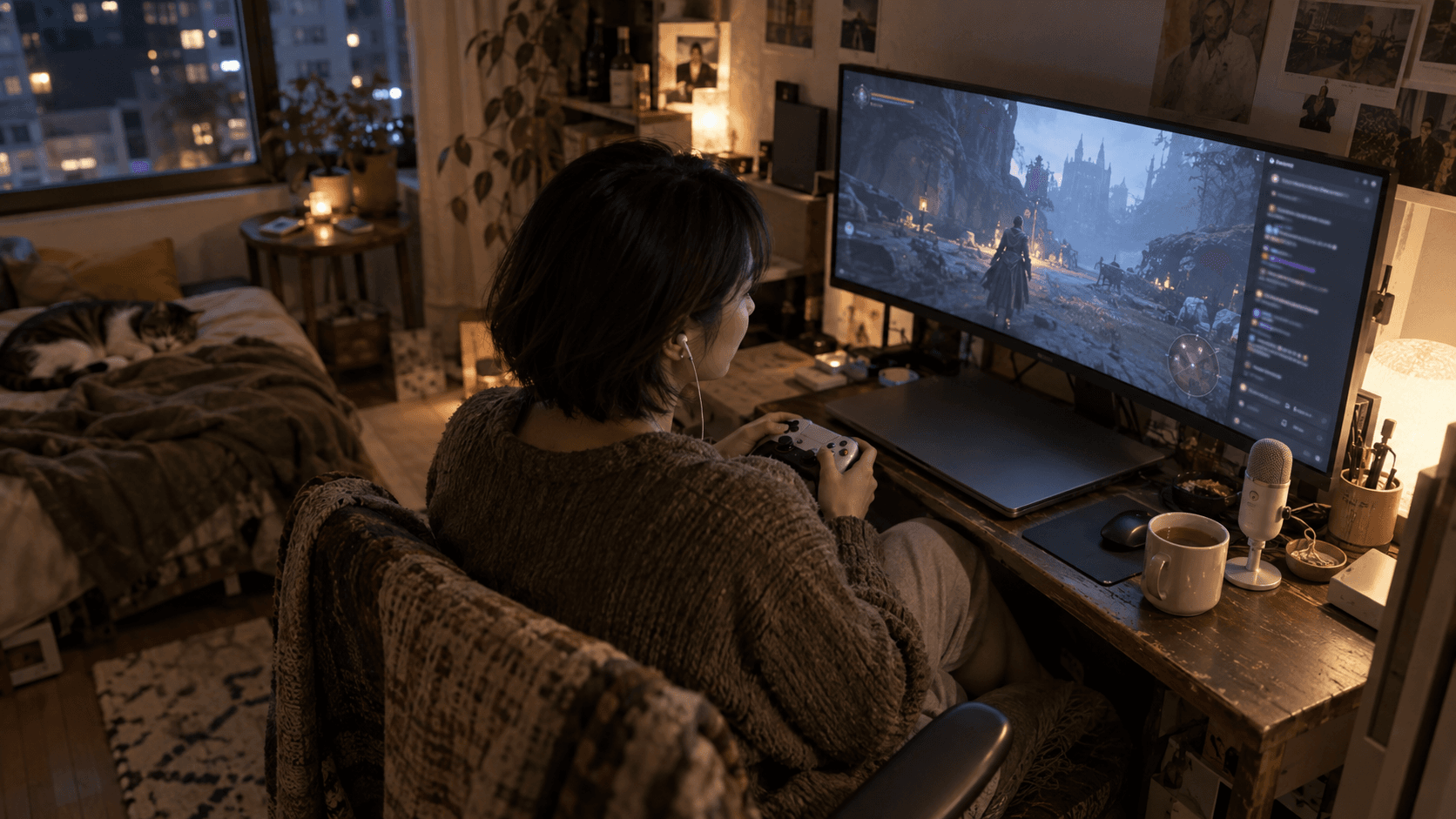
A second monitor is the most common upgrade streamers are told to buy. It is also not something everyone can afford, fit on their desk, or wants.
The problem a second monitor solves is simple: you need to see chat while you play. On a single screen, a full-screen game covers everything else, and alt-tabbing to check chat every minute is slow, distracting and sometimes crashes the game.
The good news is that you do not need a second monitor to keep up with chat. You need the right layout for what you stream.
The single-monitor problem
On one screen, three things compete for space:
- The game or content — ideally as large as possible.
- OBS — which you mostly need before and after the stream, not during it.
- Chat — which you need to glance at constantly.
Two settings make every option below easier:
- Run games in borderless windowed mode, not exclusive full screen. Alt-tabbing becomes instant, overlays and other windows can sit on top, and the game is less likely to minimise or crash when focus changes.
- Use Game Capture or Window Capture in OBS, not Display Capture. That way only the game is captured, so whatever else is on your screen — chat included — stays off your stream.
Four ways to fit chat on one screen
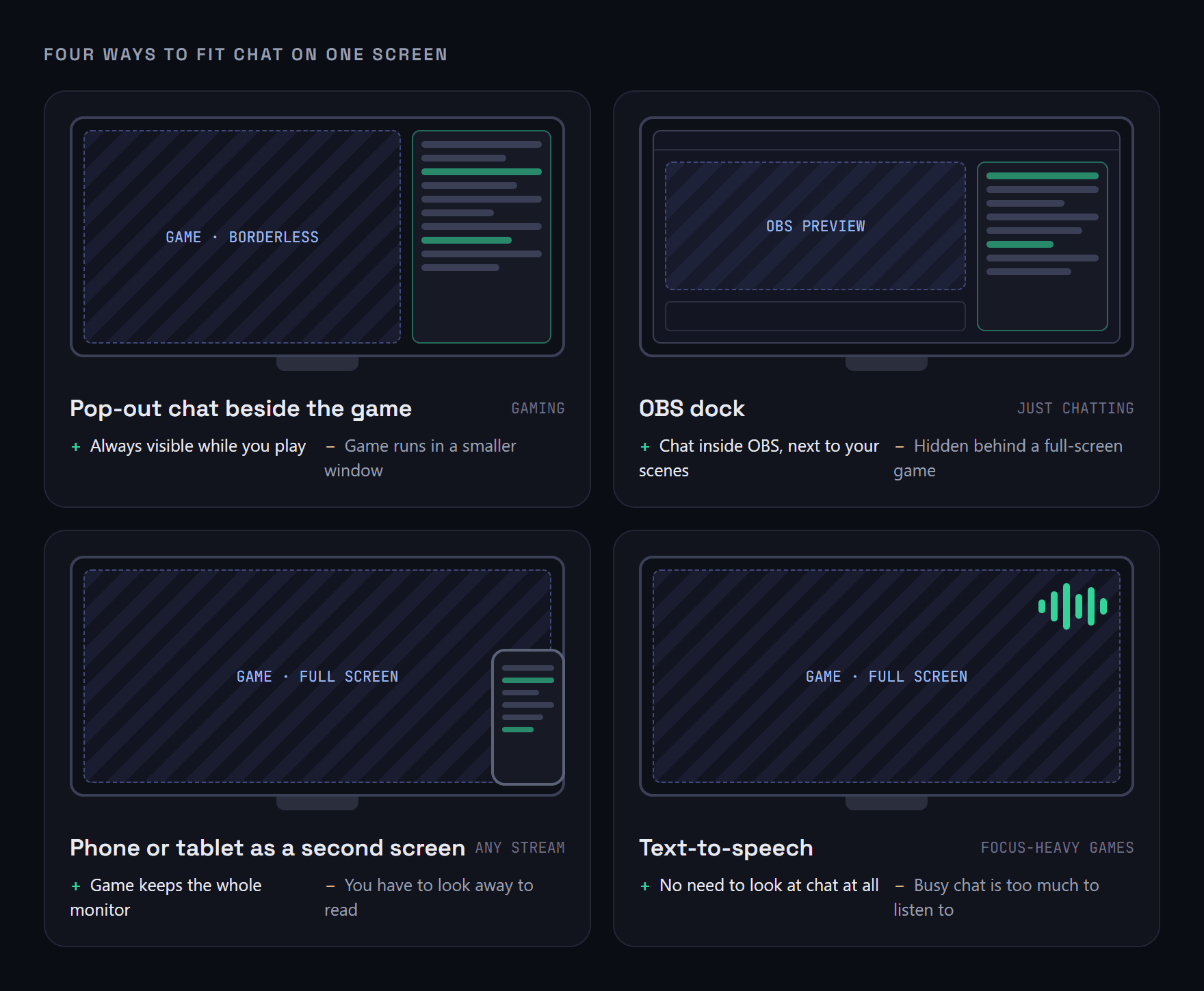
Pick the layout that matches what you stream. You can mix them — many streamers use a pop-out and text-to-speech together.
1. Pop-out chat beside the game
Best for: gaming streams.
Run the game in a borderless window that leaves a strip free on one side of the screen, then put a narrow chat window in that strip. On a 1920×1080 monitor, a game window around 1600 pixels wide leaves room for a readable chat column, and your stream still captures the game at full quality.
StreamBuddy's chat has a pop-out you can open from the chat panel. It is a standalone window with just the chat, which you can resize and place wherever it fits. It works with every platform you have connected, so even if you stream to Twitch and YouTube at once, you only need one strip of screen.
The trade-off is a slightly smaller game. For most games that is a fair price for never having to alt-tab.
2. An OBS dock
Best for: Just Chatting, art, music and anything where OBS stays on screen.
If you talk to camera or work in a creative app, OBS is often visible anyway. A dock puts chat inside the OBS window, next to your preview, scenes and sources. In OBS, open Docks → Custom Browser Docks, name it, and paste your StreamBuddy dock link. The dock stays where you put it every time you open OBS.
The trade-off: a dock is part of the OBS window, so it disappears behind a full-screen game. For gaming, pair it with one of the other options.
3. A phone or tablet as a second screen
Best for: any stream, especially full-screen games.
You probably already own a second screen — it is in your pocket. Open StreamBuddy in your phone or tablet's browser and stand it next to your monitor. No app to install, and it shows the same combined chat as your PC.
A few things make this work much better:
- Use a stand so the screen is upright and at eye level, not flat on the desk.
- Turn off auto-lock for the length of the stream, or keep the device plugged in.
- Turn on Do Not Disturb so notifications do not cover chat.
The trade-off is that you have to look away from the main screen to read, which takes a moment in fast games.
4. Text-to-speech
Best for: games that need your full attention.
If you cannot look away at all — competitive shooters, rhythm games, tough boss fights — have chat read to you. StreamBuddy's Text-to-speech setting adds a button to the chat panel that reads new messages aloud, so you hear chat through your headphones while your eyes stay on the game.
The trade-off: text-to-speech works best when chat is moving at a readable pace. On a very busy chat it becomes a constant stream of voices, and you will want to switch back to reading.
Which layout should you use?
| You stream... | Try first | Add if needed |
|---|---|---|
| Single-player or casual games | Pop-out beside a borderless game | Text-to-speech for intense moments |
| Competitive or full-screen games | Phone or tablet as a second screen | Text-to-speech |
| Just Chatting, art or music | OBS dock | Pop-out if you work in another app |
| IRL or from a console | Phone or tablet | Text-to-speech |
Making chat easier to read on a small space
Whatever layout you choose, chat on one screen gets less room than on a dedicated monitor. A few settings help:
- Raise the font size in StreamBuddy's chat settings so you can read chat at a glance from a normal sitting position.
- Hide what you do not need. Turn off event types you do not care about, like TikTok likes and joins, so real messages are not pushed off screen.
- Use highlight cards. First-time chatters, returning viewers and regulars are marked as they speak, so the messages that matter stand out even when you are only glancing. Turning first-time chatters into regulars explains why that matters.
- Let Big Streamer Mode read busy chat for you. When chat moves faster than you can follow, Big Streamer Mode summarises votes, questions and support into a few cards — far easier to take in at a glance than a scrolling feed.
Frequently asked questions
How do I see chat while streaming with one monitor?
Run your game in borderless windowed mode and put chat in a narrow pop-out window beside it, or use a phone or tablet as a second screen. If you cannot look away from the game, use text-to-speech to hear chat instead.
Can I stream with one monitor?
Yes. Plenty of streamers do. The key is capturing the game directly in OBS with Game Capture or Window Capture, so you can keep chat and other windows on screen without them appearing on your stream.
Will viewers see my chat window if it is on my screen?
Not if OBS uses Game Capture or Window Capture. Only the captured window goes to your stream. Display Capture records your whole screen, chat included, so avoid it on a single monitor.
What is an OBS dock?
A dock is a panel inside the OBS window. A Custom Browser Dock can show any web page, such as your chat, next to your scenes and sources. It is visible only to you, not to viewers.
Can I use my phone to read Twitch and YouTube chat at the same time?
Yes. StreamBuddy works in a mobile browser and shows chat from every platform you have connected in one feed, so a single phone can be your second screen for Twitch, YouTube, Kick, TikTok and Rumble.
Keep chat in view on one screen
StreamBuddy gives you a pop-out chat, an OBS dock, a mobile view and text-to-speech — with every platform you stream on in one feed.
Try StreamBuddy- single monitor
- stream setup
- obs dock
- chat popout
- text-to-speech