How to see TikTok Live chat on PC and in OBS
Streaming to TikTok from your computer? Here are the ways to read TikTok LIVE chat on PC, show it in OBS, and combine it with Twitch, YouTube and Kick.
6 min read
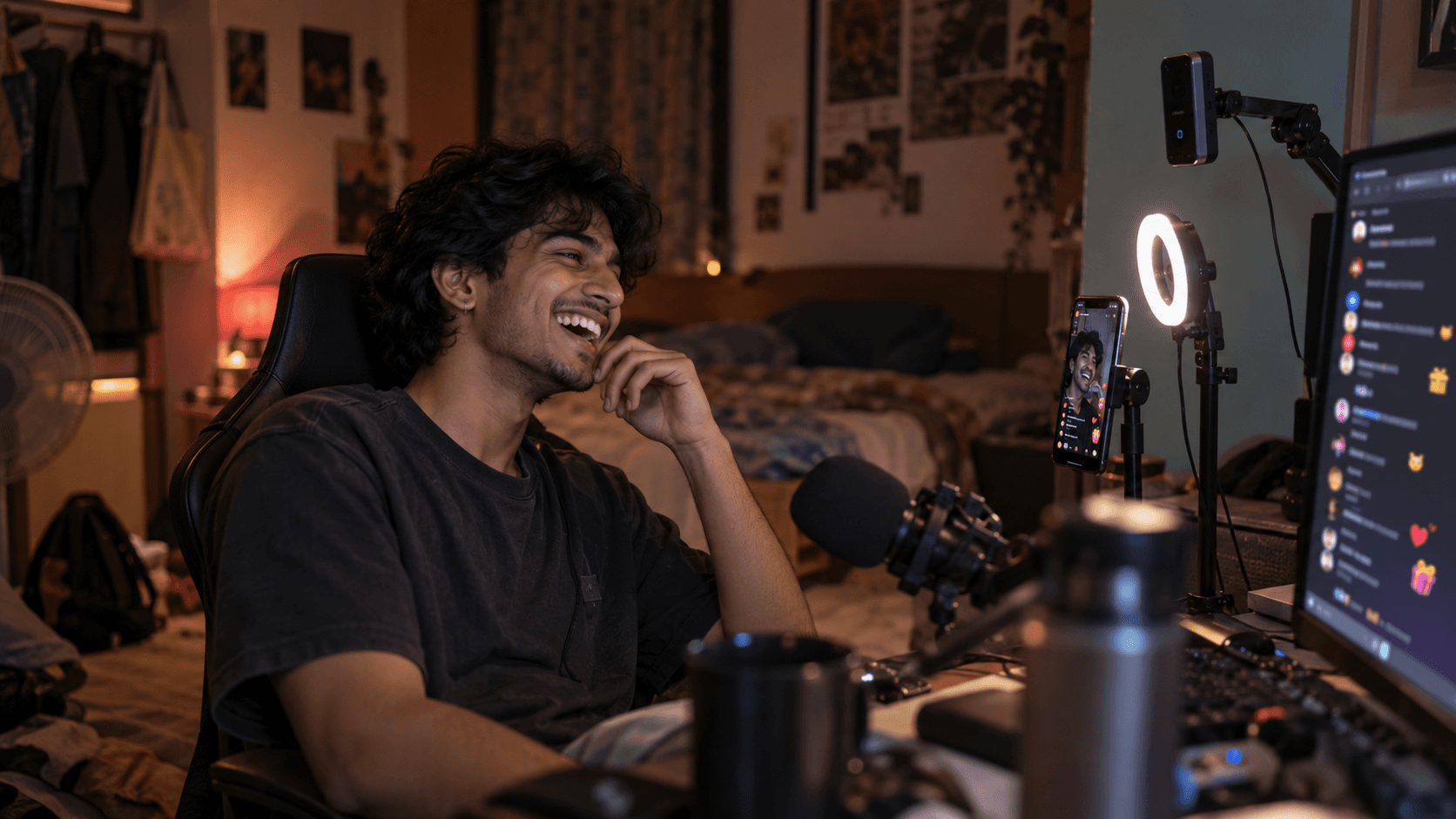
TikTok LIVE was designed around the phone in your hand. Comments float up over the video, gifts burst across the screen, and everything happens inside the app.
That works until you stream from a computer. Once you are using a webcam, a capture card or OBS, your TikTok chat is suddenly somewhere else — usually on a phone propped against the monitor, at an angle, with the screen dimming every few minutes.
This guide covers the ways to read TikTok Live chat on a PC, how to show it in OBS, and how to combine it with chat from Twitch, YouTube or Kick if you stream to more than one platform.
Before you start: streaming to TikTok from a PC
To go live on TikTok from a computer, your account needs to be eligible for LIVE — TikTok currently requires creators to be at least 18 and to meet a follower threshold — and you need one of two setups:
- TikTok LIVE Studio, TikTok's own desktop streaming app, or
- OBS or another encoder with a TikTok stream key, if your account has been given access to one.
TikTok's requirements change from time to time and vary by region, so check the current rules in the TikTok app if you are not sure you qualify.
Option 1: TikTok LIVE Studio's built-in chat
If you stream with TikTok LIVE Studio, chat is built in. Comments and gifts appear in a panel inside the app, next to your scene.
This is the simplest option if TikTok is the only platform you stream to and LIVE Studio is your only streaming app. It is less helpful if you use OBS for your scenes, because you end up running two streaming apps just to see chat.
Option 2: Your phone as a chat screen
Plenty of PC streamers keep the TikTok app open on a phone beside the keyboard. It costs nothing and shows everything TikTok shows.
The downsides are practical: a small screen at an awkward angle, a phone that dims or locks mid-stream, notifications popping up on top of chat, and no way to put that chat on your stream. If you multistream, it is also one more screen to watch.
Option 3: A chat tool that brings TikTok to your desktop
The third option is a tool that connects to your TikTok LIVE and shows the chat in a normal window on your PC — and, ideally, alongside your other platforms.
StreamBuddy does this. You connect your TikTok account once, and when you go live, your TikTok comments and events appear in StreamBuddy's chat feed, next to anything coming in from Twitch, YouTube, Kick or Rumble.
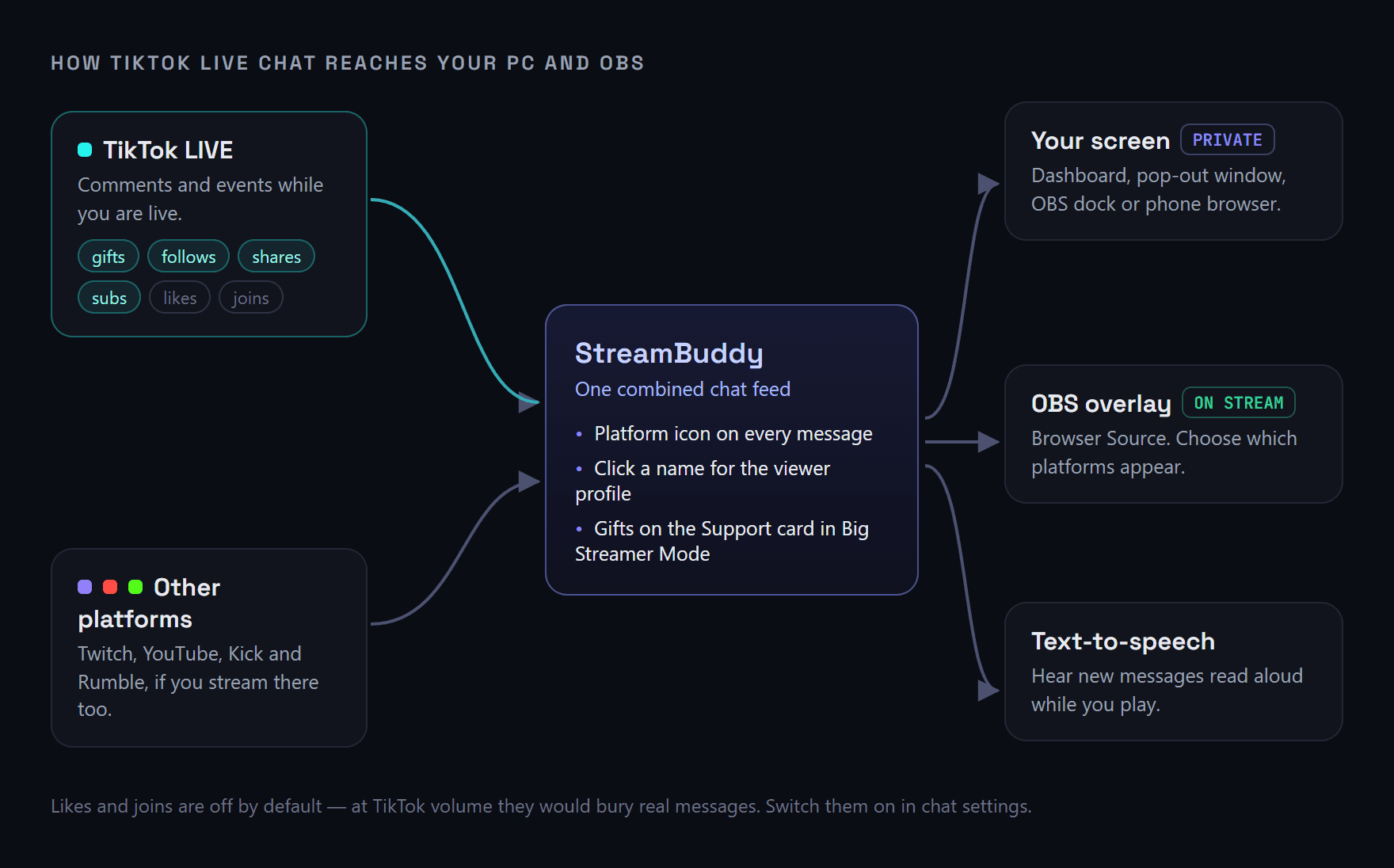
Where your TikTok chat goes once it reaches StreamBuddy. Likes and joins are off by default.
What you get:
- Chat in a proper window. Read TikTok chat in the StreamBuddy dashboard, a pop-out window you can place anywhere, or an OBS dock.
- TikTok events, filtered. Gifts, follows, shares and subscriptions show in the feed. Likes and joins are off by default because they arrive in huge numbers on TikTok, but you can switch any of them on or off in chat settings.
- Gifts you will not miss. When chat speeds up, Big Streamer Mode keeps TikTok gifts and subscriptions on its Support card for ten minutes.
- Text-to-speech. Have new messages read aloud so you can keep your eyes on the game.
How to set it up
- Sign in to StreamBuddy, open your connected accounts in settings and choose Connect TikTok.
- Sign in with your TikTok account to authorise the connection.
- Go live on TikTok the way you normally do — LIVE Studio or OBS.
- Open StreamBuddy. Your TikTok chat appears in the feed with a TikTok icon beside each message.
How to show TikTok chat in OBS
There are two different things people mean by "TikTok chat in OBS", and they use different tools.
For you: an OBS dock
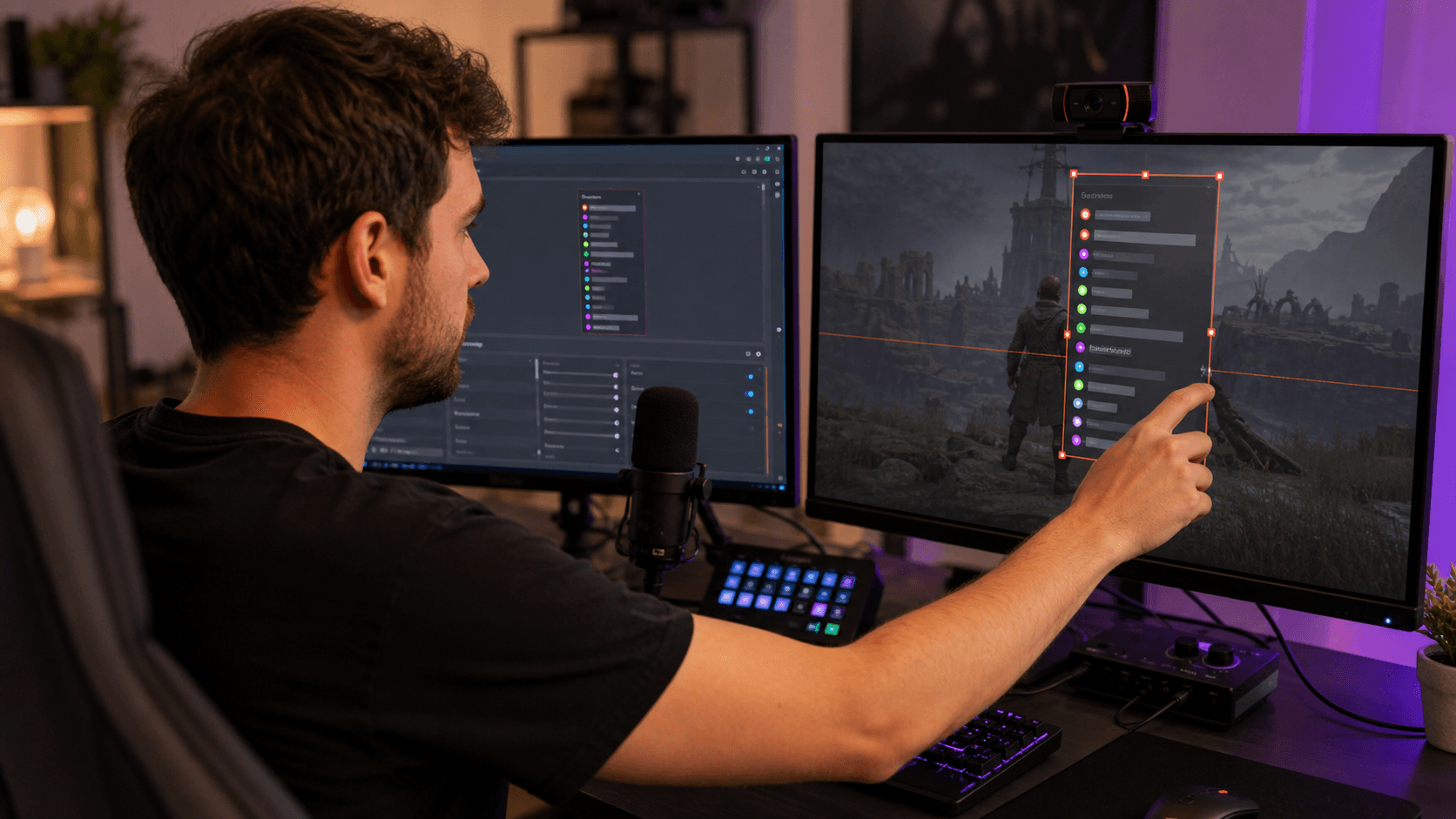
A dock is a panel inside the OBS window, visible only to you. It is the best way to read chat while streaming on a single screen. In OBS, open Docks → Custom Browser Docks, give it a name, and paste your StreamBuddy dock link. Chat now sits next to your scenes and sources.
For your viewers: a Browser Source overlay
To put chat on your stream, add a StreamBuddy overlay to your scene as a Browser Source. It has a transparent background, so messages sit on top of your gameplay or camera. You choose which platforms appear and how messages look.
The OBS overlay guide walks through the whole setup step by step, including sizing and troubleshooting.
Combining TikTok chat with Twitch, YouTube and Kick
If you stream to TikTok and another platform at the same time, the biggest win is reading everything in one place. With StreamBuddy, TikTok comments arrive in the same feed as your other chats, each tagged with its platform, so you can answer a TikTok viewer and a Twitch viewer in the same breath.
If you are new to that, how to combine your streaming chats into one feed explains the basics, and TikTok and Twitch chat together covers that pairing specifically.
Remembering TikTok viewers
TikTok chat in StreamBuddy is kept for each stream rather than long-term. After you go offline, StreamBuddy gives you a short End-of-stream notes review of the TikTok viewers who stood out, so you can write a note about anyone worth remembering. Your notes stay after that stream's chat is cleared.
Frequently asked questions
Can I see TikTok Live comments on my computer?
Yes. If you stream with TikTok LIVE Studio, comments appear in the app. If you use OBS or stream to several platforms, a chat tool like StreamBuddy shows TikTok comments in a window on your PC, alongside your other chats.
How do I add TikTok Live chat to OBS?
Use a chat tool that provides a browser link, then add it to OBS. A Custom Browser Dock shows chat to you only; a Browser Source in your scene shows chat to your viewers. StreamBuddy provides both.
Can I combine TikTok chat with Twitch chat?
Yes. StreamBuddy merges TikTok, Twitch, YouTube, Kick and Rumble chat into one feed, with a platform icon on every message.
Why do I not see likes and joins in my TikTok chat?
In StreamBuddy, likes and joins are off by default because they arrive in very high volumes on TikTok and can bury real comments. You can switch them on in chat settings.
Does StreamBuddy stream my video to TikTok?
No. StreamBuddy handles chat, not video. Keep using TikTok LIVE Studio, OBS or your multistreaming service to send your stream to TikTok.
Your TikTok chat, on your PC
StreamBuddy puts TikTok LIVE comments and gifts in one window with your Twitch, YouTube and Kick chat — plus an OBS dock, an on-stream overlay and text-to-speech.
Try StreamBuddy- tiktok live
- tiktok chat
- obs
- multichat
- streaming setup