VTuber multichat setup guide
Set up VTuber multichat for OBS scenes, avatar layouts, emotes, badges, collabs, readable overlays, and private viewer memory with StreamBuddy.
5 min read
VTuber streams often have more visual structure than a simple gameplay scene.
You may have an avatar, model tracking, a background, chat, alerts, redeems, captions, collab windows, and themed overlays all competing for space. Multichat needs to fit that design without covering the model or making messages impossible to read.
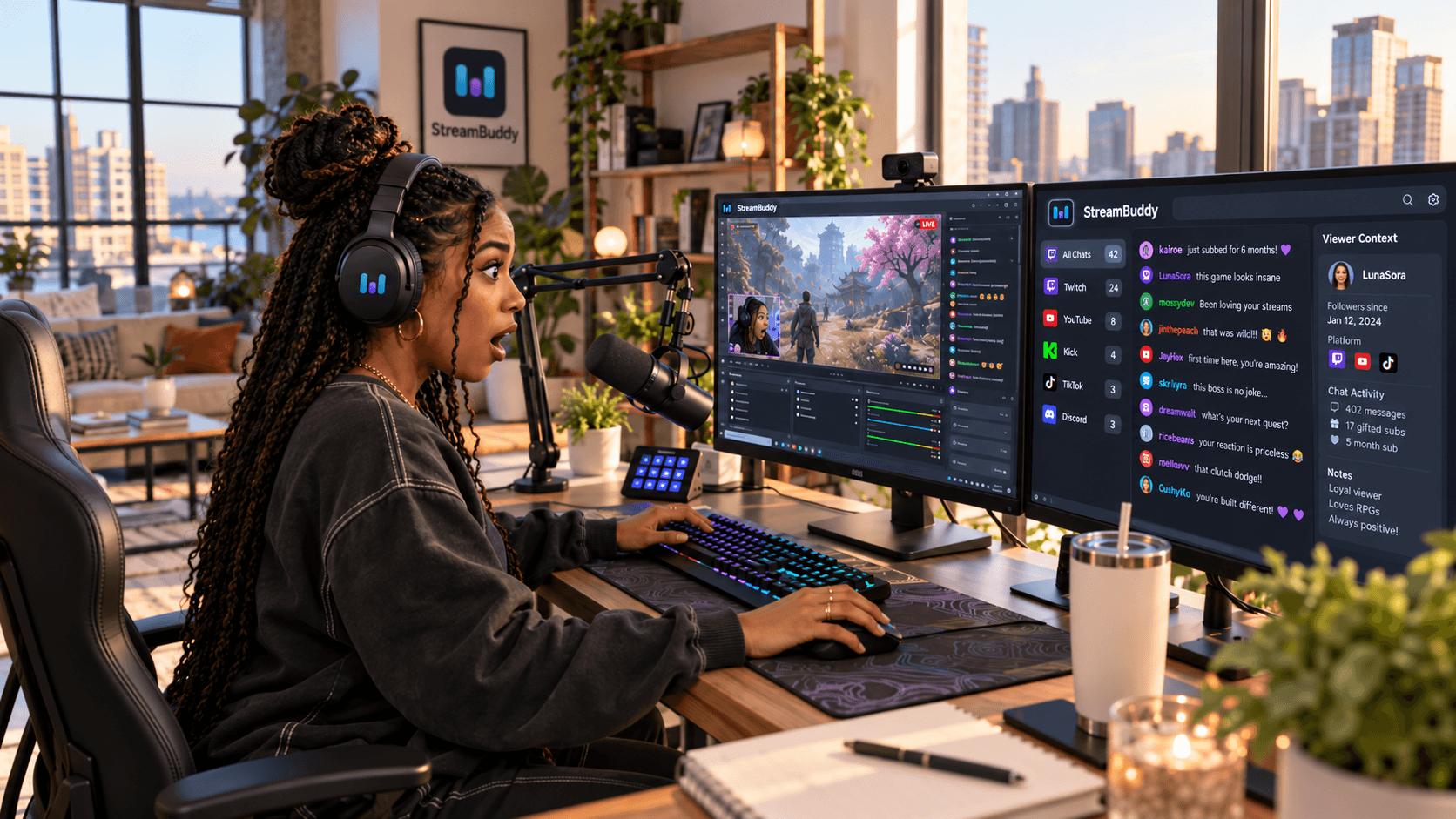
StreamBuddy helps by giving VTubers an easy multichat and viewer-memory layer: connect supported accounts, go live with your current OBS and avatar setup, use a private dashboard for context, and add a display-safe overlay when chat should appear on stream.
VTuber-specific chat needs
VTuber chat is often heavy on:
- Emotes.
- Badges.
- Inside jokes.
- Lore references.
- Character names.
- Collab audience crossover.
- Community callbacks.
- Roleplay or recurring bits.
That means chat tools need to do more than merge messages. They need to keep platform identity visible, preserve emotes where available, and make it easy to remember the people and context behind the conversation.
OBS overlay placement with avatar scenes
Start by deciding where chat belongs in each scene.
Common VTuber layouts:
- Chat beside the avatar in a vertical column.
- Chat below a model during Just Chatting.
- Chat hidden during cinematic or lore scenes.
- Chat shown only during intermissions.
- Chat placed opposite collab guest windows.
- Chat overlay cropped for shorts or vertical scenes.
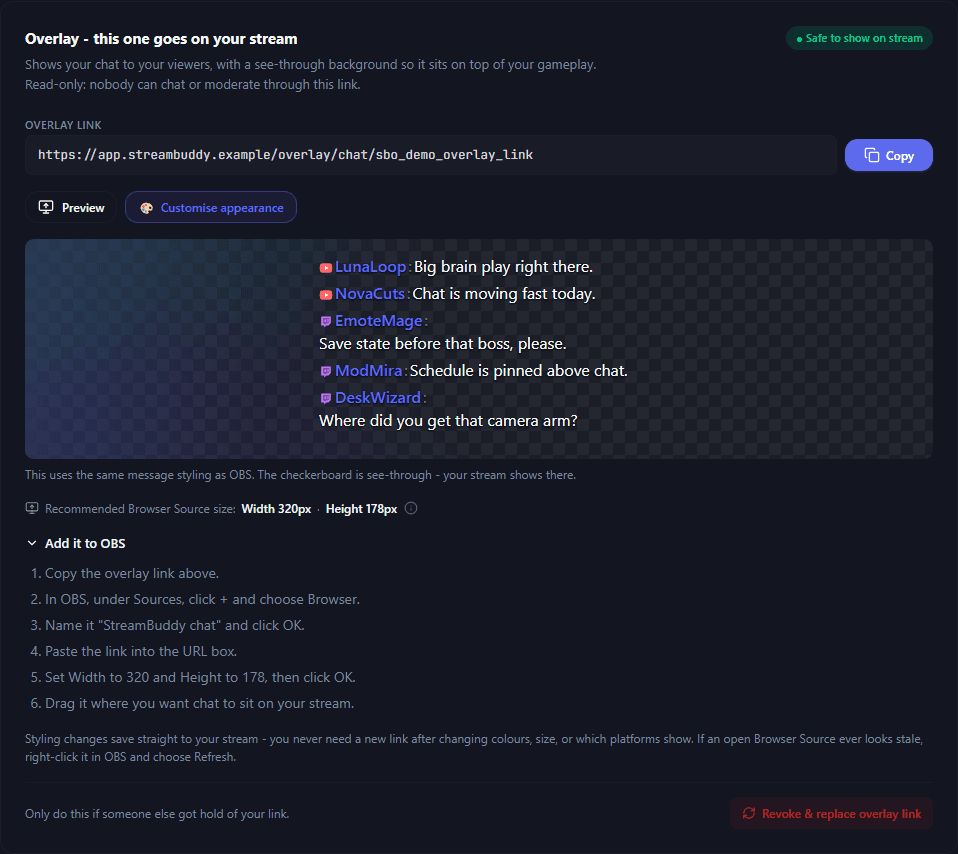
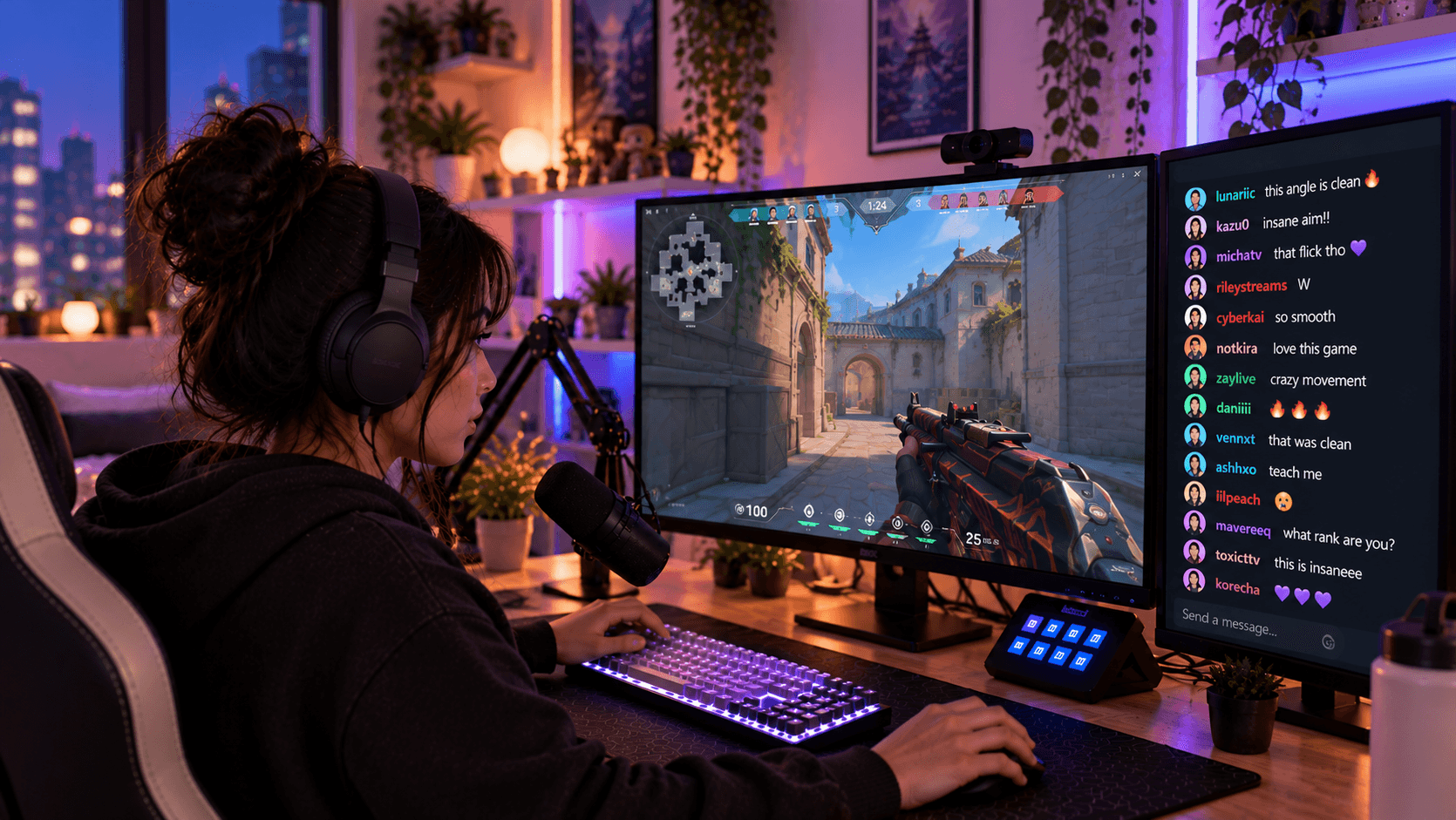
Use the OBS multichat workflow when you want a display-only browser-source overlay, filtered to the platforms you choose. Keep the source dimensions stable, place it away from the avatar face and hands, and test the scene at the resolution viewers actually watch.
Simulcasting to Twitch? Twitch's Terms (section 11) bar showing other platforms' chat on your Twitch stream. Use a Twitch-only overlay there, and keep the combined feed in your private dashboard or dock.
Twitch's Terms of Service · Can you multistream on Twitch? · As of
If you have several scenes, paste the overlay as a referenced source so styling stays consistent.
Emotes, badges, and readable styling
VTuber communities often communicate with emotes as much as text.
Keep these visible when possible:
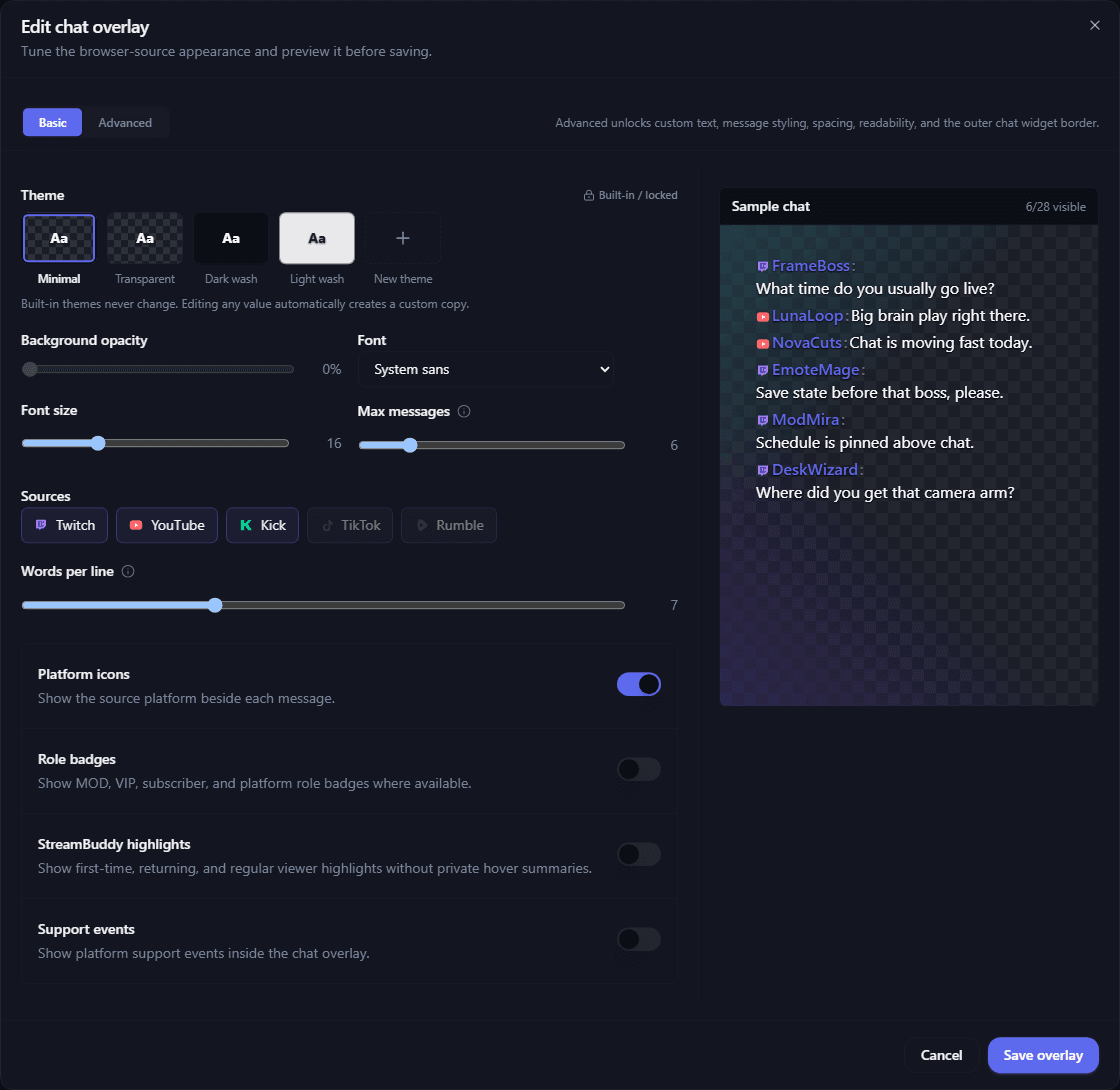
- Platform badges. Platform icons are on by default.
- Role badges. The Role badges switch shows MOD, VIP, subscriber, and platform role badges where the platform provides them. It is off by default.
- Emotes where supported.
- Readable usernames.
The overlay editor also has themes, fonts, colors, a frame around the whole chat, and borders around each message, and you can import your own frame image. The chat overlay emotes and badges page goes deeper on that display use case.
Style tips:
- Match the overlay accent color to the scene, not every color in the scene.
- Keep message text simple and readable.
- Use a subtle shadow or message background over detailed art.
- Avoid placing chat over the avatar's face.
- Test emote-heavy messages before going live.
- Check readability on mobile VOD playback.
The overlay should feel like part of the VTuber package, but chat still has to be readable quickly.
Private dashboard vs public overlay
This split matters a lot for VTubers.
Public overlay:
- Chat messages.
- Usernames.
- Platform badges.
- Emotes where available.
- Stream-safe styling.
Private StreamBuddy workspace:
- Viewer profiles.
- Private notes.
- Tags.
- Chat history.
- Lore or callback context.
- Moderation controls.
- Dashboard settings.
Do not screen-capture the private dashboard as your on-stream chat. Use the display-only overlay URL for viewers and keep notes, tags, profiles, and controls off stream.
Two details matter if you keep a persona on air:
- StreamBuddy leaves viewer notes and AI summaries out of the data it sends to the overlay link, so a note about someone's place in your lore cannot appear there.
- The first-time chatter highlight shows in your private feed. It reaches the overlay only if you switch on StreamBuddy highlights there, which is off by default, so you choose whether a newcomer is pointed out on stream.
Remembering regulars and lore context
VTuber communities often build around recurring lore, bits, and character relationships.
Useful notes might include:
- "Regular from karaoke streams."
- "Knows the old dragon lore bit."
- "Always asks about model rigging."
- "Collab viewer from Mina's stream."
- "Likes horror streams; came back after debut week."
Useful tags might include:
karaoke regularlorecollab visitormodel talkfan artistclipperfirst-time chatter
Keep these private and respectful. Viewer memory should help you make better callbacks, not expose community labels publicly.
For the general version of this workflow, see remember regular viewers.
Collabs and co-streams
VTuber collabs can split chat across multiple communities and platforms.
A StreamBuddy account connects your own channels, one per platform. You cannot connect a collab partner's channel, so each of you reads your own chats in your own account. The exception is Twitch Shared Chat: your partners' messages arrive in your own Twitch chat, so they already show in your StreamBuddy feed.
Before a collab:
- Decide who reads chat.
- Decide which chat appears on stream.
- Keep platform badges visible.
- Keep private notes off the public overlay.
- Assign moderators or helpers for busy moments.
The co-stream chat page covers the broader multi-host workflow.
FAQ
Can StreamBuddy work with a VTuber OBS setup?
Yes. StreamBuddy works alongside OBS and your avatar software as the multichat, overlay, and viewer-memory layer. It does not replace your model, tracking, or video workflow.
Can I style the chat overlay for my VTuber brand?
Yes. StreamBuddy overlay settings can help you create a stream-safe chat display that fits your scene while keeping the private dashboard separate.
Can viewers see my private notes?
No. Keep viewer notes, tags, profiles, and dashboard context in the private StreamBuddy workspace. Use the display-only overlay for public chat.
Does StreamBuddy restream my VTuber model or video?
No. StreamBuddy does not touch your video or audio. It works beside your current OBS, avatar, tracking, and streaming setup.
Make multichat fit your VTuber setup
VTuber chat should feel like part of the stream without swallowing the scene.
Connect your supported accounts in StreamBuddy, keep your private multichat and viewer-memory workspace close, style a display-safe overlay for OBS, and use notes and tags to remember the lore, callbacks, and regulars that make the community feel alive.
Build a VTuber multichat workflow
Use StreamBuddy beside your current VTuber setup to read every chat in one place, style a safe overlay, save private viewer notes, and recognize regulars when they return.
Try StreamBuddy- vtuber
- multichat
- obs
- chat overlay
- viewer memory