How to keep private viewer notes off your stream overlay
Keep viewer notes, tags, profiles, and moderation context private while showing a clean StreamBuddy chat overlay in OBS.
5 min read
Viewer notes are useful because they are private.
They help you remember that someone is a regular, that they came from a raid, that they prefer a certain game, or that you promised to follow up on something next stream. But those details belong in your workspace, not on the broadcast.
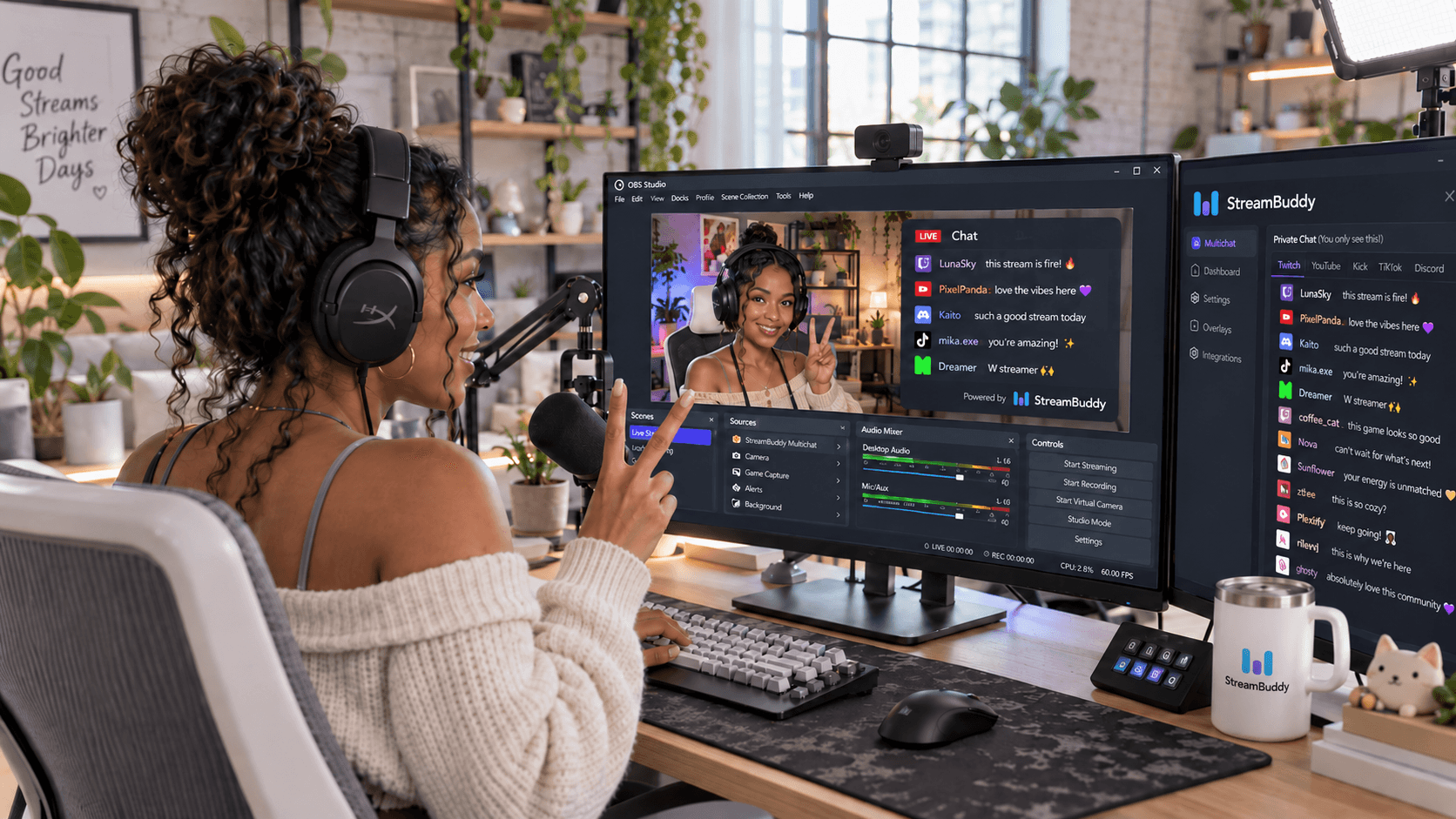
If you want viewer memory and a clean on-stream chat overlay, the important rule is simple: do not screen-capture your dashboard. Use a dedicated display-only overlay URL for OBS, and keep the private StreamBuddy workspace beside your stream setup.
Why private notes matter
A streamer CRM is helpful because it gives you context while chat is moving quickly. Notes, tags, history, and viewer profiles can remind you who is returning, who is new, and what happened in previous streams.
That context should make your replies better. It should not become public labels viewers can read on screen.
Private notes are best used for:
- Remembering conversations you want to continue later.
- Tracking regulars and returning viewers.
- Saving moderation context you will want next time.
- Marking raid visitors or first-time chatters to revisit after stream.
- Keeping sponsor, giveaway, or support context organized.
StreamBuddy gives you that private layer in the dashboard while still letting you show a clean public chat overlay in OBS.
What should never go on stream
Before you add any browser source to OBS, decide what is stream-safe.
Keep these out of the public overlay:
- Private viewer notes.
- Internal tags or labels.
- Viewer profiles and history panels.
- Moderation controls.
- Account settings.
- Your private dock link.
- Anything that signs you in or lets someone control your workspace.
The overlay should show the conversation. Your private workspace should help you understand the conversation.
That distinction matters even if your community is friendly. A note can be harmless in context and still feel uncomfortable if it appears on stream without warning.
How StreamBuddy separates dashboard and overlay
StreamBuddy uses separate surfaces for separate jobs:
| Surface | Where it belongs | What it is for |
|---|---|---|
| Dashboard | Your private monitor or browser | Multichat, viewer memory, notes, tags, history, and moderation context |
| OBS dock | Your private OBS workspace | Reading and sending chat and opening viewer cards without switching windows |
| Overlay URL | OBS Browser Source | Displaying chat publicly on the broadcast |
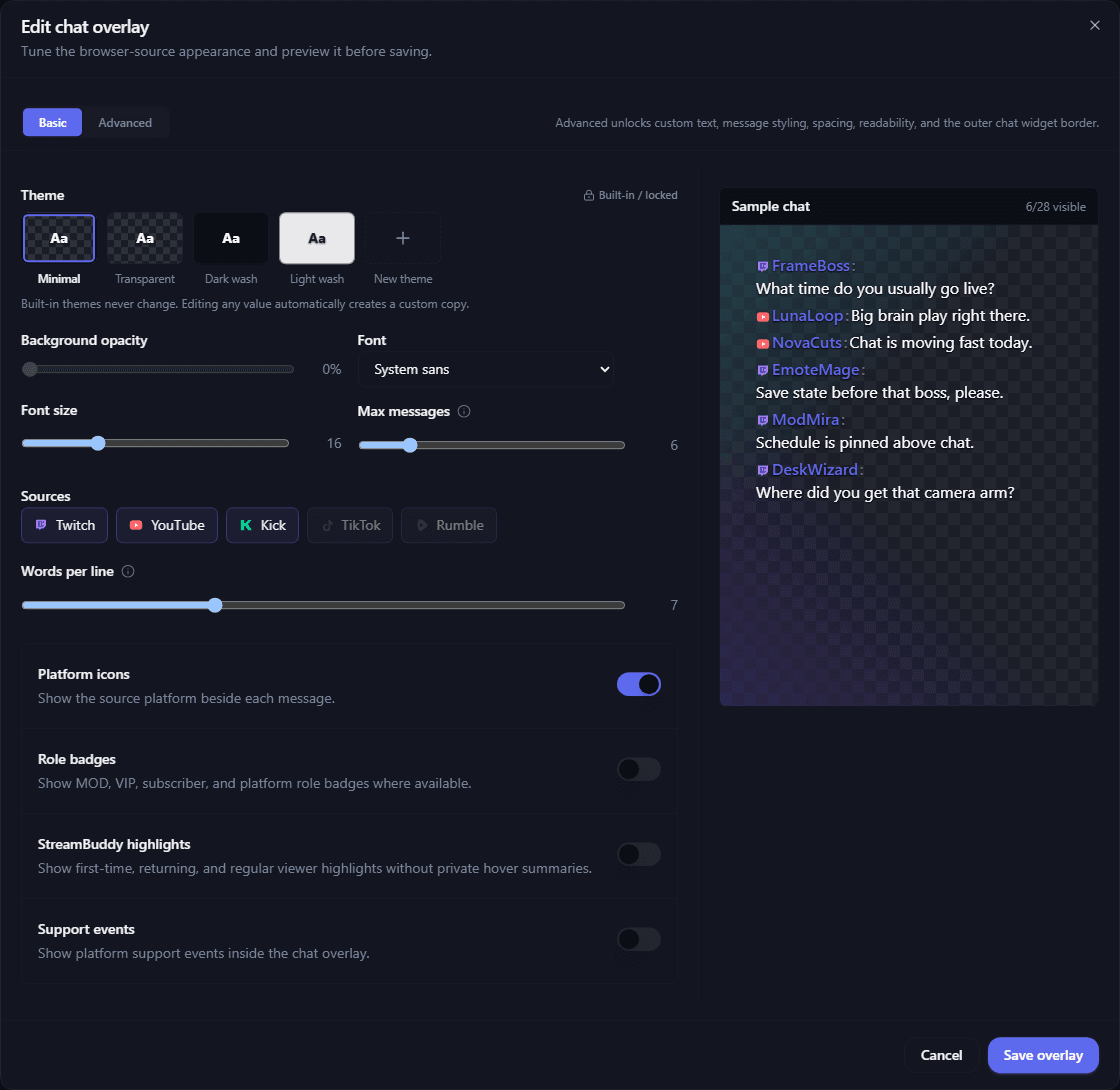
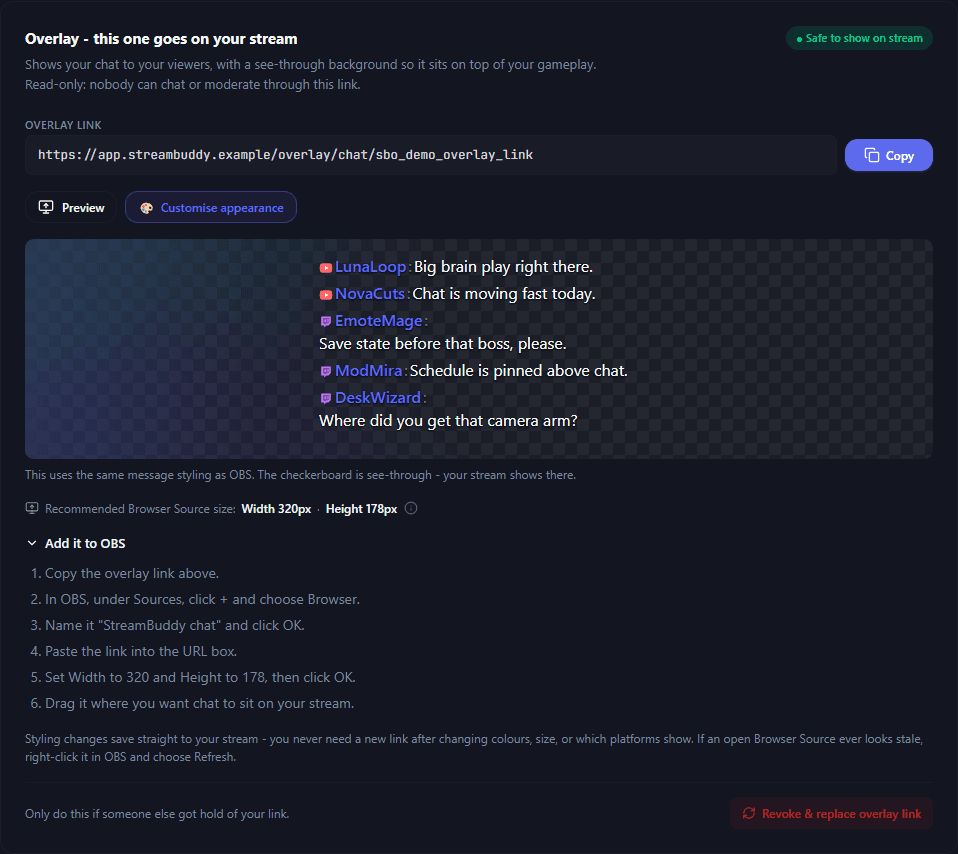
The overlay URL is the stream-facing surface. It can show messages, usernames, platform badges, emotes where available, and display-safe chat styling.
The split is not only visual. The overlay link is a separate, view-only link, and StreamBuddy leaves viewer notes and AI summaries out of the data it sends to that link. A note cannot appear in the overlay, because the overlay never receives it.
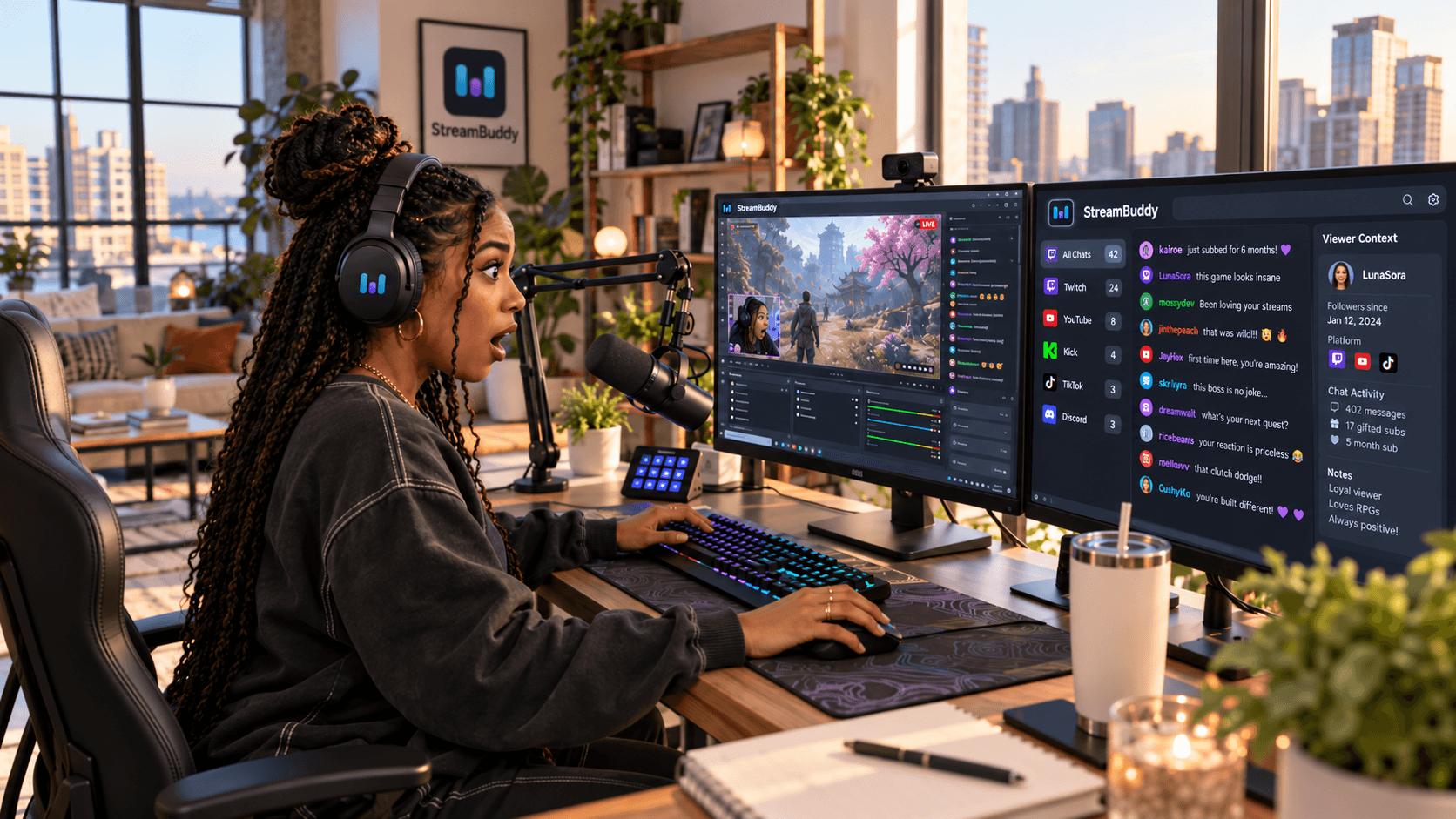
The dashboard and dock are the work surfaces. They are where you use Twitch viewer notes, multichat context, saved tags, and returning-viewer memory.
For setup details, use the chat overlay for OBS guide or the broader OBS multichat page.
OBS browser-source safety checklist
Use this checklist any time you add or edit a chat overlay:
- Copy the StreamBuddy overlay URL, not the dashboard URL.
- Put the overlay URL in an OBS Browser Source.
- Confirm the source shows only public chat output.
- Keep the source above your scene background but away from private browser windows.
- Lock the source in OBS after positioning it.
- Avoid using display capture for setup screens.
- Revoke or regenerate private links if you accidentally show them.
If you use multiple scenes, paste the same overlay source as a reference. That keeps the display consistent without adding extra dashboard captures.
Test with a private account before going live
Do one dry run before your first public stream with the overlay.
- Open OBS and load the scene that contains the StreamBuddy Browser Source.
- Send a normal chat message from a connected platform.
- Add or edit a private note for that same viewer in the StreamBuddy dashboard.
- Confirm the note appears only in the dashboard, not in OBS.
- Switch scenes and return to the overlay scene.
- Record a short local test and watch it back.
This test proves that the viewer-facing overlay and the private workspace are doing different jobs.
You can also test from a secondary account if you have one. Send a message, add a note, and confirm the broadcast view still shows only the public message.
How this helps during an actual stream
Once the split is set up correctly, you can use StreamBuddy more confidently.
You can greet returning viewers from the private dashboard, check notes before replying, spot first-time chatters, and follow up on raid visitors after stream. Meanwhile, the overlay simply shows readable chat for viewers.
That is especially useful for multistreaming. When Twitch, YouTube, Kick, TikTok, and Rumble are all active, the private workspace helps you manage the whole room while the public overlay shows chat from the platforms you choose.
Simulcasting to Twitch? Twitch's Terms (section 11) bar showing other platforms' chat on your Twitch stream. Use a Twitch-only overlay there, and keep the combined feed in your private dashboard or dock.
Twitch's Terms of Service · Can you multistream on Twitch? · As of
If you want the public display side specifically, the show multichat on stream safely guide walks through the viewer-facing setup.
FAQ
Can StreamBuddy keep viewer notes private?
Yes. StreamBuddy's viewer notes, tags, profiles, and history live in the private workspace. The OBS overlay is meant to display chat, not private CRM context.
Can I still show chat on stream?
Yes. Use the StreamBuddy overlay URL as an OBS Browser Source. That gives viewers a clean chat display while your dashboard remains private.
Is an OBS dock safe to show on stream?
Treat an OBS dock like your private workspace. It can be useful inside OBS, but it is not the same as the public overlay URL. Do not put the dock in the broadcast.
Does StreamBuddy replace my streaming software?
No. StreamBuddy is a multichat and viewer-memory tool. Keep using OBS, your encoder, or your current multistreaming setup for video, and use StreamBuddy alongside it for chat visibility and viewer context.
Use viewer memory safely
The best setup gives you more context without making that context public.
Connect your accounts in StreamBuddy, go live with your current setup, use the private dashboard for viewer memory, and add the stream-safe overlay URL to OBS when you want chat on screen.
Keep viewer memory private
Use StreamBuddy for multichat, notes, tags, and returning-viewer context while OBS shows only the display-safe chat overlay.
Try StreamBuddy- chat overlay
- viewer notes
- obs
- privacy
- multichat