How to show multichat on stream safely
Show combined chat on stream without leaking private viewer notes, controls, dashboard state, or streamer-only context.
6 min read
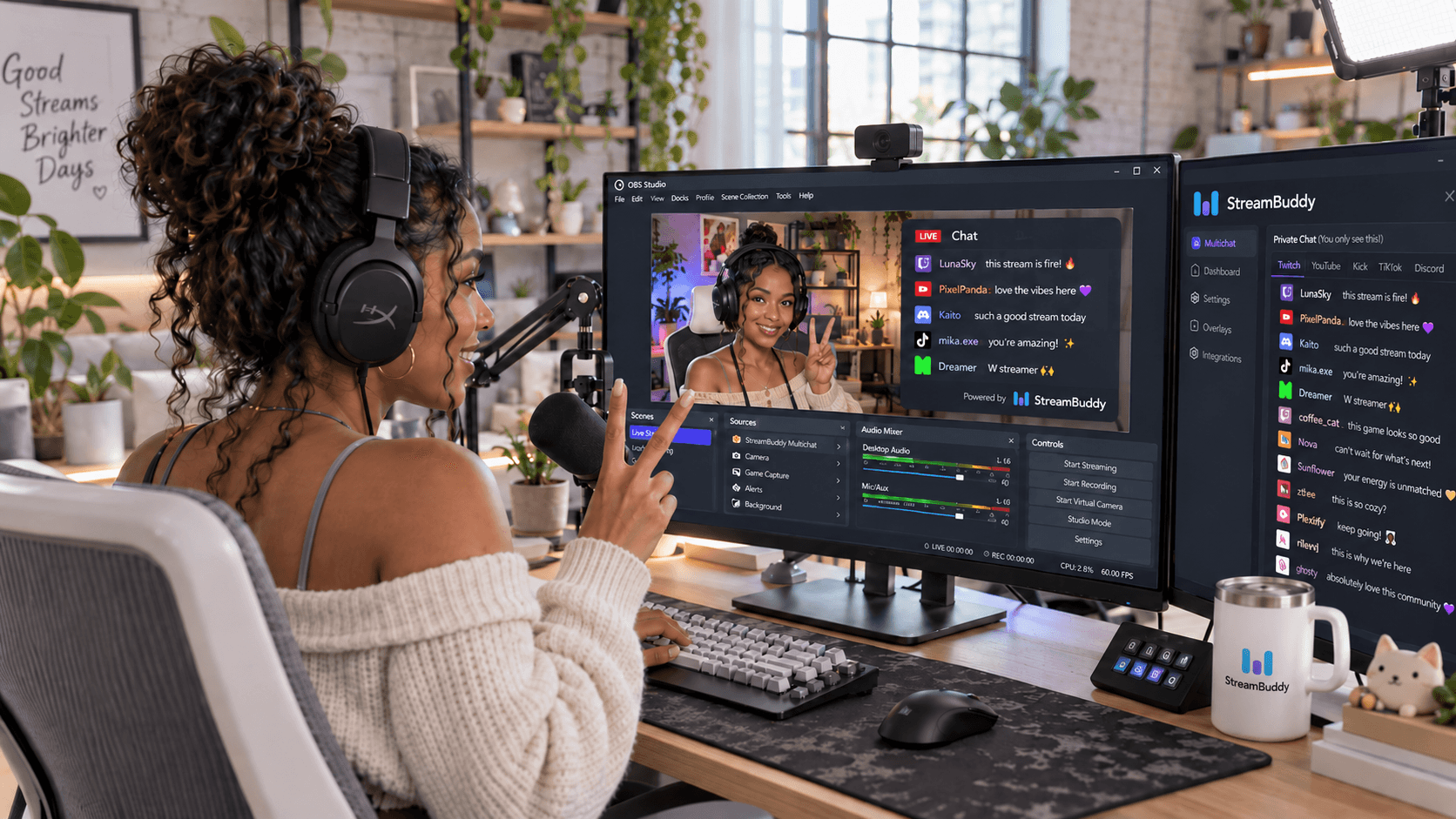
Putting multichat on stream can make a broadcast feel more connected. A YouTube viewer can see the Twitch message you are answering, a Kick viewer can follow the joke from TikTok, and the whole audience sees one conversation instead of isolated platform bubbles.
The risk is that "show chat" can accidentally become "show the streamer dashboard." That is where private viewer notes, tags, controls, filters, dashboard state, or moderation context can leak into the broadcast.
The safe setup is simple: use a read-only overlay for viewers and keep your private StreamBuddy workspace separate.
What can accidentally leak in a chat overlay
The risky part is not the chat message itself. It is everything around the message.
If you capture the wrong window or paste the wrong URL into OBS, viewers might see:
- Private viewer notes.
- Viewer tags or internal labels.
- Profile history and returning-viewer context.
- Reply boxes, moderation controls, or account menus.
- Hidden filters or dashboard settings.
- Browser tabs, bookmarks, notifications, or logged-in account state.
That is why a public overlay should be purpose-built for public display. It should render the messages you want viewers to see and nothing else.
Read-only overlay vs private dashboard
StreamBuddy separates the two surfaces.
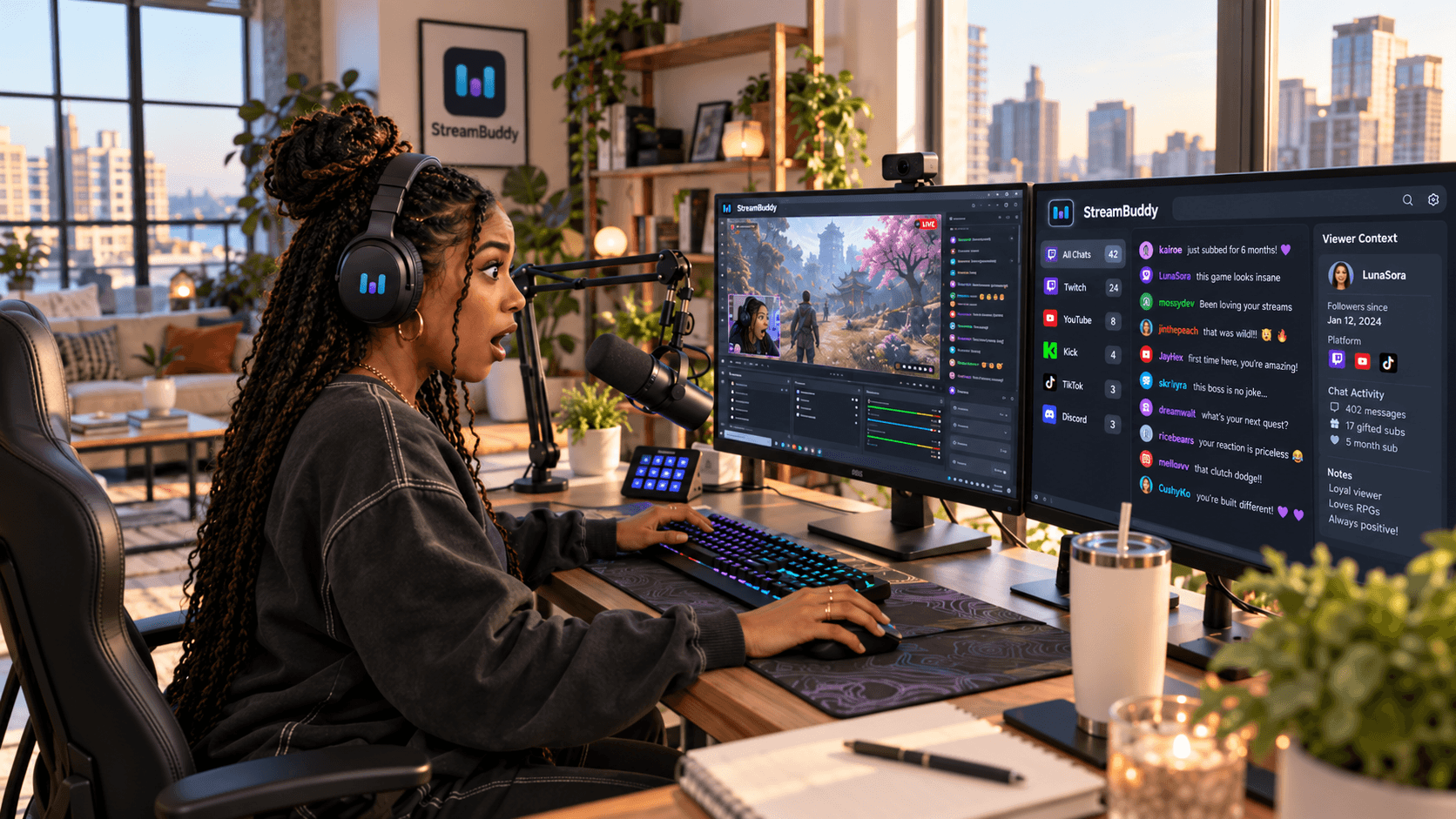
The private dashboard or OBS dock is for you. It can show the richer streamer workflow: multichat, platform labels, viewer profiles, notes, tags, history, filters, and supported controls.
The public overlay is for viewers. It is display-only and OBS-friendly. It can show chat messages, platform badges, emotes, and other stream-safe display elements without exposing the private dashboard behind them.
| Surface | Audience | What belongs there |
|---|---|---|
| Private dashboard or dock | Streamer and team | Viewer context, notes, tags, controls, filters, message management |
| Public overlay URL | Viewers | Chat messages, platform labels, emotes, badges, stream-safe styling |
The chat overlay for OBS page explains the public overlay surface, while the OBS multichat page covers how docks and overlays fit together.
Keep viewer notes and tags off stream
Viewer notes are useful because they are private. You can remember that someone is a regular, what they asked last stream, what games they like, or whether a detail should be handled carefully.
That context should stay in the private workspace. On stream, viewers should see the public conversation, not the private memory layer behind it.
Use this rule:
- If it helps you remember someone, keep it private.
- If it helps the audience follow the conversation, it can go on the overlay.
StreamBuddy's viewer notes and tags belong in the private dashboard or dock. The public overlay should stay focused on chat display.
For the note-taking workflow itself, see the Twitch viewer notes page.
Handle moderation and deleted messages responsibly
A chat overlay can make moderation mistakes more visible, so test how your setup behaves before a busy stream.
Good habits:
- Keep moderation controls in the private dashboard or platform tools.
- Avoid showing private mod notes or internal labels on the overlay.
- Use fewer visible messages so bad messages move off screen faster.
- Refresh or hide the overlay if something should not remain visible.
- Keep a scene or hotkey ready that temporarily hides chat.
Where supported, moderate from the private StreamBuddy workspace or your platform tools. The overlay should remain a display surface, not the place where you expose every action you are taking.
Build the overlay for clarity, not maximum activity
Safer overlays are usually simpler overlays.
Start with:
- Clear platform badges.
- Readable font size.
- A limited number of visible messages.
- Enough background contrast for gameplay and camera scenes.
- No dashboard chrome, controls, menus, or private metadata.
Then add style only where it improves readability. The chat overlay emotes page is useful when you want emotes and badges to look good without making the overlay noisy.
Safe setup checklist
Run this checklist before your first stream with a multichat overlay:
- Connect your streaming accounts in StreamBuddy.
- Confirm chat appears in the private StreamBuddy dashboard.
- Create or copy the StreamBuddy overlay URL.
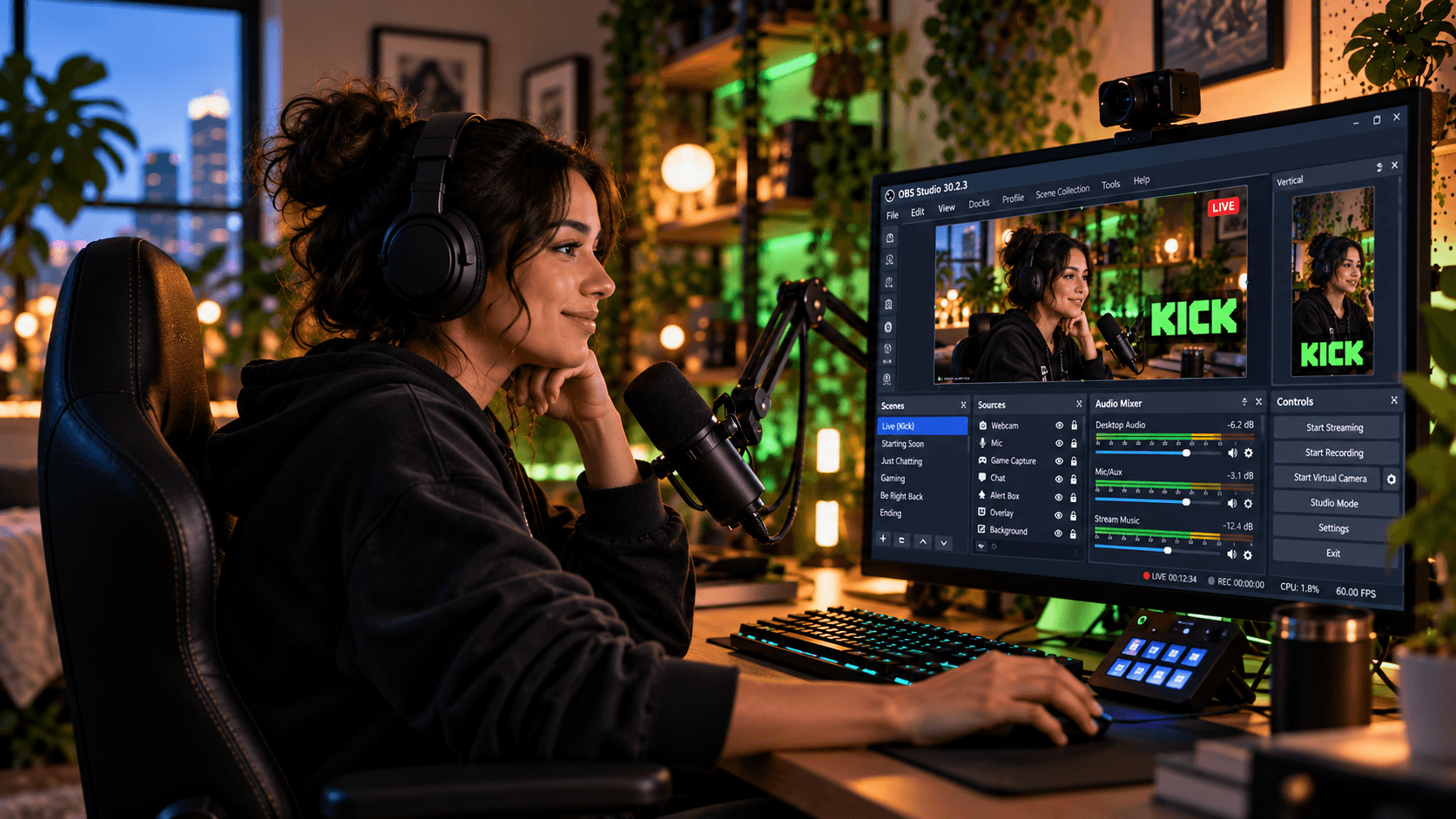
- Add the overlay URL to OBS as a Browser Source.
- Do not use the dashboard URL, dock URL, or a captured browser window.
- Choose which platforms should appear publicly.
- Turn on only the badges, emotes, and display elements you want viewers to see.
- Add your private StreamBuddy dock separately under Docks -> Custom Browser Docks if you want the control surface inside OBS.
- Send test messages from each platform.
- Record a local test and watch for private notes, controls, menus, or browser chrome.
- Make a hotkey or scene variant that hides chat quickly if needed.
Once that is done, your stream can show the combined conversation while the private context stays where it belongs.
Common mistakes to avoid
Cropping the dashboard instead of using an overlay
Cropping looks tempting because it is quick, but it is fragile. A popup, scroll, menu, note, or accidental click can expose more than you intended. Use the display-only overlay URL instead.
Showing every platform event
Not every event needs to be on stream. Keep the overlay focused on the conversation viewers can follow. Use the private dashboard for the fuller feed when you need more detail.
Forgetting scene transitions
Check every scene where the overlay appears. A source that is safe in one scene can cover your camera, captions, or alerts in another.
Using tiny text
If the overlay is unreadable after compression, viewers get the clutter without the benefit. Make text larger than you think you need and test on a phone.
Frequently asked questions
Can I show multichat on stream?
Yes. Use a stream-safe overlay URL as an OBS Browser Source. StreamBuddy can show selected chat messages from connected platforms while keeping private viewer context in the dashboard.
Will StreamBuddy show my viewer notes on stream?
No. The public overlay is display-only and separate from the private workspace where notes, tags, viewer profiles, and controls live.
Should I use a dock or a Browser Source?
Use a dock for your private workflow and a Browser Source for the viewer-facing overlay. They solve different problems.
Can I customize the overlay?
Yes. StreamBuddy supports OBS-friendly overlay styling so you can make chat readable for your scene while keeping private tools off stream.
Does StreamBuddy restream my video?
No. StreamBuddy works alongside your current streaming system. It handles chat, multichat, viewer context, and overlay output, not video distribution.
Keep the public view public
A multichat overlay should help viewers follow the conversation without exposing the private work you do to run the stream.
Connect your accounts, go live with your current setup, read everything in the private StreamBuddy workspace, and use the display-only overlay URL when chat belongs on stream.
Show chat without showing your dashboard
Use StreamBuddy's private multichat workspace for viewer context and its display-only OBS overlay when chat should appear on stream.
Set up StreamBuddy- multichat
- chat overlay
- obs
- privacy
- viewer notes