StreamElements chat overlay alternatives for multichat
Compare StreamElements chat overlay alternatives for streamers who want multichat, OBS overlays, viewer profiles, notes, and private context.
6 min read
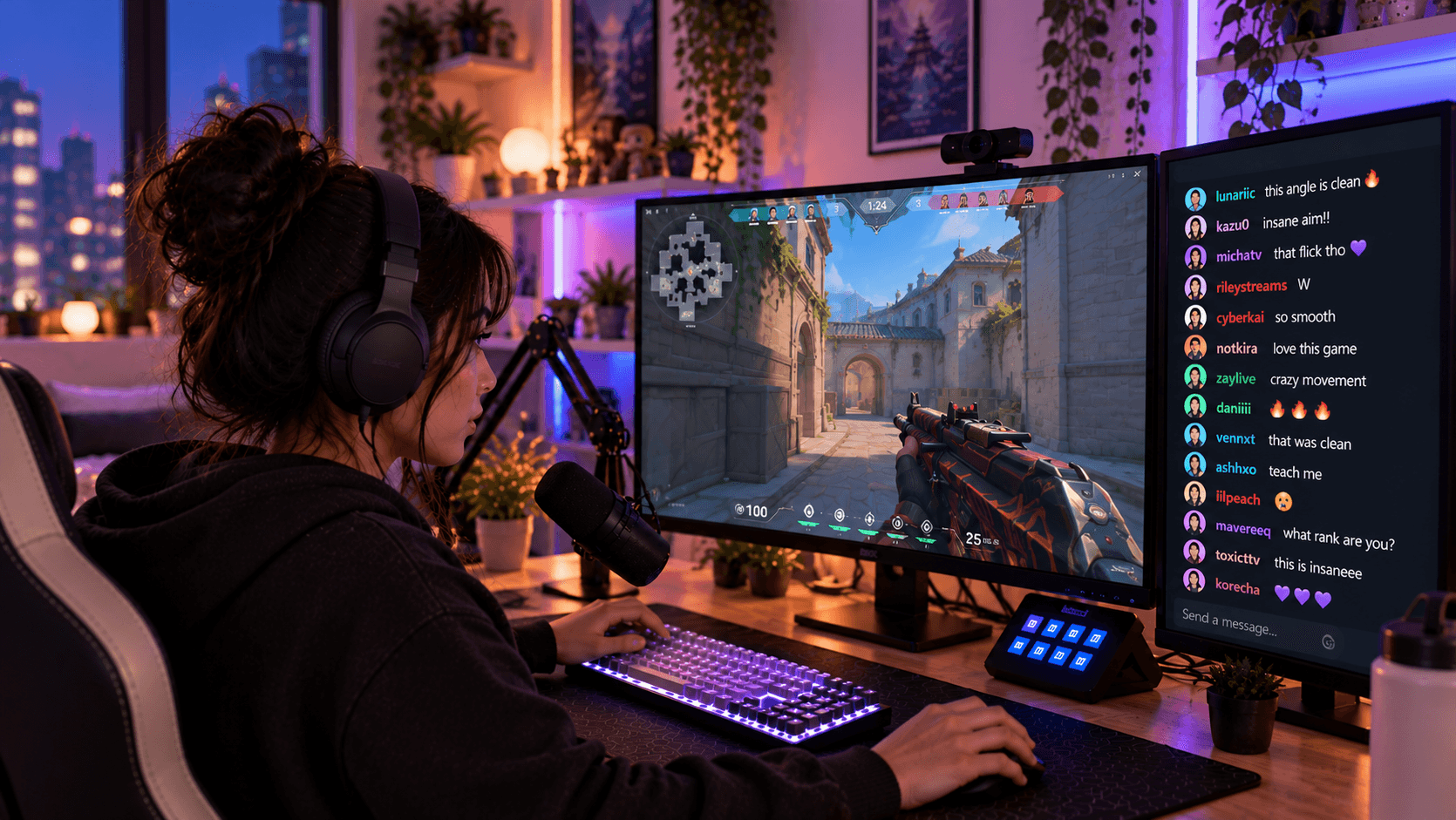
StreamElements is one of the most common places streamers start with overlays. Alerts, labels, goals, custom widgets, and chat can all live in a browser source inside OBS.
That makes it useful, especially if your main problem is "I need something visual on stream." But a chat overlay is not the same as a private chat workspace. Once you stream to more than one platform, or once you want notes and viewer memory behind the chat, a normal overlay tool can start to feel too shallow.
This guide compares StreamElements chat overlay alternatives and explains where StreamBuddy fits as the multichat and viewer-memory layer.
What the StreamElements chat overlay is for
StreamElements overlays are built to render visuals on top of a stream. A chat widget can be added to an overlay, then that overlay is added to OBS as a Browser Source.
That is a good fit when you want:
- A chat box inside a designed overlay package.
- Alerts, goals, labels, and chat in one visual system.
- Custom CSS or widget editing.
- A familiar OBS Browser Source workflow.
- A viewer-facing chat display.
If the goal is a themed on-stream chat box for one platform workflow, StreamElements can be a perfectly reasonable choice.
Why creators look for alternatives
Streamers usually look for a StreamElements chat overlay alternative when chat becomes more operational than decorative.
Common reasons:
- They stream to Twitch, YouTube, Kick, TikTok, or Rumble and want one combined chat.
- They want a private chat dashboard, not only a public overlay.
- They need platform badges so they know where each message came from.
- They want notes, tags, viewer profiles, and returning-viewer context.
- They want an OBS dock for themselves and a separate display-only overlay for viewers.
- They want chat to work alongside their existing alert package instead of replacing it.
That is where StreamBuddy is a different kind of tool. It is not just a chat box. It is the chat workspace behind the stream-safe display.
Comparison criteria
When comparing chat overlay tools, use these categories:
| Criterion | Why it matters |
|---|---|
| Platform coverage | Multistreamers need messages from more than one destination |
| OBS setup | A good tool should provide clear dock and Browser Source workflows |
| Customization | The public overlay needs to match the scene and stay readable |
| Privacy | Private notes, controls, and profile context should not appear on stream |
| Viewer memory | Returning viewers should not look identical to first-time chatters |
Most overlay tools focus on customization. StreamBuddy focuses on the private chat layer first, then gives you display surfaces for OBS.
StreamBuddy
StreamBuddy is the best fit when your chat overlay problem is really a multichat and viewer-context problem.
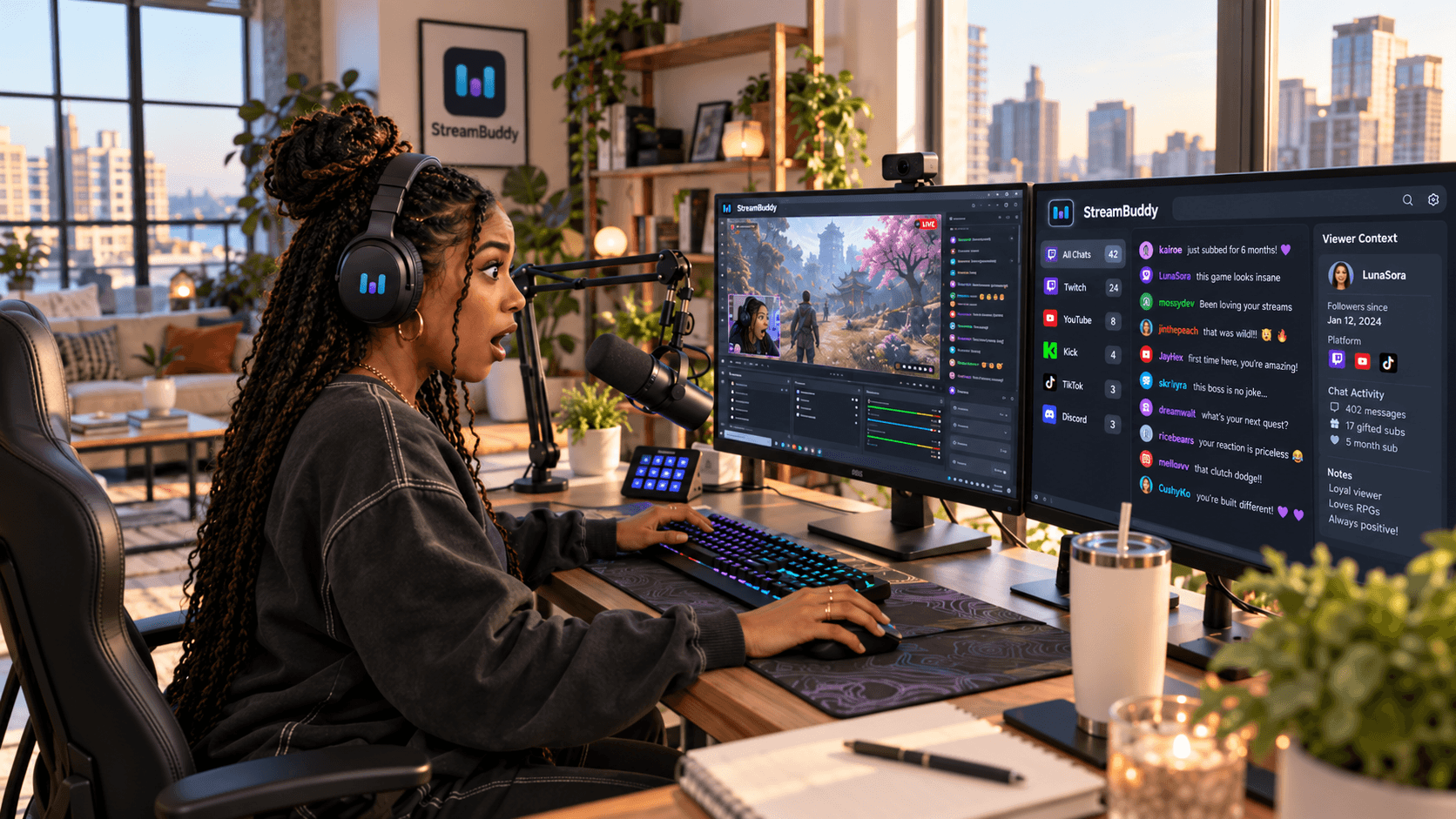
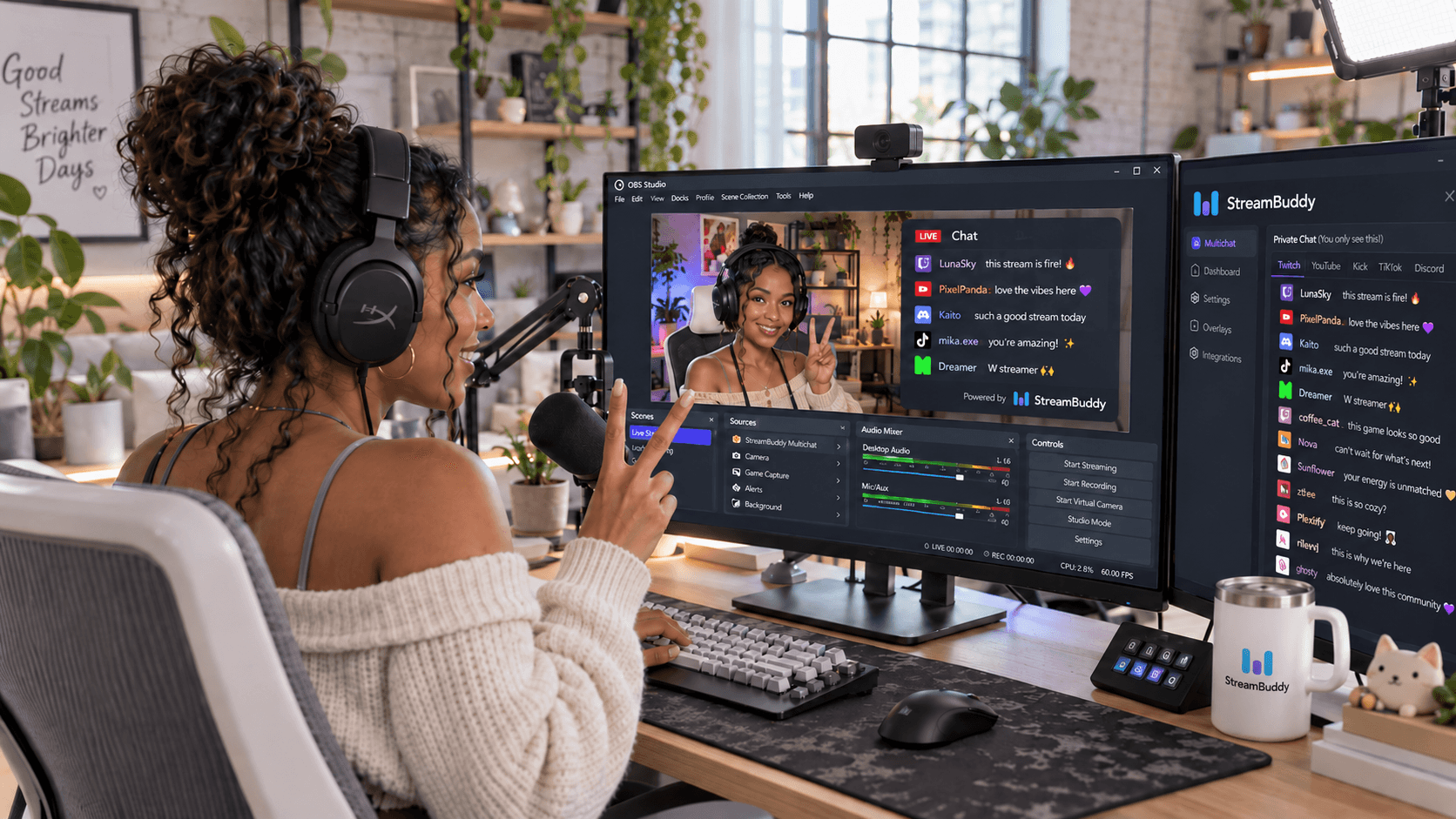
You connect your accounts, go live with your current streaming setup, and read supported chat from Twitch, YouTube, Kick, TikTok, and Rumble in one private StreamBuddy workspace. Messages keep platform labels, and viewers can have profiles, notes, tags, and history behind their usernames.
For OBS, StreamBuddy separates the surfaces:
- The private dashboard or dock is for you.
- The public Browser Source overlay is display-only for viewers.
That separation matters. Viewer notes, tags, profile history, and streamer-side controls stay private. Chat messages can still appear on stream when you want the audience to see the conversation.
Start with the StreamElements alternative page for the direct comparison, or the StreamBuddy multichat page for the broader workflow.
Social Stream Ninja
Social Stream Ninja is useful if you want broad browser-based chat routing and many overlay options. It can be a strong choice for creators who enjoy configuring custom chat displays.
It is more DIY than StreamBuddy and less focused on private viewer profiles, notes, and long-term memory. Choose it when overlay flexibility matters more than streamer-side viewer context.
Restream Chat
Restream Chat makes sense if Restream is already your video distribution hub. It gives you combined chat for the destinations tied to your Restream setup and can provide an OBS-friendly chat embed.
It is less focused on viewer memory. Choose it when your stream is already built around Restream and basic combined chat is enough.
Streamer.bot
Streamer.bot is better for automation than for simple overlay replacement. If you want chat to trigger OBS actions, commands, sounds, or custom logic, it can be powerful.
The trade-off is setup complexity. If you mostly want one clean multichat workspace and a safe public overlay, StreamBuddy is the simpler fit.
Basic browser-source widgets
Some streamers only need a lightweight chat widget. A basic Browser Source can be fine when you want a simple one-platform chat display with minimal setup.
The limitation is that these widgets usually stop at display. They do not give you a private multichat workspace, viewer profiles, notes, or post-stream context.
Where StreamBuddy fits
StreamBuddy fits best when you want:
- Easy setup: connect accounts and go live.
- One private feed for Twitch, YouTube, Kick, TikTok, and Rumble.
- Platform badges on each message.
- Viewer notes, tags, profiles, and returning-viewer memory.
- An OBS dock or popout for the streamer.
- A display-only Browser Source overlay for viewers.
- Chat that works alongside your current alert and overlay setup.
The chat overlay for OBS page explains the public overlay surface, and the chat overlay emotes page covers keeping chat readable while showing emotes and badges.
When StreamElements still makes sense
Keep using StreamElements when it is doing the job you need.
It is still a good fit for:
- Alert boxes.
- Goal widgets.
- Label widgets.
- Full overlay packages.
- Custom visual widgets.
- Streamers who only need a standard chat box on stream.
StreamBuddy is not trying to be your entire graphic overlay system. It is meant to be the chat layer: private multichat, viewer memory, OBS dock workflows, and stream-safe chat display.
Safe OBS setup
If you use both tools, keep the jobs separate:
- Use StreamElements for alerts, goals, and graphic overlay elements.
- Use StreamBuddy for reading multichat privately.
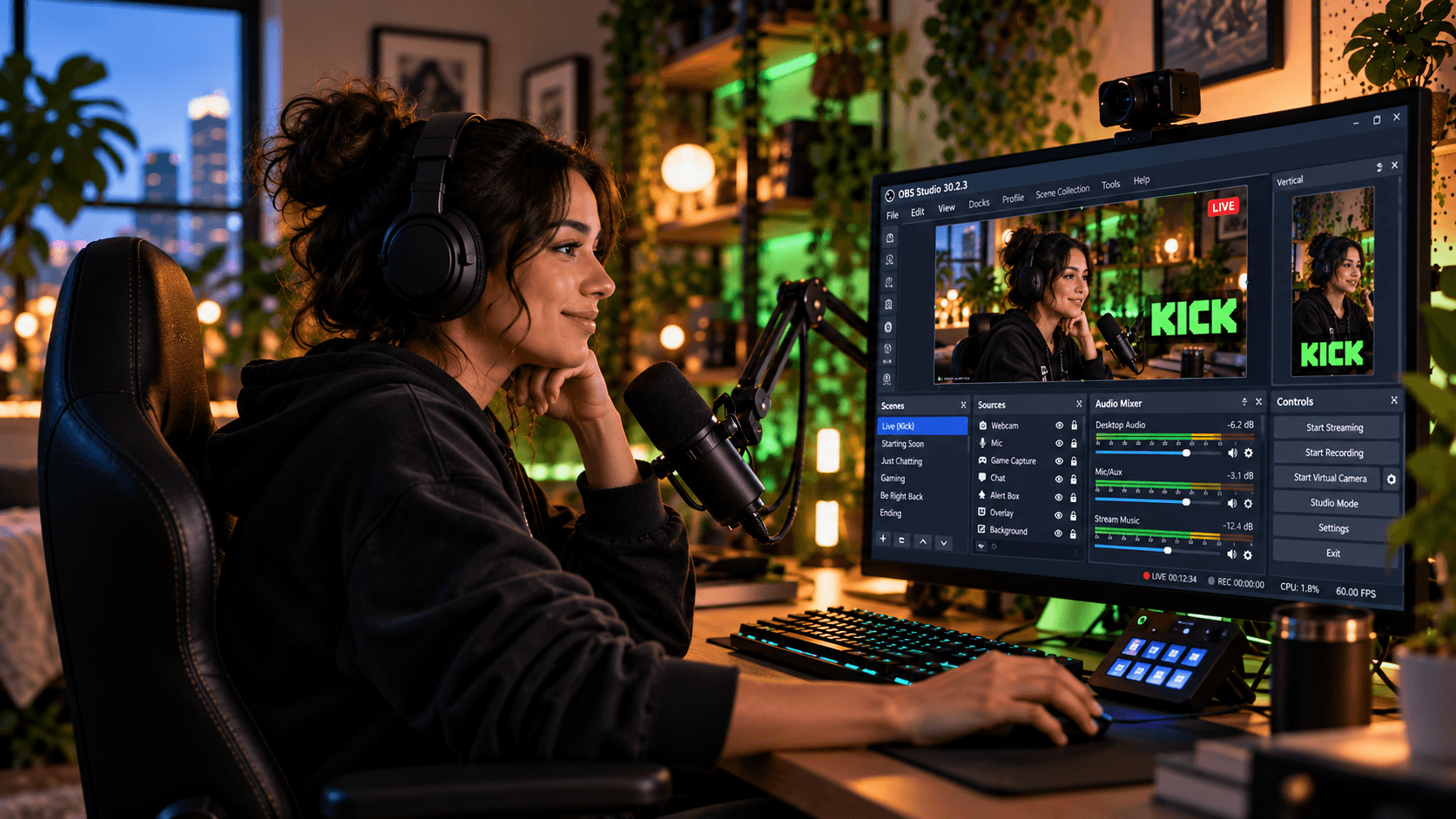
- Add the StreamBuddy dock URL under Docks -> Custom Browser Docks if you want chat inside OBS.
- Add the StreamBuddy overlay URL as a Browser Source if viewers should see chat.
- Do not capture the private StreamBuddy dashboard on stream.
- Test the full scene before going live.
This gives you the visual benefits of your existing overlay stack and the chat benefits of a tool built around multichat and memory.
Frequently asked questions
Is StreamBuddy a StreamElements replacement?
Not for everything. StreamBuddy is not an alert package or full overlay editor. It is a multichat and viewer-memory workspace with OBS-friendly chat surfaces.
Can I use StreamBuddy with StreamElements?
Yes. Keep StreamElements for alerts and overlay graphics, then use StreamBuddy for chat, viewer context, private notes, and a display-only chat overlay.
Can StreamBuddy show chat in OBS?
Yes. StreamBuddy supports private OBS dock workflows and public Browser Source overlays.
Does StreamBuddy keep viewer notes private?
Yes. Notes, tags, viewer profiles, summaries, and controls stay in the private workspace. The public overlay is display-only.
Does StreamBuddy support emotes and badges?
Yes. StreamBuddy supports native platform emotes and third-party emotes in the multichat workspace and display-only OBS overlay.
Add StreamBuddy as the chat layer
StreamElements can keep handling the visual overlay pieces it is good at. StreamBuddy can handle the chat layer that needs more context.
Connect your accounts, go live with your current system, read every supported chat in one private workspace, and add a stream-safe overlay only when chat belongs on screen.
Add multichat behind your overlay
Use StreamBuddy for private multichat, viewer notes, and a display-only OBS chat overlay while keeping your current alert setup.
Set up StreamBuddy- streamelements
- chat overlay
- obs
- multichat
- comparison