How to add Kick chat to OBS
Add Kick chat to OBS as a private dock or an on-stream browser source, and learn when a multichat tool like StreamBuddy is the better setup.
7 min read
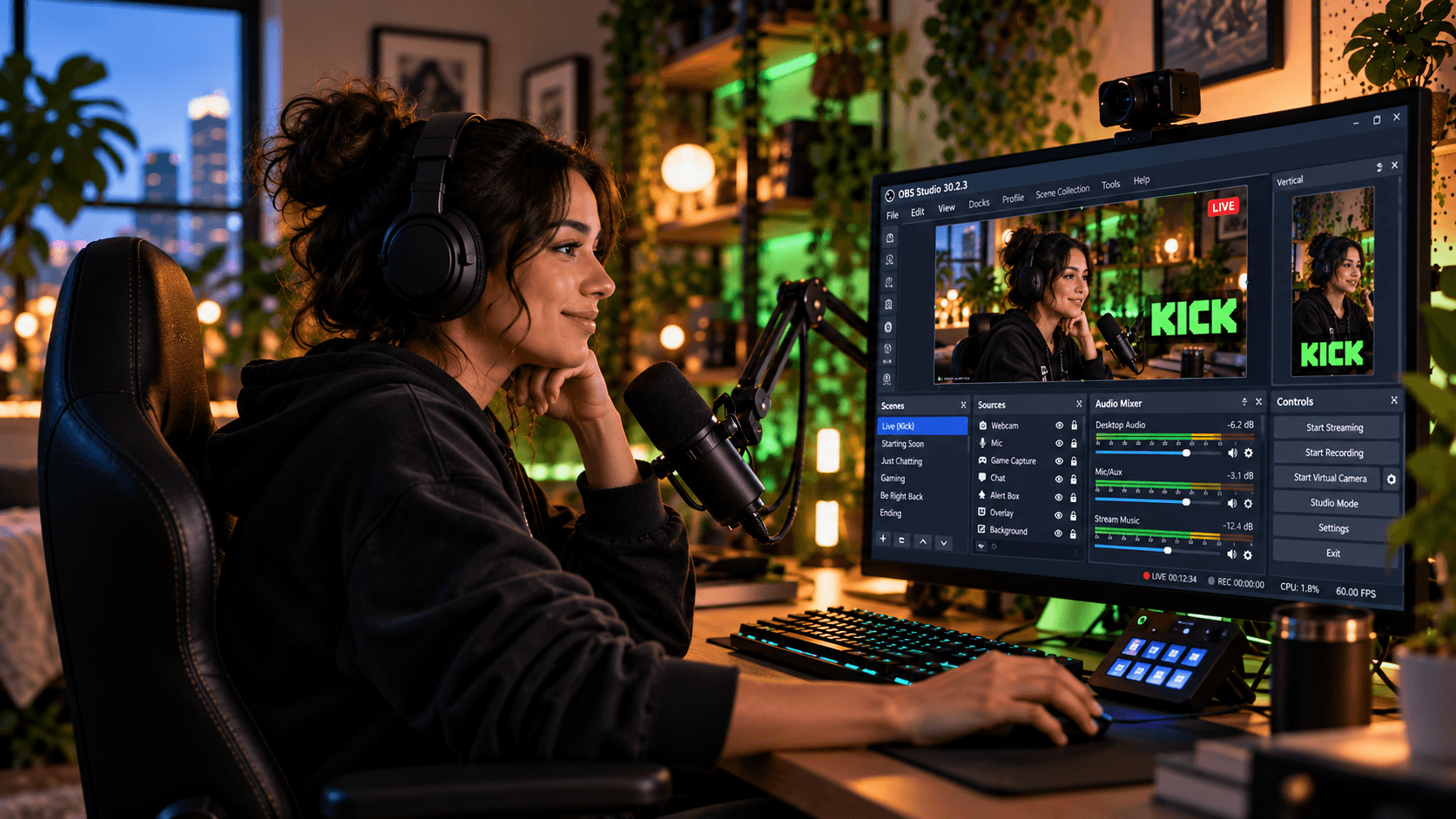
Kick gives you a chat popout, and OBS gives you browser-based docks and browser sources. Put those together and you can keep Kick chat close while you stream.
The part that trips people up is that "add Kick chat to OBS" can mean two different things:
- A private OBS dock that only you see while you stream.
- An on-stream browser-source overlay that your viewers can see on the broadcast.
Those two workflows use different URLs and have different privacy risks. This guide walks through both, then explains when a multichat tool like StreamBuddy is better than a single Kick chat window.
Option 1: add Kick chat as a private OBS dock
Use a dock when you want Kick chat inside your OBS workspace, next to your scenes, sources, and preview. A dock is for you, not for your viewers.
Kick's official help article for an OBS dock uses the chat popout URL format:
https://kick.com/popout/YOUR_ACCOUNT/chat
To add it:
- Open OBS.
- Select Docks from the menu bar.
- Select Custom Browser Docks.
- Enter a name such as
Kick Chat. - Paste your Kick chat popout URL.
- Select Apply, then Close.
- Open Docks again and select the dock name you just created.
That adds Kick chat as a panel inside OBS.
What the native Kick dock is good for
The native Kick dock is useful when Kick is your only chat or when you just want a quick extra panel inside OBS.
It is simple, free, and does not require another tool. For a Kick-only stream, that may be enough.
The tradeoffs show up when your setup gets more complex:
- You only see Kick chat, not Twitch, YouTube, TikTok, or Rumble.
- The dock does not give you StreamBuddy viewer profiles, notes, tags, or returning-viewer context.
- Styling is whatever the Kick popout gives you.
- It is not designed as a polished on-stream overlay.
- If you use OBS with a single monitor, the dock can still compete with your preview and controls for space.
Kick also notes that the custom dock may show a cookie banner, and that the dock can still show new messages even if it says you are disconnected. That is fine for reading chat, but it is another reason not to treat the dock as a finished public overlay.
Option 2: add Kick chat as an OBS browser-source overlay
Use a Browser Source when you want chat visible on the stream itself.
OBS describes Browser Source as a web page rendered directly inside your scene. That is what most chat overlays use: you paste a URL, set the width and height, and position the source over your gameplay, camera, or layout.
In OBS:
- Select the scene where chat should appear.
- In Sources, select +.
- Choose Browser.
- Name the source something clear, such as
Kick chat overlay. - Paste the overlay URL from your chat tool.
- Set the width and height.
- Select OK, then position the source in your scene.
The important detail is the URL. A Kick popout URL is meant for a dock, not necessarily for a clean stream overlay. For a public overlay, use a display-only overlay URL from a tool built for OBS output.
The safer StreamBuddy setup for Kick chat in OBS
StreamBuddy gives you two different links for the same reason OBS has two different workflows:
| StreamBuddy link | Put it here | Who sees it | What it is for |
|---|---|---|---|
| Dock link | OBS Docks -> Custom Browser Docks | You only | Reading and managing your private StreamBuddy workspace |
| Overlay link | OBS Sources -> Browser | Viewers | Showing display-safe chat on stream |
That split matters. Your private StreamBuddy workspace can include viewer profiles, notes, tags, send controls, and setup controls. Your overlay link is display-only, so it can show chat without exposing those private tools.
If you only stream on Kick, StreamBuddy still gives you a cleaner private workspace and a stream-safe overlay path. If you stream on Kick plus other platforms, the benefit is much bigger: Kick messages appear in the same feed as Twitch, YouTube, TikTok, and Rumble, each with a platform badge.
When Kick-only chat stops being enough
A native Kick dock answers one question: "What is happening in Kick chat right now?"
Multistreaming adds harder questions:
- Did that viewer chat on Twitch last week?
- Is this a first-time chatter or a returning regular?
- Which platform is this message from?
- Can I show chat on stream without showing notes and controls?
- Can I review the chat after stream and remember who stood out?
That is the gap StreamBuddy is built for. It keeps setup simple: connect your accounts, go live, read chat in one place, and keep viewer memory attached to the people behind the messages.
Recommended Kick chat setup
For most streamers, the cleanest setup is:
- Use OBS or your usual streaming software to broadcast.
- Connect Kick in StreamBuddy.
- Add the StreamBuddy dock link to OBS as a Custom Browser Dock for your private view.
- Add the StreamBuddy overlay link to OBS as a Browser Source only if you want viewers to see chat on stream.
- Keep private notes, tags, and viewer profiles in the dock, never in the public overlay.
If you stream to Kick and Twitch, Kick and YouTube, or several platforms at once, this avoids the pile of separate popout windows that usually happens when every platform needs its own chat.
Troubleshooting Kick chat in OBS
Kick chat is not showing in my OBS dock
First check the URL. Kick's chat popout format is:
https://kick.com/popout/YOUR_ACCOUNT/chat
Replace YOUR_ACCOUNT with your Kick channel name. If you use StreamBuddy, use your StreamBuddy dock link instead of the Kick popout URL.
The Kick dock says disconnected
Kick's help docs say the disconnected message means you are not logged in to Kick, but it does not necessarily stop new chat messages from appearing. If messages still arrive, the dock may be usable for reading even while logged out.
If you need a stable signed-in workflow with multiple platforms, use StreamBuddy's connected account flow instead.
The cookie banner is covering chat
Kick notes that the cookie banner may be hard to remove from a custom dock. Making the dock wider can keep it from covering messages.
For an on-stream overlay, avoid capturing that dock. Use a dedicated StreamBuddy overlay URL instead.
Viewers can see my OBS controls
That usually means OBS is capturing your whole display or the OBS window. Use a display-safe Browser Source overlay for chat, and avoid showing your private OBS workspace on stream.
If you are on one monitor, this guide to streaming with one monitor explains safer layouts for keeping chat visible without broadcasting private windows.
I need Kick chat and Twitch chat together
Use a multichat workflow instead of two docks. StreamBuddy can show Kick, Twitch, YouTube, TikTok, and Rumble in one feed, and the Twitch + Kick chat guide covers that pairing specifically.
Frequently asked questions
Can I add Kick chat to OBS?
Yes. You can add Kick chat as a private OBS Custom Browser Dock using Kick's popout URL, or show chat on stream with a Browser Source from a chat overlay tool.
What is the Kick chat popout URL for OBS?
Kick's documented format is https://kick.com/popout/YOUR_ACCOUNT/chat, with YOUR_ACCOUNT replaced by your Kick channel name.
Should I use an OBS dock or a browser source for Kick chat?
Use a dock if the chat is only for you. Use a Browser Source if chat should appear on stream. Do not put private dashboards, notes, or controls in a public Browser Source.
Can StreamBuddy show Kick chat with Twitch and YouTube chat?
Yes. StreamBuddy combines Kick, Twitch, YouTube, TikTok, and Rumble chat in one multichat workspace, with platform badges so you know where each message came from.
Does StreamBuddy stream my video to Kick?
No. StreamBuddy does not restream video or touch your audio. It works alongside OBS, Streamlabs, Restream, or your current streaming setup as the chat and viewer-memory layer.
Add Kick chat without juggling windows
Connect Kick, open one multichat workspace, and add a private OBS dock or display-only chat overlay when you need it.
Try StreamBuddy- kick chat
- obs
- chat overlay
- multichat
- streaming setup