OBS chat dock vs browser source: which should streamers use?
Learn when to use an OBS custom browser dock for private chat and when to use a browser source overlay for viewers.
7 min read
OBS gives streamers two very different ways to bring chat into the workflow: a custom browser dock and a Browser Source. They sound similar because both use a URL, but they should not be used for the same job.
A dock is for you. A Browser Source is for the stream.
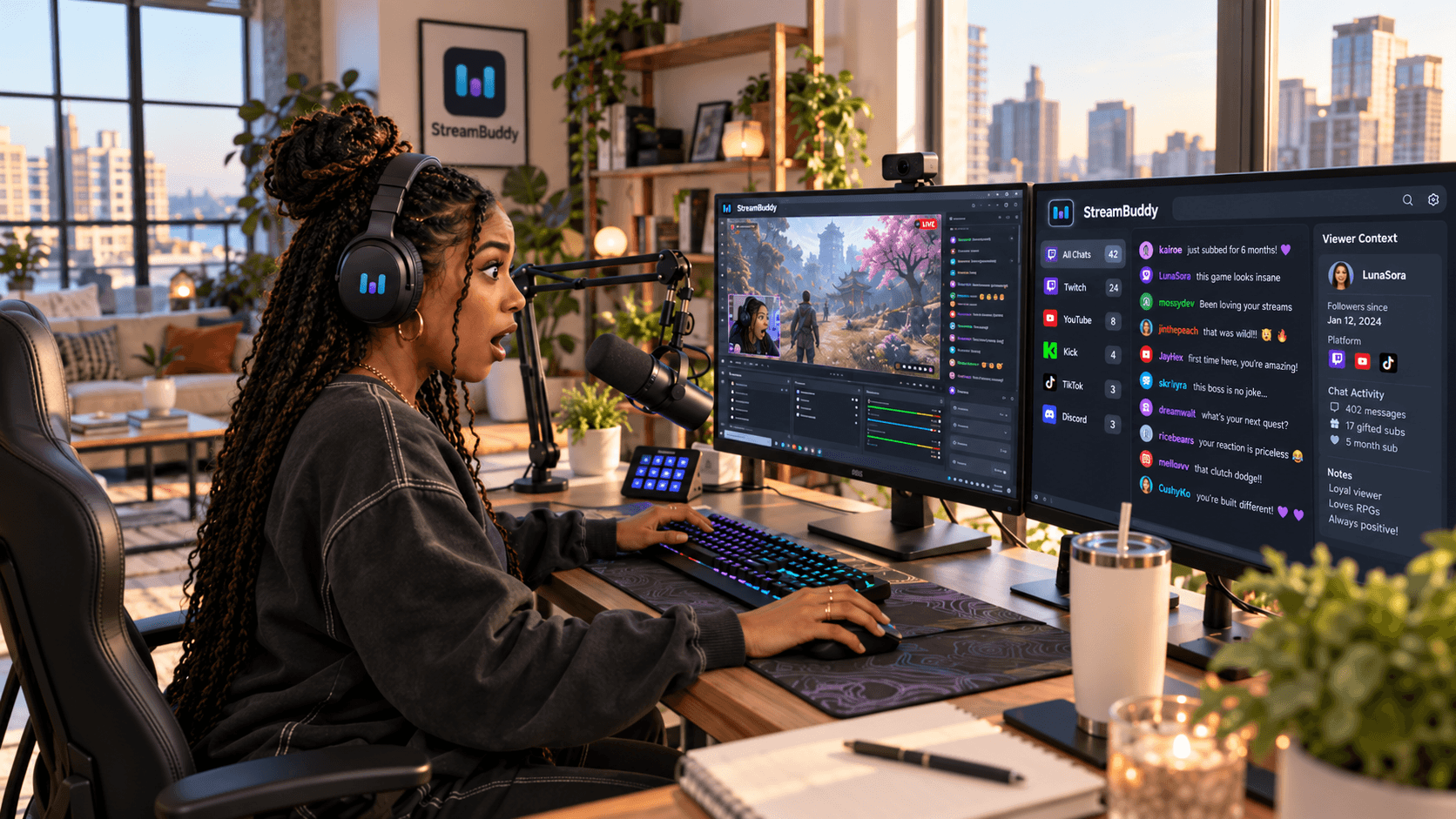
That distinction matters even more when your chat tool includes private streamer context such as viewer notes, tags, history, moderation workflows, or account controls. You want those tools close while you are live, but you do not want them captured on the broadcast.
What an OBS custom browser dock is
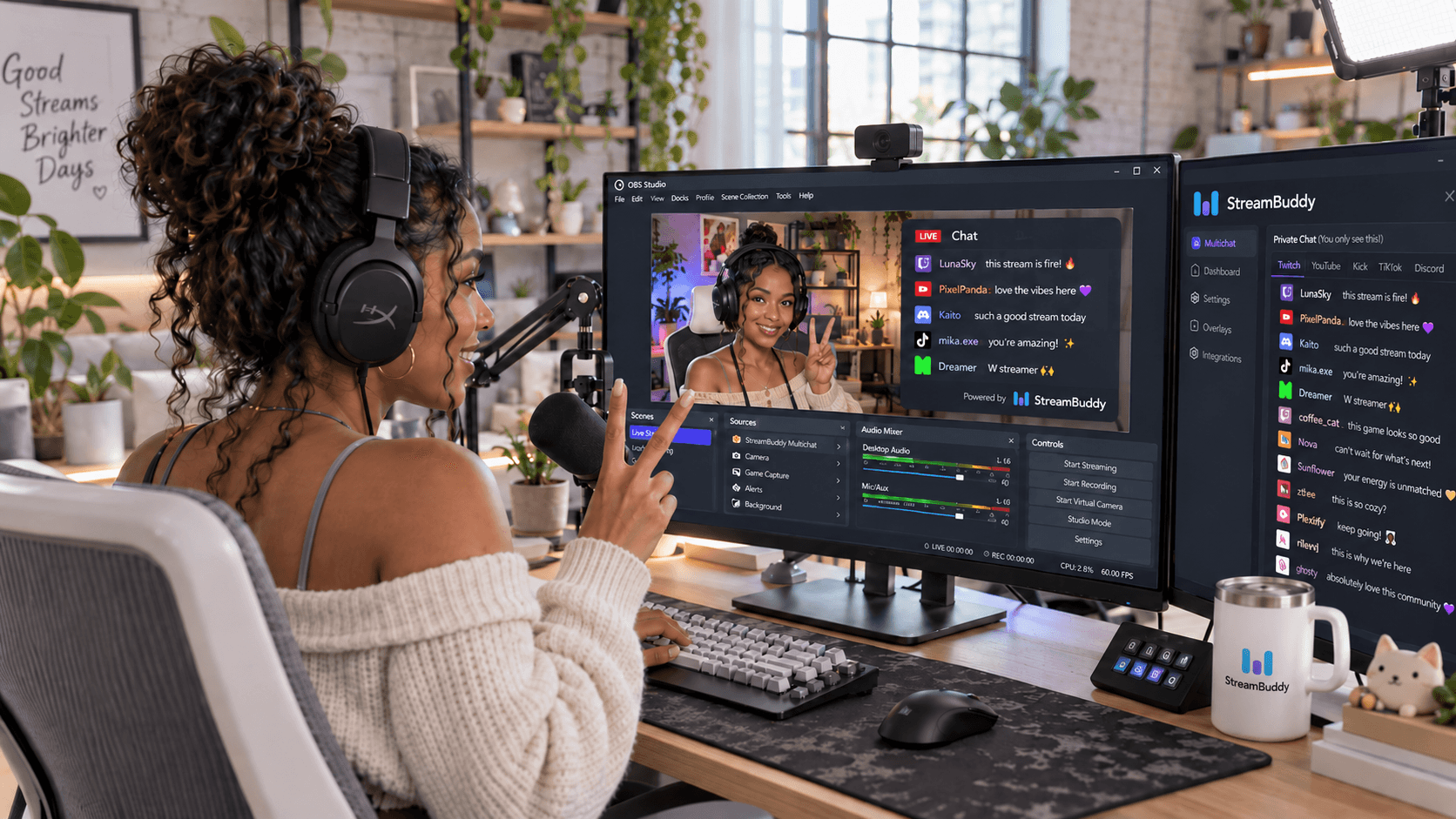
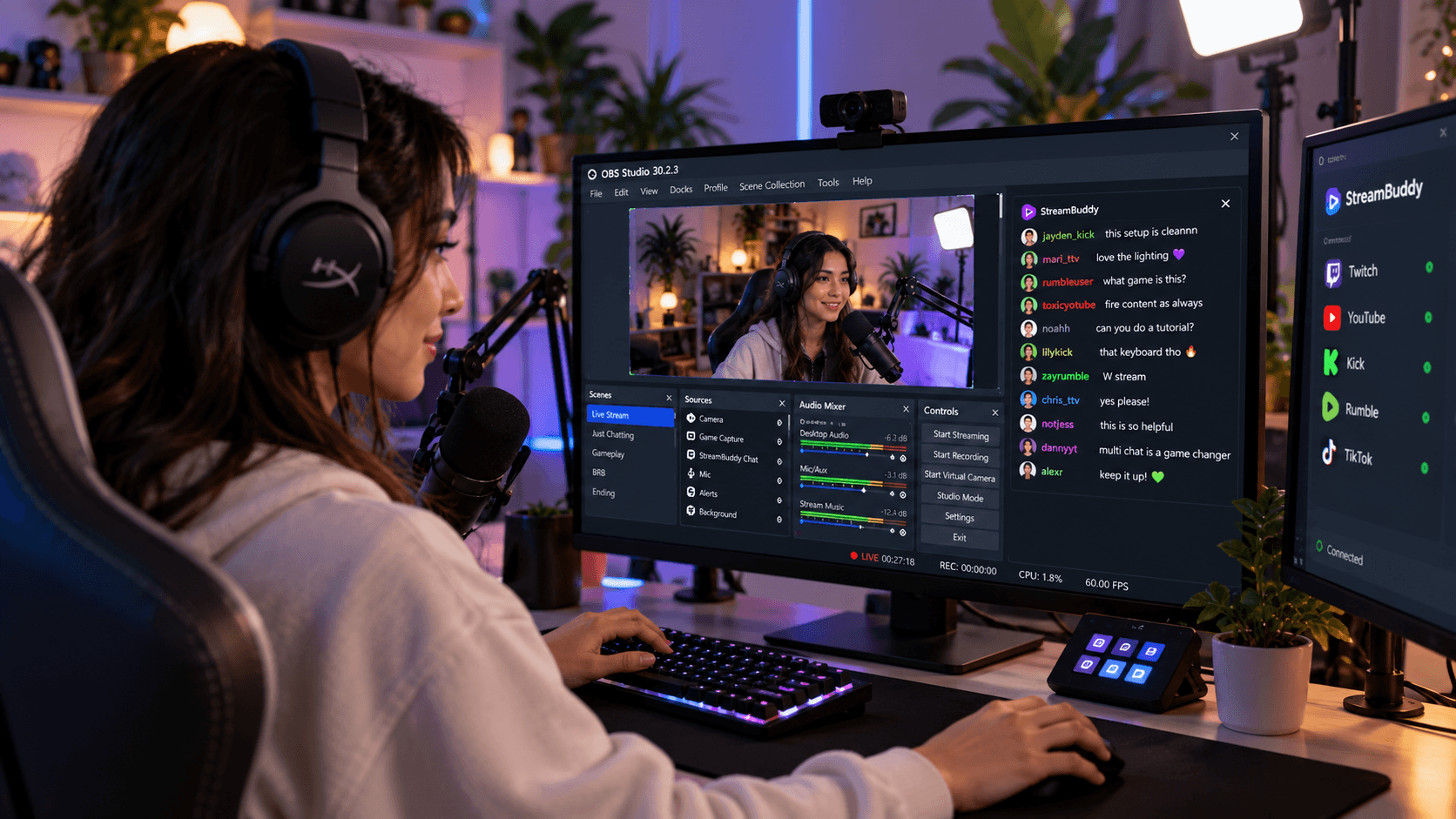
An OBS custom browser dock is a private panel inside the OBS interface. It can sit beside your scenes, sources, audio mixer, or preview window. Viewers do not see it unless you capture your whole OBS window.
Use a dock when you want chat to be part of your control room. It is the right place for:
- Reading chat while staying inside OBS.
- Checking platform labels in a multichat feed.
- Opening viewer context, notes, tags, or history.
- Using private streamer-side controls.
- Keeping chat readable on a single-monitor setup.
In StreamBuddy, the dock URL is meant for this private workspace. It lets you keep multichat and viewer memory near your OBS controls without putting that workspace on stream.
What an OBS Browser Source is
An OBS Browser Source is a source inside your scene. It renders a web page into the broadcast, the same way a camera, game capture, alert box, or image source appears on stream.
Use a Browser Source when viewers should see something. For chat, that usually means a transparent overlay that shows selected messages, platform badges, and maybe emotes or role badges.
It is not the right place for private controls. If a Browser Source is visible in your scene, assume your audience can see anything it renders.
For a step-by-step overlay walkthrough, use the multichat overlay in OBS guide.
When to use a private chat dock
Use a private dock when the main goal is helping you run the stream.
This is the best setup if you want to:
- Keep Twitch, YouTube, Kick, TikTok, and Rumble chat in one private place.
- See where each message came from before answering out loud.
- Look up whether a viewer is new, returning, subscribed, or tagged.
- Save notes after a good conversation.
- Read chat without covering gameplay in your OBS preview.
The dock can include more information because it is not designed for viewers. That is where StreamBuddy can be a real workspace rather than just a visual overlay: connect your accounts, go live, and use one multichat feed with viewer context behind each username.
When to use a public chat overlay
Use a public Browser Source overlay when chat should be part of the show.
This is useful when you want to:
- Let viewers on one platform see what another platform is saying.
- Keep the audience aware of the question you are answering.
- Put multichat on screen during Just Chatting, Q&A, co-streams, or community events.
- Add a clean chat layer to a scene without capturing private tools.
The overlay should be display-only. In StreamBuddy, the public overlay URL is separate from the private dock URL, so viewers can see chat messages without seeing viewer notes, tags, summaries, or controls.
If you want to tune the viewer-facing look, the chat overlay for OBS page covers the stream-safe overlay surface, and the chat overlay emotes page covers styling around emotes, badges, and readability.
When to use both
Many streamers should use both a dock and a Browser Source.
The private dock helps you read and manage chat. The public overlay helps viewers follow the conversation. They can use the same StreamBuddy account and the same connected platforms, but they should remain separate URLs with separate jobs.
| Need | Use |
|---|---|
| Read chat inside OBS | Private dock |
| Open viewer profiles or notes | Private dock |
| Show chat on stream | Browser Source overlay |
| Keep private context off stream | Browser Source overlay, not the dock |
| Combine several platform chats | StreamBuddy multichat feeding both surfaces |
This is the setup StreamBuddy is built around: easy account connections, a private multichat workspace for the streamer, and OBS-friendly display surfaces when chat belongs on screen.
How StreamBuddy separates private context from overlay chat
StreamBuddy treats the streamer workflow and the viewer-facing overlay as different surfaces.
Your private StreamBuddy workspace can show the fuller picture: platform labels, viewer profiles, notes, tags, returning-viewer context, and supported chat actions. That helps you respond like you remember people instead of treating every username as brand new.
The overlay is intentionally narrower. It is meant to render chat for viewers. It should not expose private notes, dashboard controls, profile context, account settings, or anything that only belongs to the streamer.
Recommended OBS setup checklist
Use this checklist before going live:
- Connect your streaming accounts in StreamBuddy.
- Go live using OBS, Streamlabs, or your current streaming system.
- Confirm your chats appear in StreamBuddy.
- Add the StreamBuddy dock URL under Docks -> Custom Browser Docks.
- Place the dock where you can read it without covering critical OBS controls.
- Create or copy the StreamBuddy overlay URL if viewers should see chat.
- Add that overlay URL as an OBS Browser Source.
- Set the Browser Source width and height from the StreamBuddy recommendation.
- Send test messages from each platform you plan to show.
- Record a short local test and check that no private controls or notes are visible.
The OBS multichat page is the landing page version of this workflow if you want a broader product overview.
Common mistakes
Using the dashboard URL as a Browser Source
Do not add your normal StreamBuddy dashboard URL to a visible scene. It is not meant to be public. Use the display-only overlay URL.
Showing too much chat on stream
Your private dock can carry a busy multichat feed. Your overlay should be easier to read. Use fewer messages, larger text, and clear platform badges.
Forgetting mobile viewers
If chat is part of the broadcast, viewers need to read it after compression and on smaller screens. Record a test and watch it at normal viewer size.
Treating StreamBuddy like a restreaming tool
StreamBuddy does not send your video to multiple platforms. Keep using your current streaming setup for video, and use StreamBuddy for chat, multichat, viewer memory, OBS docks, and stream-safe overlays.
Frequently asked questions
Is an OBS dock visible to viewers?
No. An OBS dock is part of your OBS workspace. Viewers only see it if you capture the OBS window itself or put a private page into a visible scene.
Is a Browser Source visible to viewers?
Yes, if it is in an active scene and not hidden. Treat a Browser Source as part of the broadcast.
Should StreamBuddy go in a dock or a Browser Source?
Use the StreamBuddy dock for your private workflow and the StreamBuddy overlay URL for the public scene. Most multistreamers benefit from both.
Can I customize the public chat overlay?
Yes. StreamBuddy's overlay can be styled for readability, spacing, emotes, badges, and scene fit while private notes and controls stay in the authenticated workspace.
Does StreamBuddy replace OBS?
No. StreamBuddy works alongside OBS. OBS handles the video production. StreamBuddy handles chat, multichat, viewer context, and OBS-friendly chat surfaces.
The simple rule
If it helps you run the stream, keep it in the private dock. If it helps viewers follow the conversation, put it in a Browser Source overlay.
StreamBuddy keeps that setup simple: connect your accounts, go live with your current system, read your multichat privately, and add a stream-safe overlay only when chat should be visible.
Set up the right OBS chat surface
Use StreamBuddy as your private multichat workspace, then add a display-only OBS overlay when you want viewers to see the conversation.
Set up StreamBuddy- obs
- chat dock
- browser source
- chat overlay
- multichat