How to read Twitch and YouTube chat at the same time
Streaming to Twitch and YouTube means two chats in two windows. Here is how a combined feed merges both into one conversation you can actually keep up with.
3 min read
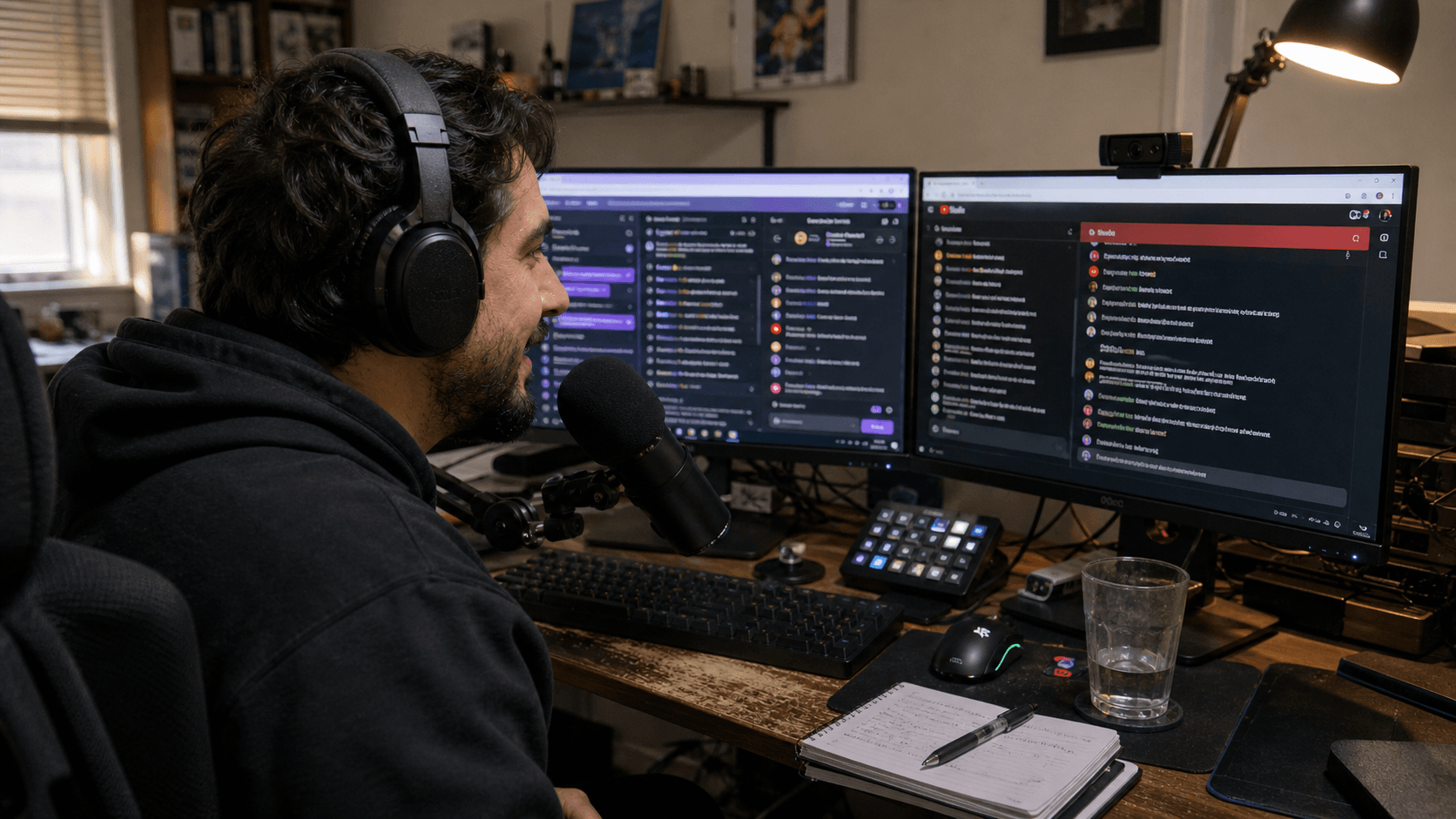
Going live on Twitch and YouTube at once doubles your reach and doubles your chat. Most streamers handle it the obvious way: two browser windows, side by side, eyes flicking between them. It works until it does not — usually about twenty minutes in, when both chats get busy and you realise you have not read a YouTube message in ten minutes.
The two-window problem
Split chat is not really a screen-space problem. It is an attention problem.
Each window has its own scroll position, its own pace, and its own set of people waiting on you. Twitch chat tends to move in fast bursts of short messages. YouTube live chat is usually slower but carries longer questions — exactly the kind that deserve an answer and exactly the kind that scroll away unnoticed while you are looking at the other window.
The result is an audience that is technically in the same stream but is having two separate experiences, and only one of them has your attention at any moment.
What a combined feed actually changes
A multichat tool reads the chat from every platform you are live on and merges it into a single feed, in the order messages were actually sent.
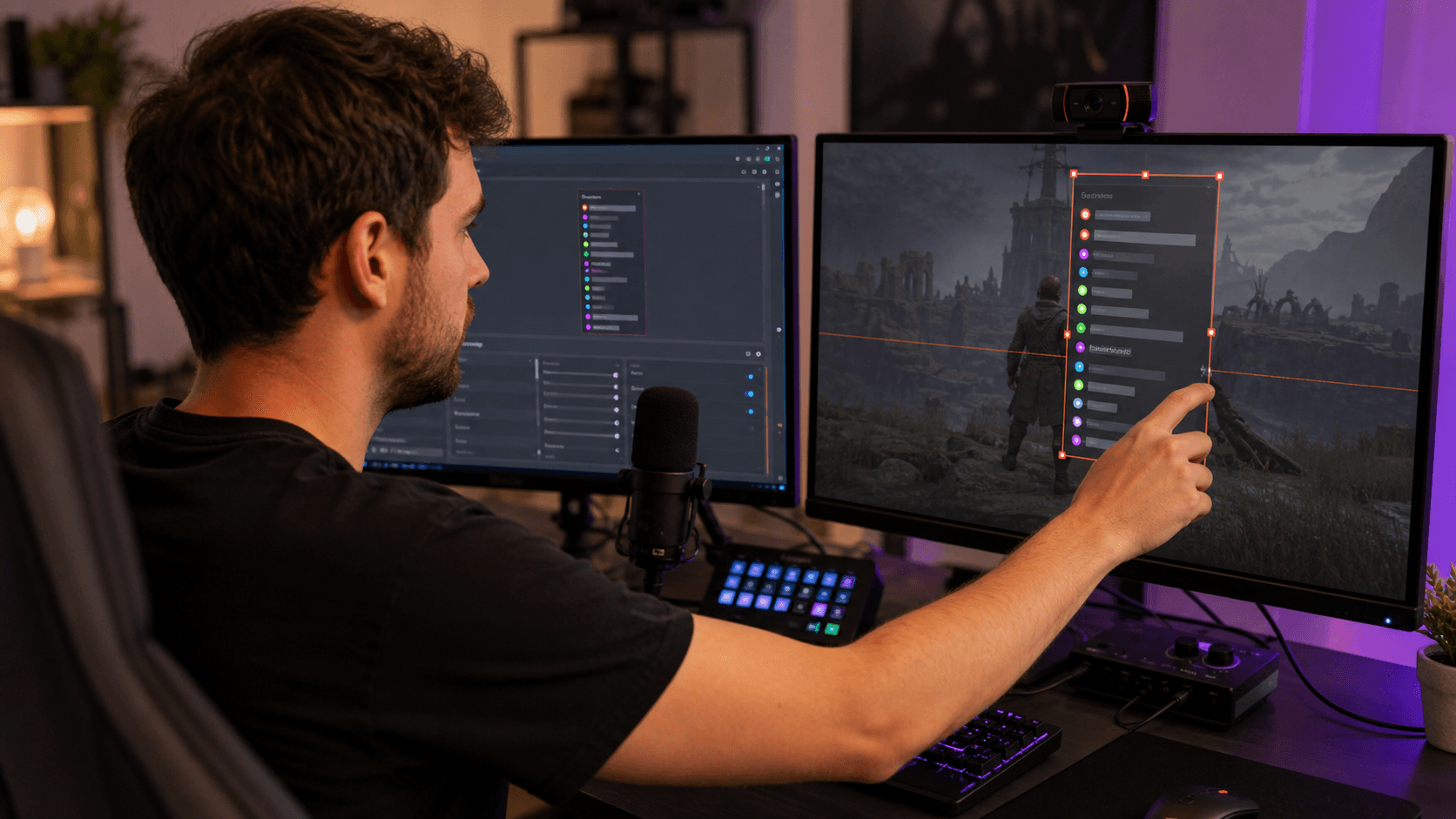
That ordering is the part that matters. A question asked on YouTube and a joke made on Twitch arrive in the same column, one after the other, so you respond to whoever spoke first rather than to whoever happened to be in the window you were looking at. Each message keeps a badge showing where it came from, so when you answer out loud you can say where someone is watching from.
You stop switching windows and start reading one conversation.
Filtering when one platform gets loud
Merging everything is the right default, but not always the right view. If a raid lands on Twitch and the feed becomes a wall of emotes, you can filter down to a single platform, deal with the moment, and switch back to the combined view.
Moderators, subscribers, and members stay marked inline in either view, so support is visible without you needing to remember who is who.
What this is not
Worth being direct about, because the terms get mixed up constantly: this is multichat, not multistreaming.
StreamBuddy reads chat. It does not touch your video or audio, does not broadcast to any platform, and does not restream or transcode anything. If you want to go live on several platforms at once, you still need a separate restreaming service or an encoder that can do it. StreamBuddy handles the conversation side of that setup, not the broadcast side.
Getting set up
Connecting a channel is a one-time step. You authorise the platform, StreamBuddy joins that channel's chat, and messages start arriving in the dashboard. Connect Twitch and YouTube and both feeds merge automatically — and you can add Kick, TikTok, or Rumble later without changing how you work.
Behind the merged feed, StreamBuddy also keeps track of who is talking, so the usernames scrolling past carry some history instead of starting from zero every stream. That is a different problem, and arguably the harder one.
Stop switching between chats
Bring your Twitch, YouTube, TikTok, and other chats together in one dashboard — and start recognising the people behind the usernames.
Try StreamBuddy- twitch
- youtube
- multichat