How to combine Twitch, YouTube, Kick, TikTok, and Rumble chat
Combine Twitch, YouTube, Kick, TikTok, and Rumble chat into one StreamBuddy feed with OBS dock, overlay, and viewer memory workflows.
6 min read
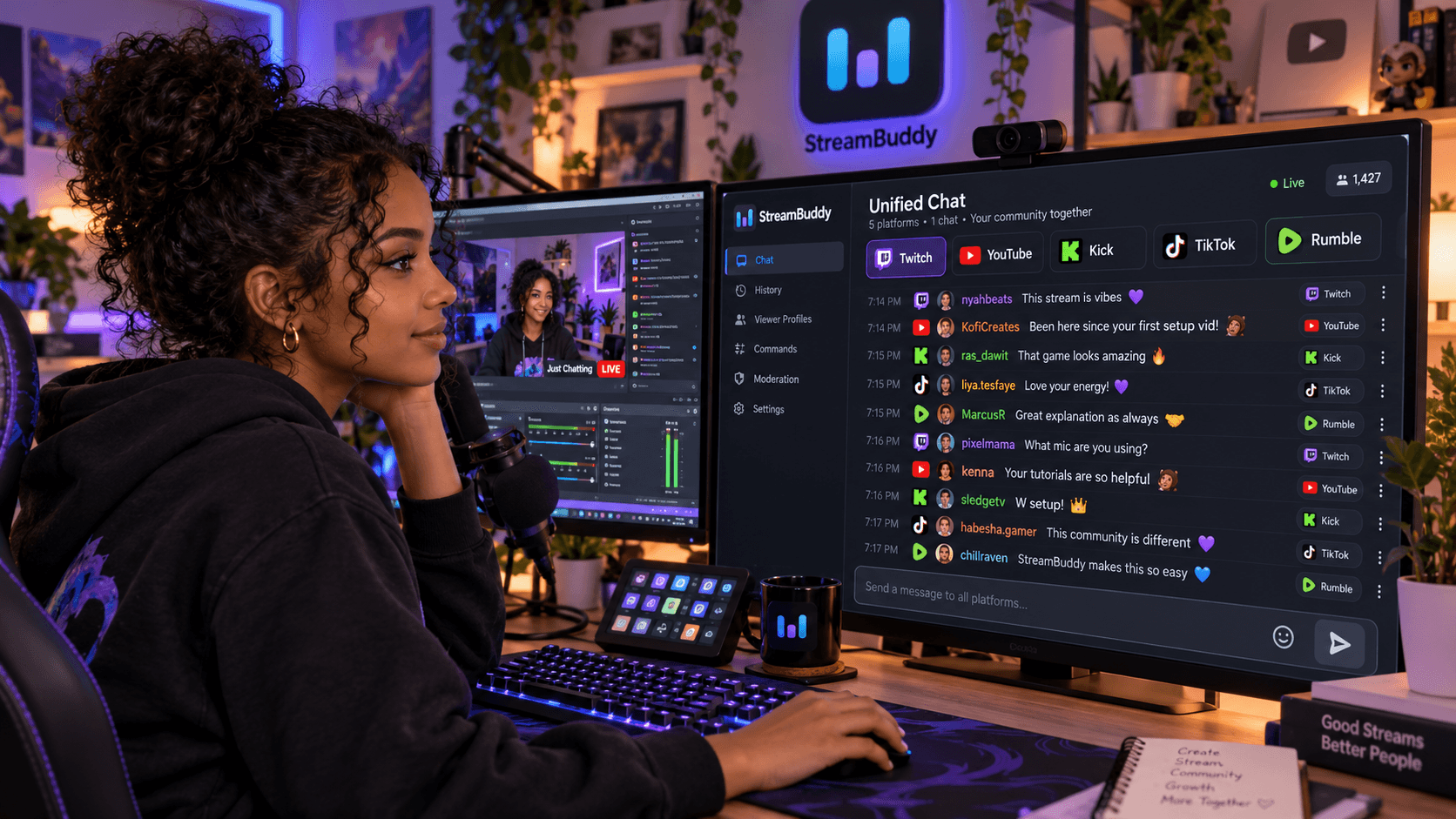
Reading two chats is manageable. Reading five chats is a different job.
Twitch, YouTube, Kick, TikTok, and Rumble each have their own chat behavior, platform culture, and browser window. If you try to watch them separately, the quietest platform gets missed first, the busiest platform takes over, and your attention turns into tab management.
The fix is one multichat workspace: connect the accounts, go live with your normal streaming setup, and read every supported chat in one place.
Why five-platform chat gets chaotic
Five-platform chat is not just five copies of the same thing.
- Twitch can move quickly and lean heavily on emotes, regulars, and mods.
- YouTube often has longer questions, members, and viewers joining from recommendations.
- Kick can bring a separate audience that expects fast recognition.
- TikTok is mobile-first and event-heavy, with chat mixed around follows, gifts, and shares.
- Rumble can be easy to miss when it sits in another tab beside larger chats.
When those chats are split across windows, you lose the order of the conversation. A YouTube question can sit unanswered while Twitch scrolls. A Rumble message can disappear behind OBS. A TikTok comment can arrive on a phone while you are focused on the game.
What each platform adds to the workflow
Each platform adds a different kind of attention cost.
| Platform | What to watch for | Why one feed helps |
|---|---|---|
| Twitch | Fast chat, emotes, moderators, subscribers | Keeps speed visible without making Twitch the only audience |
| YouTube | Longer questions, members, discovery traffic | Prevents slower chat from being ignored |
| Kick | New platform regulars and chat bursts | Keeps Kick viewers part of the same conversation |
| TikTok | Mobile comments, gifts, follows, shares | Lets you read TikTok without staring at a phone |
| Rumble | Smaller or newer audience windows | Stops Rumble from becoming the forgotten tab |
StreamBuddy brings supported chat from these platforms into one private feed with platform labels kept visible.
One feed vs platform-specific tabs
One feed is best for normal hosting. It lets you read the conversation in time order and answer the next useful message regardless of platform.
Platform-specific tabs are useful when one audience needs focus. If TikTok spikes, filter to TikTok. If YouTube has a serious question thread, focus there for a moment. If Rumble is quieter, check that tab without losing the rest of the room.
The goal is not to erase platform differences. The goal is to stop platform differences from forcing you into five separate chat windows.
For the general version of this workflow, read how to combine your streaming chats into one feed. For the Twitch, YouTube, and Kick pairing specifically, use the Twitch, YouTube, and Kick chat page.
Set up StreamBuddy for five-platform chat
The setup is meant to be simple:
- Sign in to StreamBuddy.
- Connect Twitch.
- Connect YouTube.
- Connect Kick.
- Connect TikTok.
- Connect Rumble.
- Go live with OBS, Streamlabs, Restream, or your current streaming system.
- Open the StreamBuddy multichat workspace.
- Confirm each platform shows messages when viewers chat.
- Use filters, notes, tags, and viewer profiles from the private workspace.
StreamBuddy handles chat. It does not send your video to those platforms. Keep using your current encoder or multistreaming service for video distribution.
OBS dock and overlay options
There are two OBS workflows to keep separate.
Use a private OBS dock when you want the chat workspace inside OBS for yourself. This is where notes, tags, viewer profiles, filters, and streamer-side context belong.
Use a public Browser Source overlay when viewers should see chat on stream. This should be display-only and stream-safe.
| Need | Use |
|---|---|
| Read every platform while live | StreamBuddy dashboard, popout, or OBS dock |
| Open viewer context | Private StreamBuddy workspace |
| Show chat on stream | Display-only StreamBuddy overlay URL |
| Keep notes and tags private | Do not put the private workspace in a scene |
The multichat page covers the product overview. For TikTok-specific OBS setup, see TikTok Live chat for OBS. For Rumble-specific setup, see Rumble live chat for OBS.
Viewer memory across platforms
Combining messages solves the reading problem. It does not automatically solve the memory problem.
When a viewer moves from YouTube to Twitch, or a TikTok commenter becomes a regular on Kick, you still need a way to remember what happened. That is why StreamBuddy is built around viewer profiles, notes, tags, and returning-viewer context as well as multichat.
Useful examples:
- Tag a helpful regular who welcomes new viewers across platforms.
- Save a note about a viewer's setup question so you can follow up next stream.
- Recognize someone who chatted last week on YouTube and returns on Twitch.
- Review which platform created the most active chat moments after stream.
The more platforms you add, the more valuable viewer memory becomes. Otherwise every platform treats the same community like separate audiences.
Common five-platform mistakes
Letting one platform dominate
The busiest chat will naturally pull your eyes. Use filters when needed, but return to the combined feed so smaller chats still get attention.
Showing private context on stream
If you use an OBS overlay, make sure it is the display-only overlay URL. Do not capture your private dashboard, notes, tags, or viewer profiles.
Forgetting TikTok and Rumble testing
TikTok and Rumble can have different connection behavior than Twitch or YouTube. Send test messages before going live so you know each platform is appearing.
Treating chat as video distribution
Multichat does not put you live anywhere. You still need your normal video setup. StreamBuddy sits beside it as the chat layer.
Frequently asked questions
Can I combine Twitch, YouTube, Kick, TikTok, and Rumble chat?
Yes. StreamBuddy supports bringing chat from Twitch, YouTube, Kick, TikTok, and Rumble into one multichat workspace, with platform labels kept visible.
Can I show all five chats on stream?
Yes. Use a display-only StreamBuddy overlay URL in OBS when viewers should see chat. Keep private notes, tags, profiles, and controls in the private workspace.
Does StreamBuddy send one reply to every platform?
StreamBuddy supports streamer-side chat workflows where platform capabilities allow, but the safest default is to treat each platform as its own audience and keep platform labels visible when replying.
Does StreamBuddy restream my video?
No. StreamBuddy does not handle video. Use OBS, Streamlabs, Restream, or another streaming setup for broadcasting, and use StreamBuddy for chat and viewer context.
Why not keep every platform in its own tab?
You can, but it gets harder as platforms multiply. A combined feed keeps the conversation ordered and makes it easier to notice quiet platforms before they are forgotten.
Connect accounts and go live
Five-platform streaming should not mean five chat windows fighting for your attention.
Connect your accounts, go live with your current streaming setup, read Twitch, YouTube, Kick, TikTok, and Rumble in one StreamBuddy workspace, and use viewer memory to remember the people behind the messages.
Read five chats in one place
Connect Twitch, YouTube, Kick, TikTok, and Rumble, then use StreamBuddy as your private multichat and viewer-memory workspace.
Set up StreamBuddy- multichat
- twitch
- youtube
- kick
- tiktok
- rumble