How to customize a chat overlay with emotes and badges
Customize a StreamBuddy chat overlay for OBS with readable fonts, platform badges, emotes, transparent backgrounds, and safe viewer-facing settings.
6 min read
A chat overlay should feel like it belongs on your stream, not like a random browser window pasted on top of gameplay.
The best overlays are readable at a glance, clear about which platform each message came from, and safe to show on stream. That means your viewers can see the conversation, but they cannot see your private notes, moderation controls, viewer history, or dashboard settings.
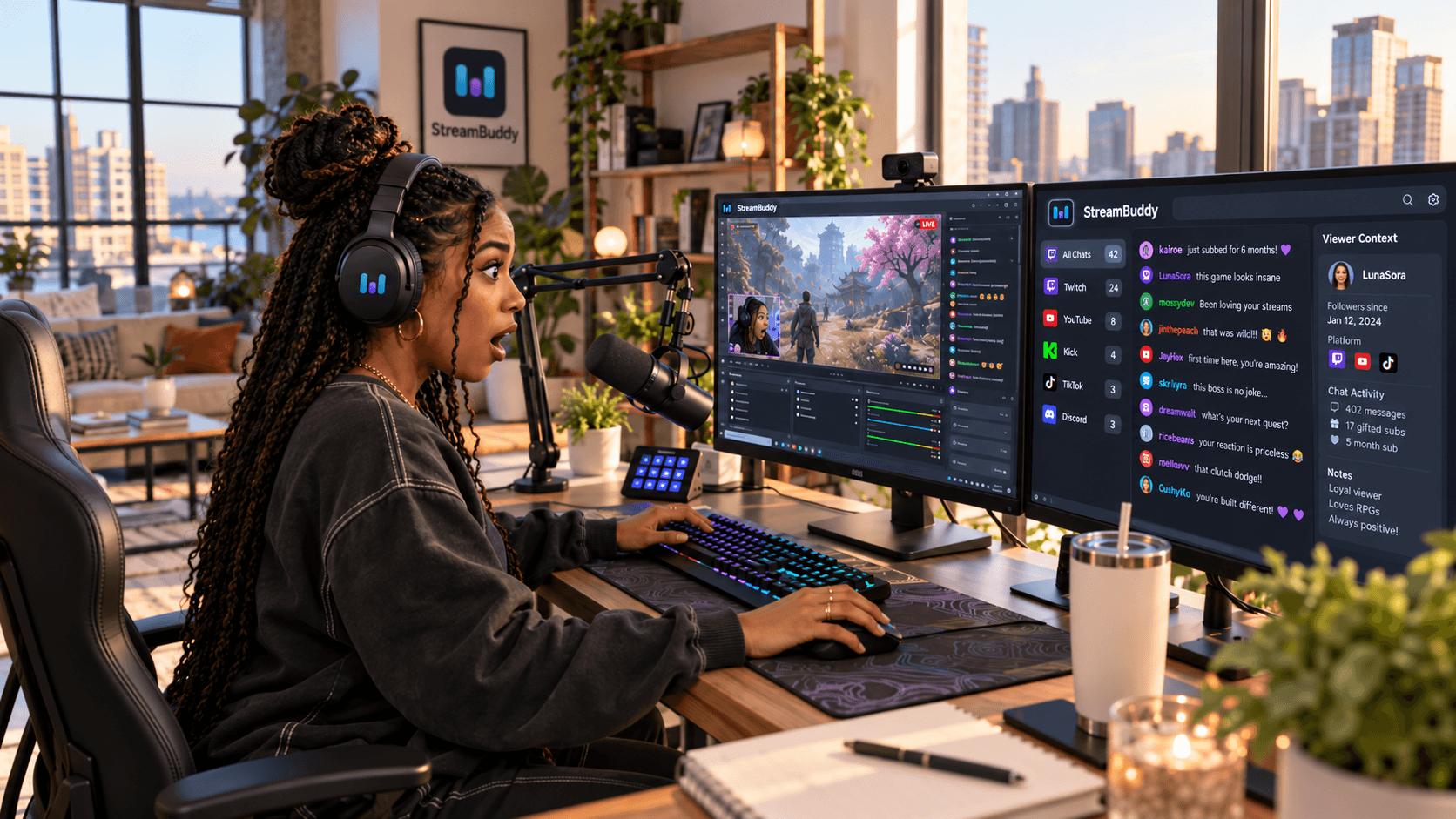
StreamBuddy is built for that split. The dashboard gives you the working view with multichat, viewer memory, notes, tags, moderation actions, and context. The overlay gives OBS a clean public chat surface with the design choices you actually want viewers to see.
What makes a good chat overlay
A good overlay does three jobs:
- It lets viewers follow the conversation without blocking the content.
- It helps you and your audience understand where messages came from.
- It stays readable after compression, resizing, and mobile viewing.
That usually means using fewer design effects, not more. Strong contrast, predictable spacing, short line lengths, and consistent badges matter more than heavy animation.
If you are building the overlay for a multistream, start with one overlay instead of separate widgets. One StreamBuddy overlay, filtered to the platforms you choose, keeps every message in the same visual rhythm, and it is easier to place in OBS than several chat boxes.
Simulcasting to Twitch? Twitch's Terms (section 11) bar showing other platforms' chat on your Twitch stream. Use a Twitch-only overlay there, and keep the combined feed in your private dashboard or dock.
Twitch's Terms of Service · Can you multistream on Twitch? · As of
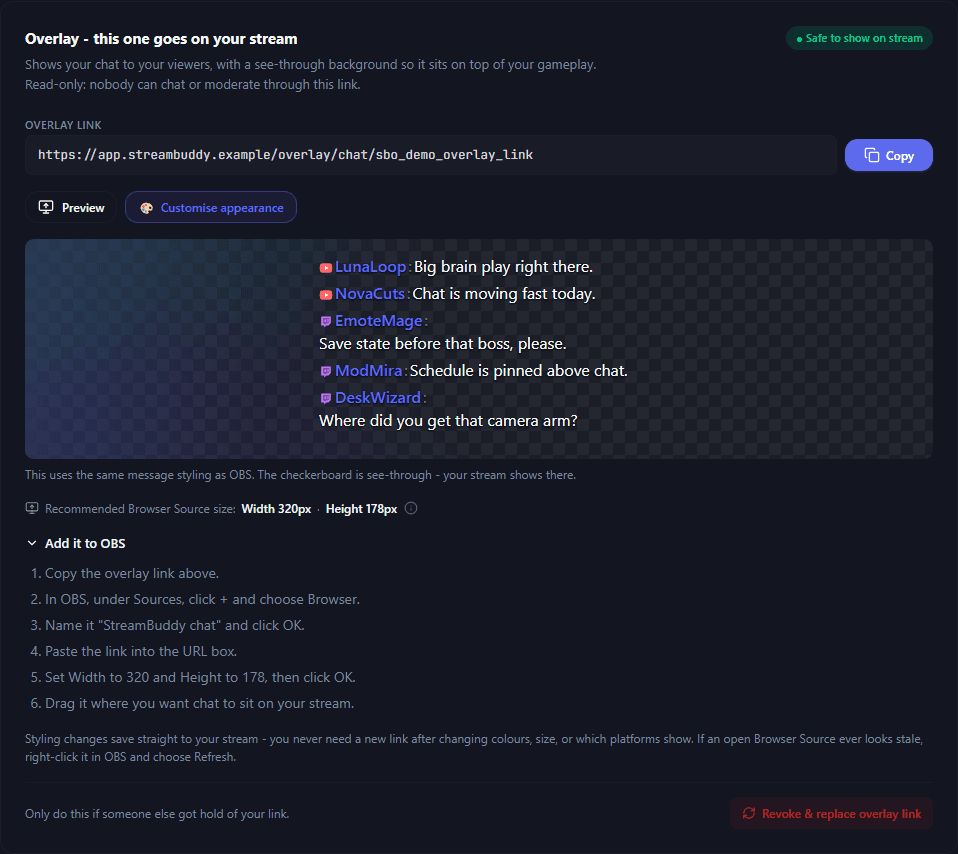
For a full OBS setup walkthrough, use the StreamBuddy chat overlay for OBS guide. If your main goal is combining platforms first, start with multichat for OBS.
Keep platform badges visible
Platform badges are not decoration. They tell you whether a message came from Twitch, YouTube, Kick, TikTok, or Rumble, and they help viewers understand which chat you are answering.
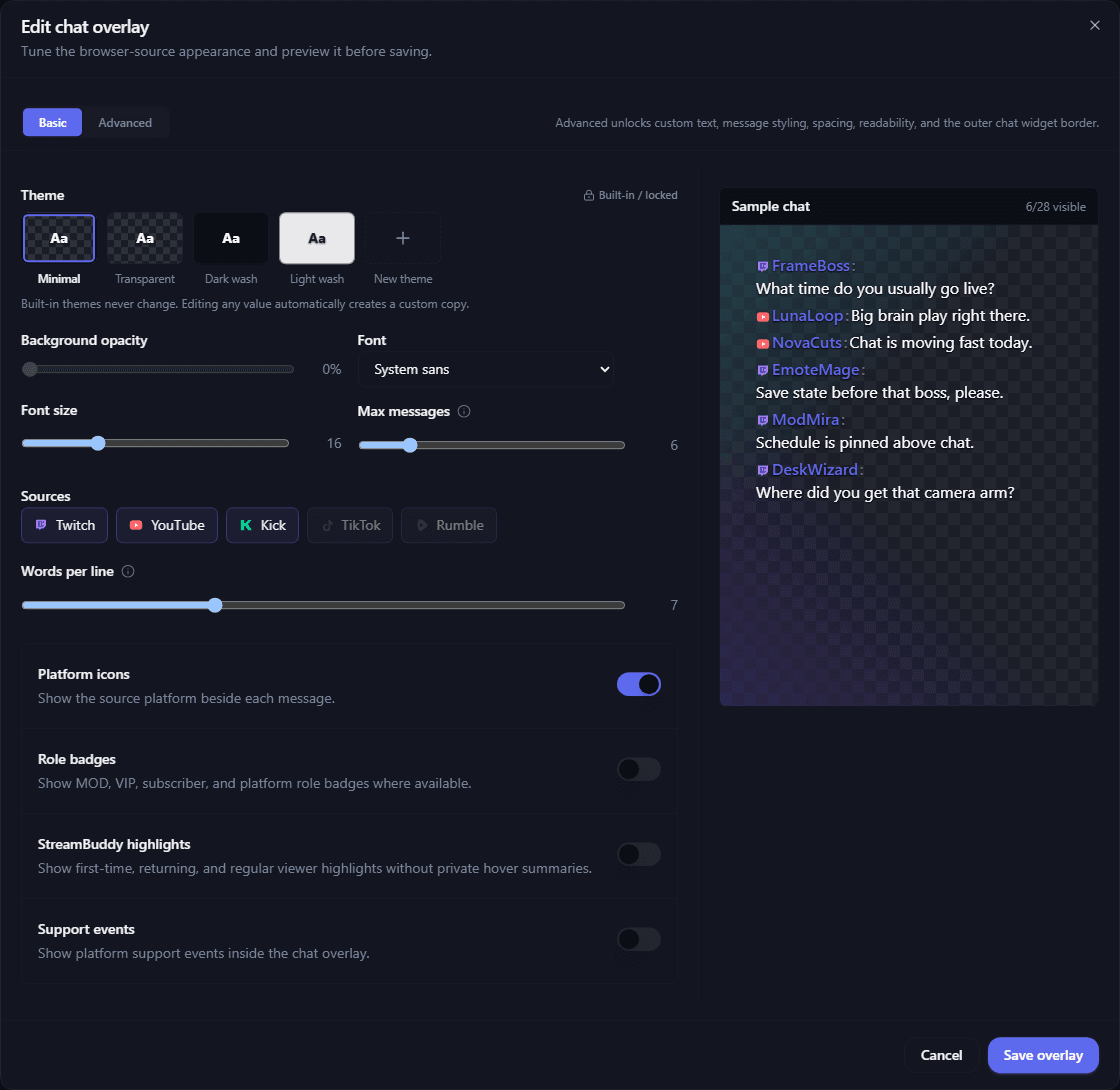
In StreamBuddy, keep Platform icons turned on for any overlay that shows more than one platform. They are especially useful when:
- Your overlay shows chat from more than one platform.
- You call out viewers by platform.
- You are clipping stream moments where chat context matters.
If your overlay is very small, keep the platform icons instead of removing them completely. A tiny platform mark is usually better than making every message look like it came from the same place.
Role badges are a separate switch, off by default. Turn it on if you want MOD, VIP, subscriber, and platform role badges shown beside names where the platform provides them.
Use emotes without making chat harder to read
Emotes are part of how chat talks. If the overlay strips them out, the conversation loses tone.
StreamBuddy supports emote rendering and platform badges where available, so your on-stream chat can preserve more of the original message instead of flattening everything into plain text. That matters for Twitch emotes, YouTube emoji-style reactions, Kick chat culture, and the quick visual replies viewers use during live moments.
The trick is sizing. Emotes should be large enough to read, but not so large that they stretch every row. StreamBuddy sizes emotes with the text, so the setting to tune is the font size:
- Pick a font size where an emote is still readable on a phone.
- Avoid giant message padding unless the overlay is mostly decorative.
- Test emote-heavy messages before going live.
For a deeper feature page on this use case, see chat overlay emotes and badges.
Pick font, color, spacing, and shadows for real stream conditions
An overlay that looks clean in a settings panel can still fail once it sits on top of gameplay, camera movement, alerts, and compression.
Use this order when styling:
- Choose a font size that stays readable on a phone.
- Pick a text color that works over both bright and dark scenes.
- Add a soft text shadow or subtle message background.
- Set spacing tight enough to show several messages without crowding.
- Check long usernames and long messages before saving.
Avoid relying only on color to communicate platform or role. Badges and labels are easier to scan, and they survive color shifts better after encoding.
If your stream has a strong brand palette, pull one accent color into borders, role labels, or message highlights. Keep the message text itself simple. Chat should feel branded, but it still has to be read quickly while people are watching the stream.
Use a transparent OBS background
Most streamers want chat to float over the scene, not sit inside a heavy rectangle. In OBS, that means using a browser source with a transparent overlay URL.
In StreamBuddy, the overlay link is the public display surface. Add that link to OBS as a Browser Source, set the recommended width and height, and place it where chat should appear. The transparent background lets gameplay, camera, or your stream scene show behind the messages.
Do not crop the overlay just to hide overflow. If messages are getting cut off, adjust the StreamBuddy overlay settings first:
- Reduce Max messages.
- Keep Compact spacing on.
- Lower the font size slightly.
- Increase the browser source height.
- Lower Words per line so messages wrap cleanly.
If you stream to YouTube and want a platform-specific setup, the YouTube live chat overlay guide covers that path.
Keep private StreamBuddy context off stream
Your public overlay and your private workspace should not show the same information.
The overlay is for viewers. It can show chat messages, names, platform badges, and emotes. If you switch on StreamBuddy highlights, it also marks first-time, returning, and regular viewers on stream, without the private summaries you see in the dashboard. That switch is off by default.
The StreamBuddy dashboard is for you. That is where you can read the full multichat feed, see viewer memory, add notes, apply tags, review history, and use moderation tools. Those details are useful during a stream, but they should not appear in the broadcast unless you intentionally share them.
This is one of the main reasons to use a dedicated overlay instead of screen-capturing your dashboard. You get the public chat look without exposing the streamer workflow behind it.
Test before you go live
Before your next stream, run a quick overlay test:
- Send a message from each connected platform.
- Send at least one emote-heavy message.
- Check a long username and a long message.
- Look at the overlay over a bright scene and a dark scene.
- Record a short local OBS test and watch it at phone size.
- Confirm that no private notes, tags, controls, or dashboard panels appear.
This takes a few minutes and catches most overlay problems before viewers see them.
FAQ
Can I customize a StreamBuddy chat overlay for OBS?
Yes. StreamBuddy is designed to give you an OBS-friendly overlay URL with styling controls for the viewer-facing chat surface. You can use it alongside your current streaming setup without changing how you broadcast video.
Does StreamBuddy show emotes and badges?
Yes. StreamBuddy supports emote rendering and platform badges where available, so your overlay can keep important chat context instead of turning every message into plain text.
Is the overlay the same as the StreamBuddy dashboard?
No. The overlay is the public view for OBS. The dashboard is your private workspace for multichat, viewer memory, notes, tags, history, and moderation context.
Does StreamBuddy restream my video?
No. StreamBuddy is focused on multichat, viewer context, overlays, and stream-friendly chat tools. Keep using your current encoder or multistreaming service for video, and use StreamBuddy alongside it to read, manage, and display chat.
Customize your chat without rebuilding your setup
The easiest overlay setup is the one you can adjust without rebuilding your whole stream scene.
Connect your accounts in StreamBuddy, go live with the platforms you already use, then customize the public overlay so viewers see a clean chat display while you keep the private dashboard for the deeper streamer workflow.
Make your chat overlay fit your stream
Connect your platforms, style a viewer-safe overlay, and keep your private multichat workspace beside the setup you already use.
Try StreamBuddy- chat overlay
- emotes
- badges
- obs
- customization