How to add TikTok Live chat to OBS
Add TikTok Live chat to OBS as a private dock or public browser-source overlay, and keep TikTok beside your other chats with StreamBuddy.
7 min read
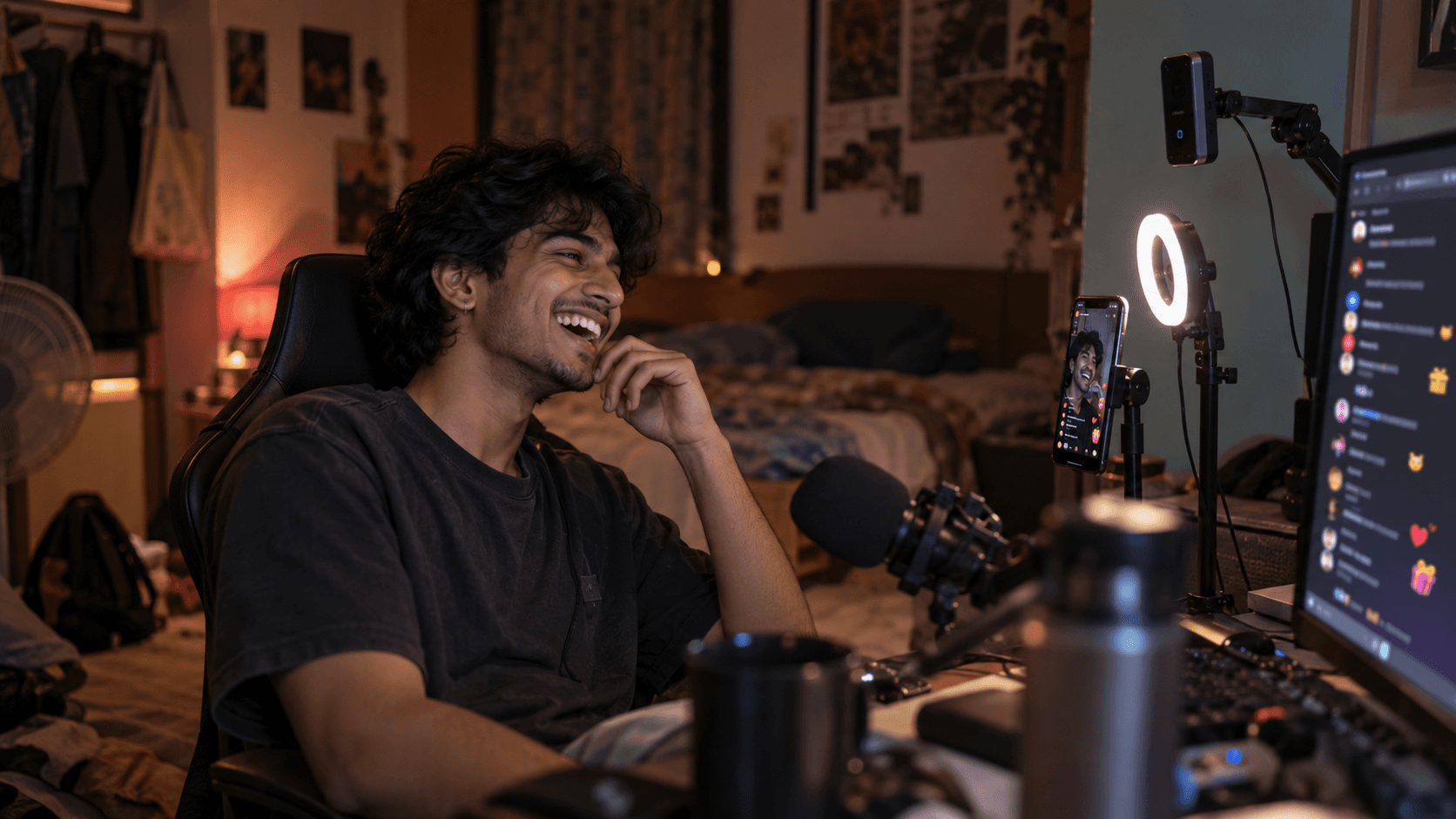
TikTok Live chat feels different from Twitch or YouTube chat. It is mobile-first, event-heavy, and often mixed with likes, gifts, follows, shares, and short comments that arrive faster than you can read them from a phone on your desk.
That is fine when TikTok is your only stream and you are watching the app. It gets harder when OBS is the center of your setup, especially if you are also live on Twitch, YouTube, Kick, or Rumble.
This guide shows how to add TikTok Live chat to OBS, when to use a private dock, when to use a public overlay, and how StreamBuddy keeps TikTok in the same multichat workflow as the rest of your stream.
Before you add TikTok chat to OBS
Make sure the basics are ready first:
- Your TikTok account can go live.
- You have access to your normal TikTok streaming workflow, such as TikTok LIVE Studio, OBS with a TikTok stream key, or your current multistreaming tool.
- You have OBS Studio open with the scene you use while live.
- You know whether you want chat only for yourself, visible to viewers, or both.
That last point matters. There are two different OBS surfaces people call "TikTok chat in OBS", and they should not be treated the same.
Private dock vs public overlay
A private OBS dock is for you. It sits inside OBS next to your scenes, mixer, and sources. Viewers cannot see it unless you accidentally capture the OBS window. This is the best option when you want to read TikTok comments, reply from your own workflow, review viewer context, and keep private notes off stream.
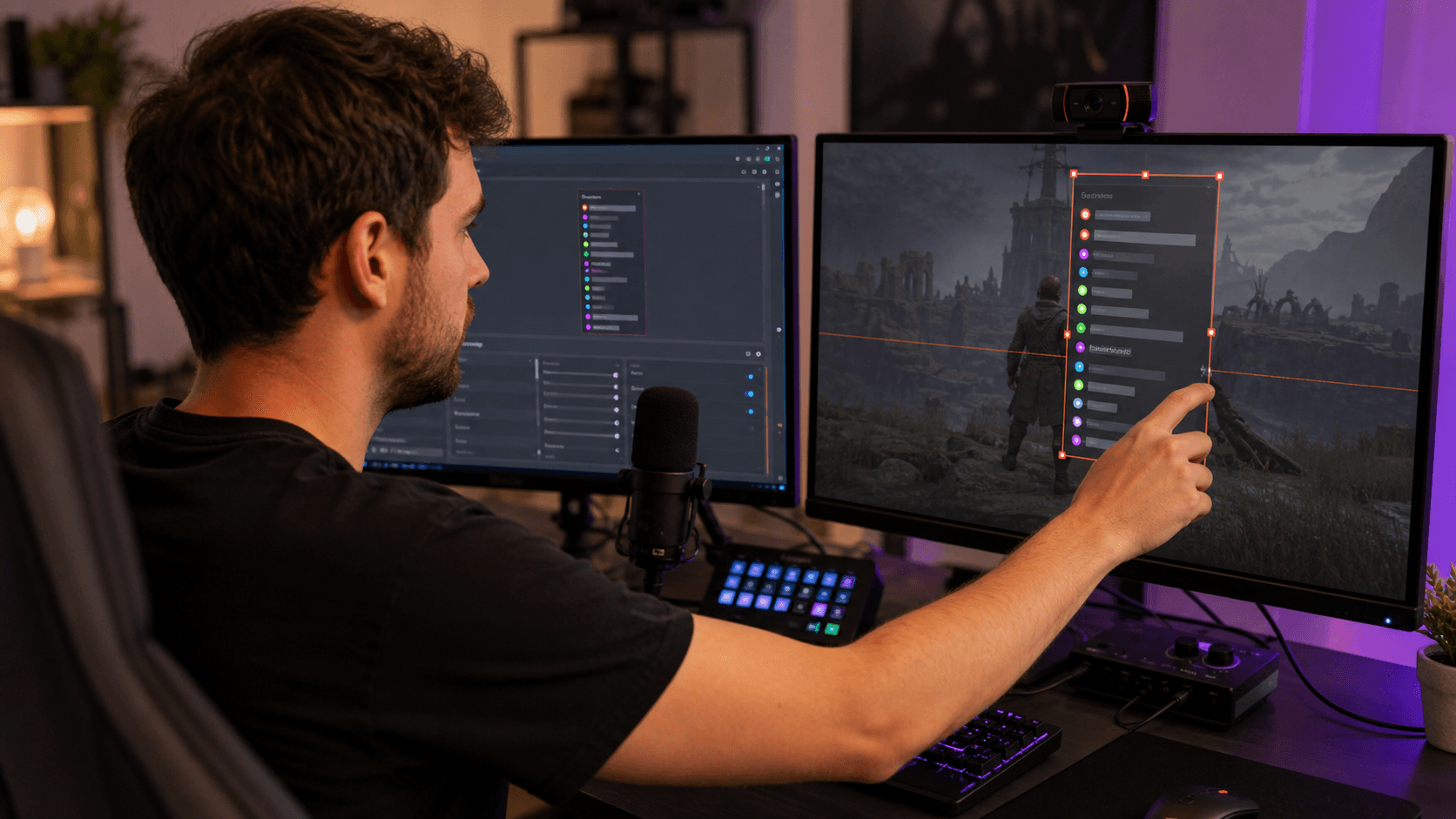
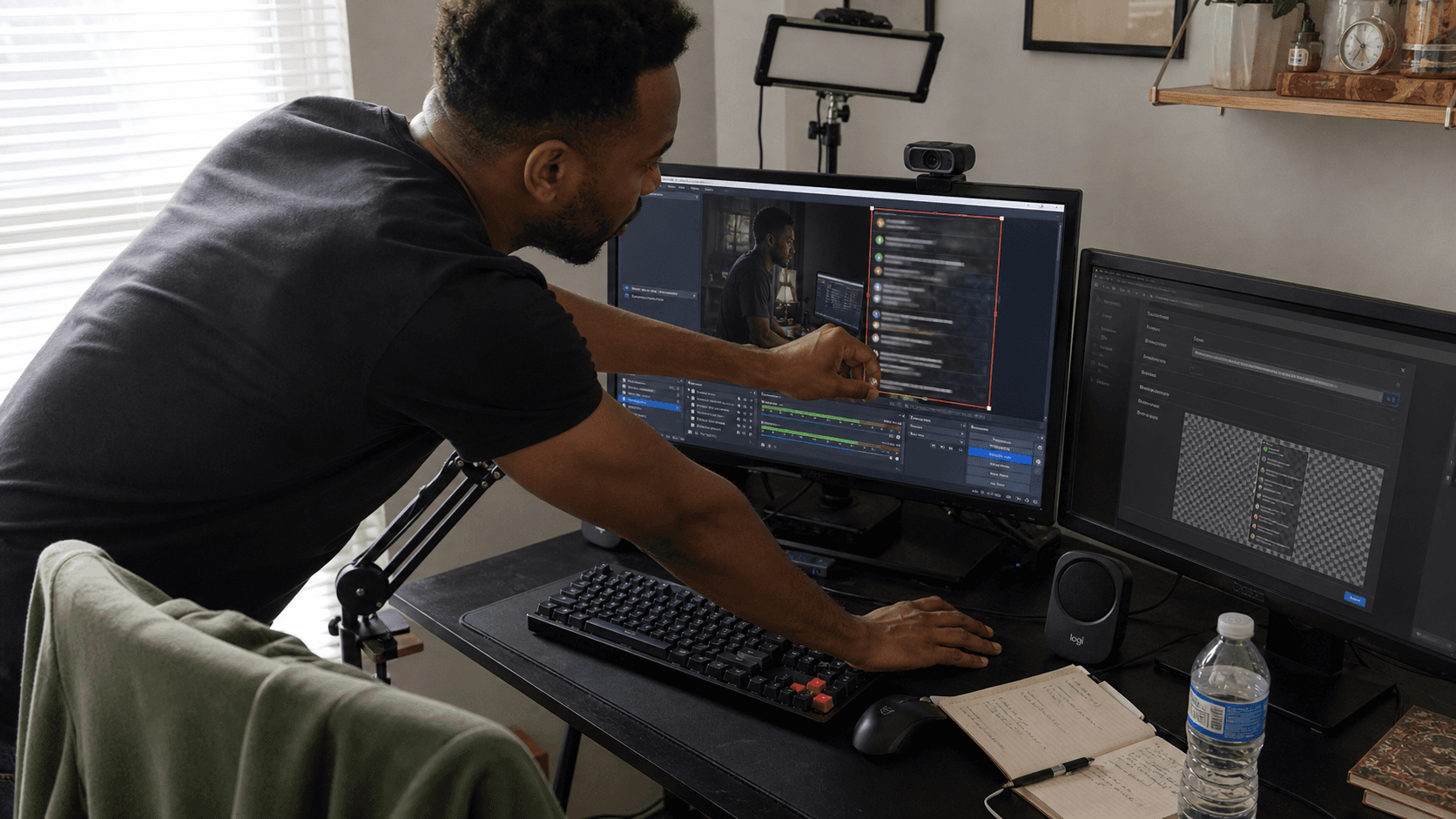
A public Browser Source overlay is for viewers. It appears inside the scene itself, so your audience can see chat on the broadcast. This should be display-only, transparent, and limited to the messages and platform badges you actually want on stream.
StreamBuddy gives you both:
| Surface | Use it for | Keep in mind |
|---|---|---|
| OBS dock | Reading chat privately, opening viewer context, using streamer-side tools | Do not capture your full OBS window on stream |
| Browser Source overlay | Showing selected chat messages on the broadcast | Use the stream-safe overlay URL, not your private dock URL |
How to add TikTok Live chat as a private OBS dock
Use this setup when you mainly want to read TikTok chat while streaming.
- Sign in to StreamBuddy.
- Open Settings and connect your TikTok account.
- Connect any other platforms you also stream to, such as Twitch, YouTube, Kick, or Rumble.
- Go live on TikTok using your normal streaming setup.
- In StreamBuddy, open the live chat workspace and confirm TikTok messages are coming in.
- Copy your StreamBuddy dock URL.
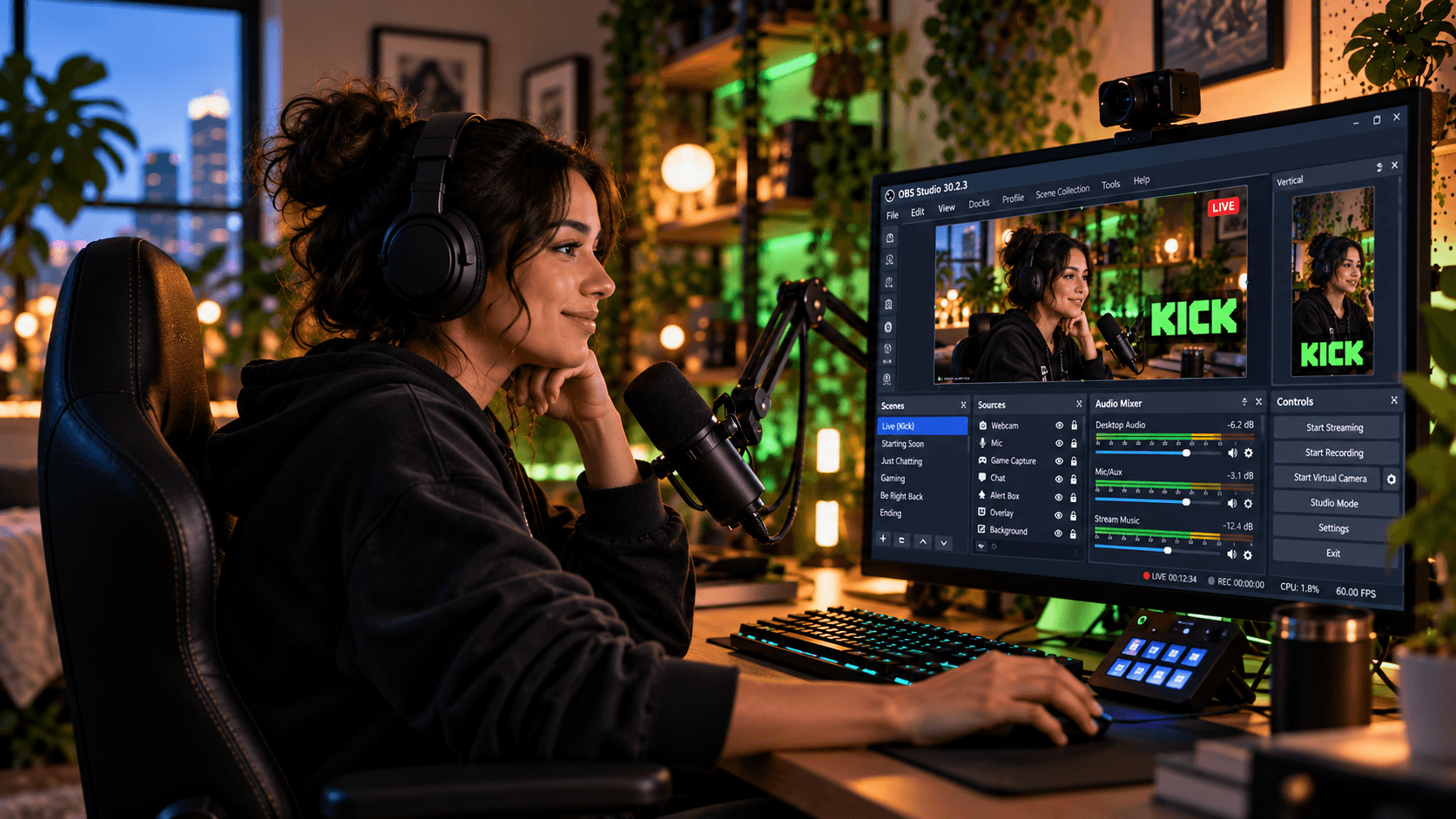
- In OBS, go to Docks -> Custom Browser Docks.
- Name the dock
StreamBuddy chat, paste the dock URL, and save it. - Drag the dock where it fits your OBS layout.
Now TikTok chat is inside OBS for you, not on the broadcast. That makes it a good setup for single-monitor streaming, gaming, IRL control rooms, and anyone who wants TikTok beside the rest of their chat without juggling a phone.
If you stream from a compact setup, the mobile multichat guide is a useful companion because it covers keeping chat readable when your screen space is limited.
How to show TikTok Live chat on stream
Use this setup when viewers should see chat on the broadcast.
- In StreamBuddy, open your overlay settings.
- Create or copy your stream-safe overlay URL.
- Choose which platforms should appear. If this scene is TikTok-specific, you can show TikTok only. If it is a multistream scene, include the platforms you want viewers to see.
- Adjust the overlay style, font size, opacity, badges, and message count.
- In OBS, select the scene where chat should appear.
- In Sources, select + and choose Browser.
- Paste the StreamBuddy overlay URL.
- Set the Browser Source width and height based on the StreamBuddy recommendation.
- Position the overlay away from your camera, alerts, captions, and TikTok mobile UI safe areas.
- Send a test message and confirm it appears in the OBS preview.
The full OBS multichat setup explains this same Browser Source workflow in more detail, including safe overlay links, recommended sizing, and transparent backgrounds.
Use TikTok chat beside Twitch and YouTube
TikTok chat gets much easier when it is not isolated. If you are live on TikTok and Twitch, you should not have to look at one phone, one Twitch popout, one YouTube window, and OBS at the same time.
StreamBuddy combines TikTok, Twitch, YouTube, Kick, and Rumble chat into one feed. Each message keeps its platform badge, so you know where the viewer is watching. You can respond with the right context instead of guessing which audience just asked the question.
That matters most when a TikTok viewer joins a running conversation from Twitch, or a YouTube regular finds you on TikTok for the first time. The chat feed is not just a message pile. It also helps you recognize returning viewers, save notes, and remember who showed up across streams.
For the two-platform version of this setup, read the TikTok and Twitch chat guide. For the broader platform workflow, use how to combine your streaming chats into one feed.
Troubleshooting TikTok chat in OBS
TikTok messages are not appearing
First confirm you are live on TikTok and that the TikTok account connected to StreamBuddy is the same account you are streaming from. TikTok chat tools can only read the live room they are connected to, so a second account, test account, or ended stream will look blank.
If you just went live, give the connection a moment and send a fresh test message. Then refresh the StreamBuddy dock or the OBS Browser Source.
The OBS dock works, but the overlay is blank
The dock and overlay are separate URLs. If the private dock works, open your StreamBuddy overlay settings and confirm the overlay is enabled, TikTok is selected, and the Browser Source is using the overlay URL.
Do not copy the StreamBuddy dashboard address from your browser bar. Use the specific overlay link meant for OBS.
The overlay shows too many TikTok events
TikTok can produce a lot of activity. Comments, gifts, follows, shares, likes, and joins do not all need the same visibility. Keep the on-stream overlay focused on the events viewers can follow, and use the private StreamBuddy workspace for the fuller picture.
The overlay is hard to read on a vertical stream
Increase the font size, reduce the number of visible messages, and use a subtle background or text shadow. Test on a phone, not just the OBS preview. A layout that looks clean on your monitor can become tiny once it is compressed and watched vertically.
TikTok reconnects mid-stream
TikTok Live connections can behave differently from Twitch or YouTube. If messages pause, wait briefly, then refresh the dock or Browser Source if needed. StreamBuddy is built to reconnect, but testing your setup before going live keeps surprises out of the show.
Frequently asked questions
Can I add TikTok Live chat to OBS?
Yes. Use a chat tool that can read your TikTok Live chat and provide an OBS-friendly URL. In StreamBuddy, the private dock goes in Docks -> Custom Browser Docks, and the public overlay goes in an OBS Browser Source.
Is StreamBuddy a TikTok streaming app?
No. StreamBuddy is focused on chat, multichat, viewer context, and streamer-side workflow. Keep using TikTok LIVE Studio, OBS, or your current multistreaming service for video. Use StreamBuddy alongside that setup to read and display chat.
Can I show only TikTok chat on stream?
Yes. In your StreamBuddy overlay settings, choose which connected platforms appear. You can build a TikTok-only overlay for a TikTok scene, or a combined overlay for a multistream scene.
Can I combine TikTok chat with Twitch and YouTube?
Yes. StreamBuddy supports TikTok alongside Twitch, YouTube, Kick, and Rumble, so you can read one multichat feed instead of checking separate windows.
Does the OBS overlay show private viewer notes?
No. The StreamBuddy overlay is display-only and meant for viewers. Private viewer notes, history, and streamer-side controls stay in the StreamBuddy workspace or private OBS dock.
Set up before you go live
The easiest TikTok OBS setup is the one you prepare before chat starts moving. Connect your accounts, create your StreamBuddy dock and overlay URLs, send a test message, and make sure the layout is readable in OBS.
Once that is done, you can go live the normal way and use StreamBuddy alongside your current streaming system: one place to read TikTok chat, one optional overlay for viewers, and one multichat workflow when you are live on more than one platform.
Bring TikTok chat into OBS
Connect TikTok, Twitch, YouTube, Kick, and Rumble, then read every chat in one StreamBuddy workspace with OBS dock and overlay URLs ready before you go live.
Set up StreamBuddy- tiktok live
- tiktok chat
- obs
- chat overlay
- multichat