How to use text-to-speech for multichat
Use text-to-speech for multichat without creating spam. Learn when TTS helps, what StreamBuddy reads aloud, chat filters, OBS audio, and safety tips.
6 min read

Text-to-speech can make chat usable when you cannot stare at a screen. It helps gaming streamers stay in the match, IRL streamers keep moving, and accessibility-focused setups make chat easier to follow.
It can also become noise fast.
The best multichat TTS setup is restrained. You switch it on for the moments you cannot look at chat, keep bots and commands out of it, and keep it in the private streamer workflow unless you intentionally route it into the stream.
When chat TTS helps
Text-to-speech is most useful when looking at chat is hard.
Good use cases:
- Gaming streams where alt-tabbing breaks flow.
- Single-monitor setups.
- Console streams using a phone or tablet as a second screen.
- IRL streams where the streamer cannot keep looking down.
- Accessibility workflows.
- Quieter multichat stretches where a message can sit unseen for a while.
For mobile or second-screen workflows, see the mobile multichat page. On an iPhone, the voice pauses when the screen locks or you switch apps, so keep StreamBuddy open on screen.
What gets read aloud
Know what your tool reads before you rely on it.
StreamBuddy's text-to-speech reads each new chat message that your chat feed shows, as "name says message". It does not pick messages by type: there is no setting that reads only first-time chatters, questions, or moderators.
So the choice you make is when to listen and what the feed shows:
- Turn it on for the stretches where you cannot look at chat, and off again when you can.
- Hide bots, commands, and blocked keywords in the chat filters. Hidden messages are not read.
- Mute a viewer and their messages are no longer read either.
- Messages longer than 300 characters are skipped.
- If more than a few messages are waiting, StreamBuddy drops the backlog and reads the newest one, so the voice stays close to live.
If every message is spoken in a fast chat, TTS stops being helpful. It becomes a second chat you have to moderate with your ears.
Keep platform context on screen
When you are live on several platforms, it helps to know where a message came from.
StreamBuddy speaks the viewer's name and the message: "Alex says, nice shot." It does not say the platform.
The platform is on screen instead. Each message in the private multichat feed keeps its platform icon, so a quick glance tells you whether to say, "Thanks, YouTube chat," or "Good call from Kick."
If you cannot glance at all, answer the person by name. The name is the part the voice gives you.
Avoid spam and repeated alerts
TTS needs moderation boundaries.
In StreamBuddy, the spoken feed follows the chat filters in your chat settings:
- Hide commands keeps messages that start with a command prefix, like
!uptime, out of chat and out of the voice. - Muted usernames hides every message from the account names you list, which is the quickest way to silence a bot.
- Blocked keywords hides messages that contain a word or phrase you list.
- Mute in chat, on a viewer's profile, hides that viewer's messages.
There are no cooldowns and no moderator-only rule. If chat gets too fast to listen to, turn text-to-speech off and read instead.
Some platforms produce high-volume events. TikTok joins and likes are hidden by default in chat settings, and hidden events are not read. Leave them off while text-to-speech is on.
The stream activity feed page is a useful companion when you want to review activity without turning every event into audio.
Use TTS with OBS and desktop workflows
There are two separate jobs:
- Hearing chat privately while you stream.
- Sending audio into the broadcast.
Most streamers should start with private TTS. You hear chat, but viewers do not. That helps you react without adding another voice to the stream mix. It only holds while OBS is not capturing the device the voice plays on, so check that before you go live.
If you intentionally route TTS to the broadcast, test it carefully:
- Confirm which audio device carries TTS.
- Check whether OBS captures that device.
- Set a volume that does not fight your voice or game audio.
- Test moderation filters before going live.
- Keep an emergency mute ready.
StreamBuddy's TTS belongs beside the private multichat workflow. Turn on Text-to-speech in the chat settings, then press the Read chat aloud button in the chat toolbar. The button is in the dashboard chat and in the pop-out chat window; the OBS dock does not have it.
The voice comes from your browser, so it plays through whatever audio device that browser uses. You can pick a voice for each device in the same settings. Volume is set by your browser or system, not by StreamBuddy. You decide how it should fit your audio setup.
TTS vs chat overlay
TTS and overlays solve different problems.
| Need | Use |
|---|---|
| You need to hear chat while focused | Text-to-speech |
| Viewers need to see chat | Display-only OBS overlay |
| You need viewer notes or tags | Private StreamBuddy workspace |
| You need both visual and audio awareness | Private workspace plus TTS |
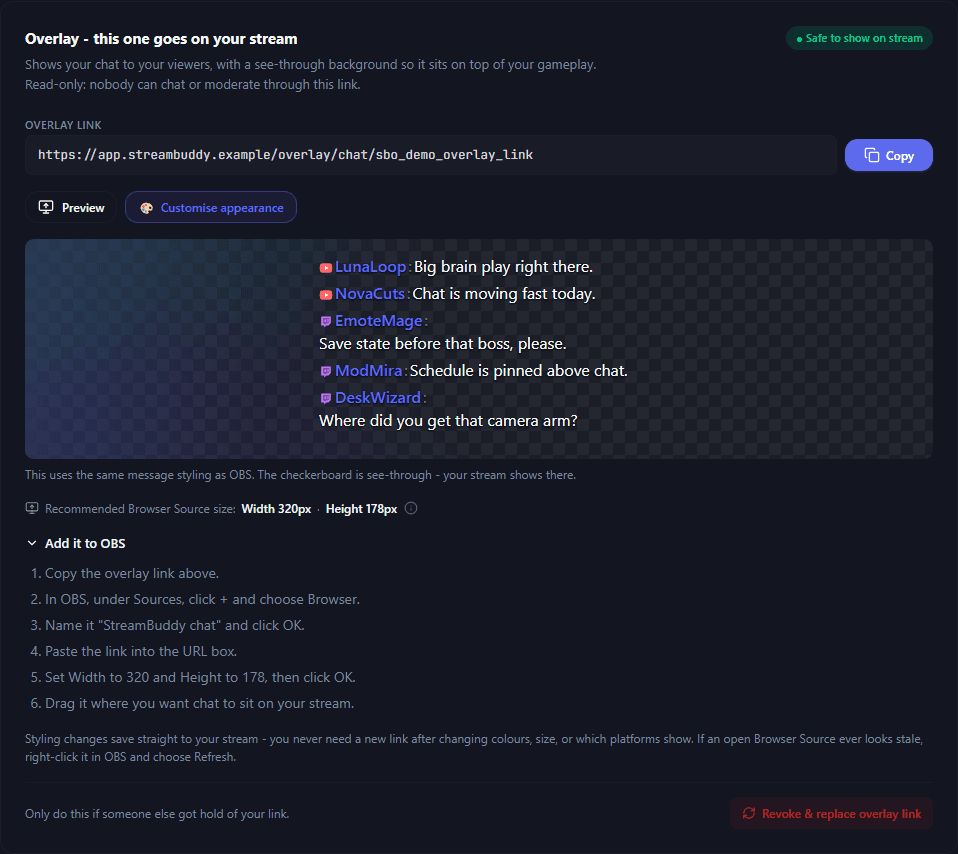
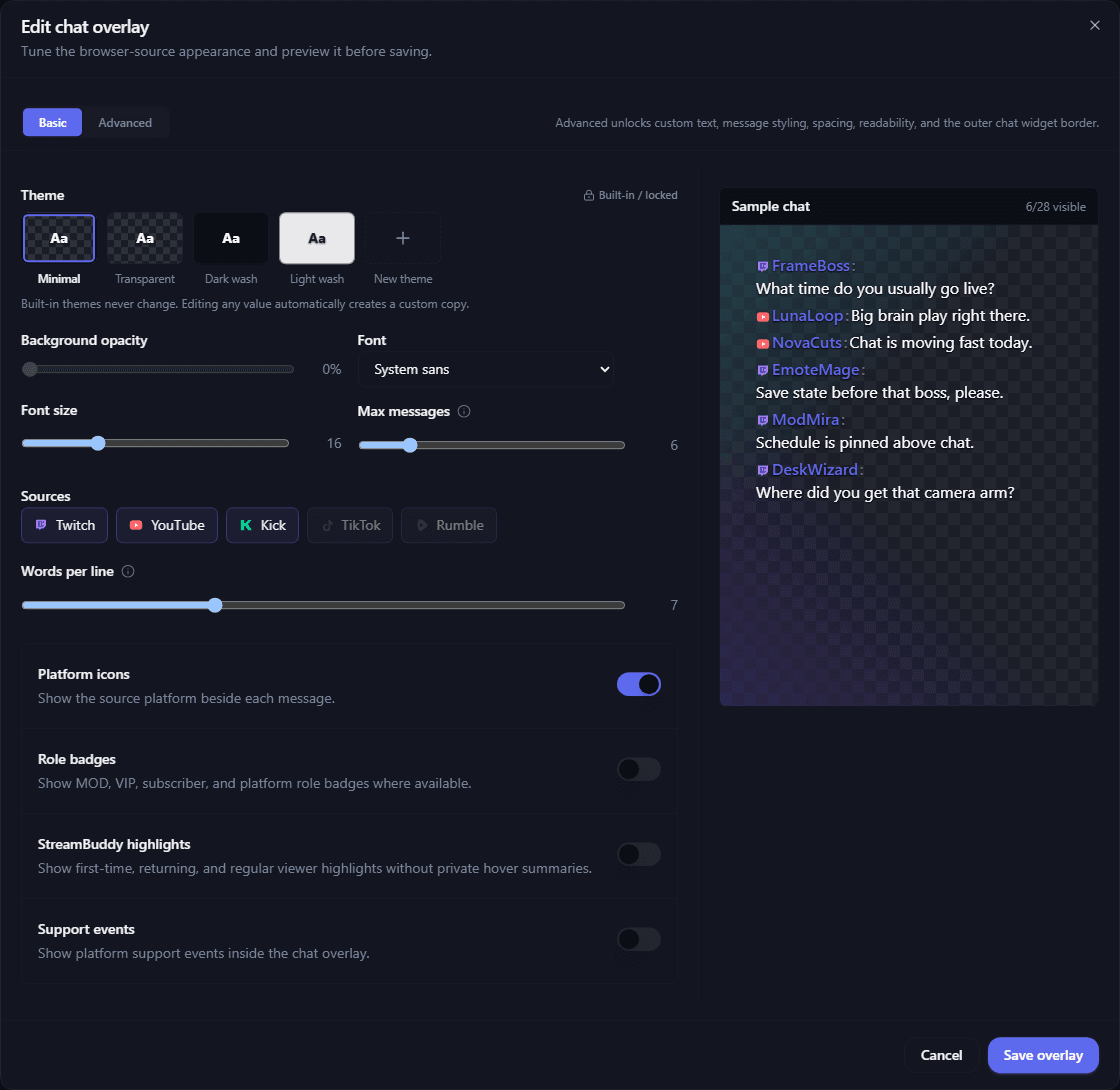
The chat overlay for OBS page covers the visual side. Keep private notes, tags, viewer profiles, and controls out of public overlays.
Accessibility and comfort
TTS can help make streaming less exhausting.
It can reduce eye movement, help dyslexic or low-vision streamers, support creators who cannot constantly track a second screen, and make mobile setups more usable.
But comfort matters. Pick a voice that does not fatigue you, keep the volume comfortable, and use the chat filters. Spoken chat should support the stream, not dominate it.
Frequently asked questions
Can StreamBuddy read multichat aloud?
Yes. StreamBuddy includes text-to-speech in browsers that support speech, so streamers can hear chat while using the private multichat workspace.
Can TTS include Twitch, YouTube, Kick, TikTok, and Rumble?
Yes. Text-to-speech reads the chat messages in your StreamBuddy feed, whichever connected platform they came from. It says the viewer's name and the message, not the platform.
Should viewers hear my TTS?
Usually start with private TTS for yourself. If you route it into the broadcast, test volume, filters, and moderation controls carefully.
Can I use TTS with OBS?
Yes. Use StreamBuddy alongside OBS, then decide whether the spoken audio stays private or is captured by OBS. Text-to-speech runs in the dashboard chat or the pop-out window, not in the OBS dock.
Does StreamBuddy restream my video?
No. StreamBuddy handles chat, multichat, viewer context, TTS, and OBS-friendly chat surfaces. Your existing streaming setup handles video.
Enable TTS without turning chat into noise
The best TTS setup is restrained, filtered, and easy to mute.
Connect your accounts, go live with your current setup, use StreamBuddy as your private multichat workspace, and turn on TTS for the moments when hearing chat helps you stay connected while streaming.
Hear chat when you cannot look
Use StreamBuddy text-to-speech beside your multichat workspace so chat can reach you while you keep streaming.
Set up StreamBuddy- text to speech
- multichat
- obs
- accessibility
- chat