How to see old Twitch chat messages (and keep a chat history you can use)
Where Twitch keeps chat history, how to look up a viewer's past messages, what disappears when your VODs expire, and how to keep your own chat history.
7 min read

Sooner or later every streamer needs an old chat message. Someone mentions "what I said last week", a mod needs to check whether a viewer has caused trouble before, or you want to remember what a regular told you about their new job.
Twitch does keep chat history, but not in one place, and not in a form built for looking things up. This guide covers where Twitch stores old messages, what each option is good for, where the gaps are, and how to keep a chat history of your own.
Where Twitch keeps your chat history
There are three main places to find old Twitch chat messages, and each one answers a different question.
1. Viewer cards in Mod View: one viewer's messages
If you are the broadcaster or a moderator, click any username in your chat to open their viewer card. With moderation tools enabled, it shows that viewer's past messages in your channel, along with their timeouts, bans and any mod comments. You can also type /user username in chat to open the card for someone who is not currently talking.
This is the fastest way to answer "what has this person said here before?" — and it is the one most streamers forget exists.
The limits:
- It is only available to you and your mods, not to viewers.
- It works one viewer at a time. You cannot browse a whole stream's chat this way.
- It shows messages, not context. You see what someone said, but not what they were replying to.
2. VOD chat replay: everything said during one stream
Past broadcasts on Twitch replay chat alongside the video, so you can scrub to a moment and see what chat was saying at that time. This is the best way to answer "what was chat saying when that happened?"
The catch is that chat replay only exists as long as the VOD does. Twitch keeps past broadcasts for a limited time — from about a week on a standard account up to 60 days for Partners and Turbo or Prime users — and only if Store past broadcasts was switched on before you went live. Once the VOD expires, its chat replay goes with it. Highlights you save last longer, but count towards Twitch's storage limits.
3. Third-party logs and downloaders
Two kinds of outside tools fill the gaps:
- Chat log sites record public chat from channels and let anyone search it by username. They can be handy, but you do not control them, they are public, and coverage depends on whether your channel is being logged.
- VOD chat downloaders save a past broadcast's chat as a file before the VOD expires. Useful for archiving a stream, much less so for remembering people.
Which option should you use?
| You want to... | Best option | Watch out for |
|---|---|---|
| Check a viewer's past messages in your channel | Viewer card in Mod View | One viewer at a time, mods and broadcaster only |
| See what chat said at a specific moment | VOD chat replay | Disappears when the VOD expires |
| Archive a whole stream's chat | VOD chat downloader | Must be done before the VOD expires |
| Look up someone in a channel you do not moderate | Public chat log sites | Not under your control, and coverage varies |
| Remember who a viewer is, not only what they typed | Your own notes and viewer history | Needs a tool built for it |
The gap: chat history is not viewer memory
Every option above answers what was said. None of them answers the question you usually care about as a streamer: who is this person to my community?
A viewer card shows a list of messages, but not that this person has been in twelve of your last fifteen streams, mentioned they were moving house, and was the one who suggested your current game. A VOD replay shows a stream's chat, but you have to remember which stream to look in. And none of them lets you write down what you learned.
Chat history is most useful when it is attached to the person — along with your own notes about them.
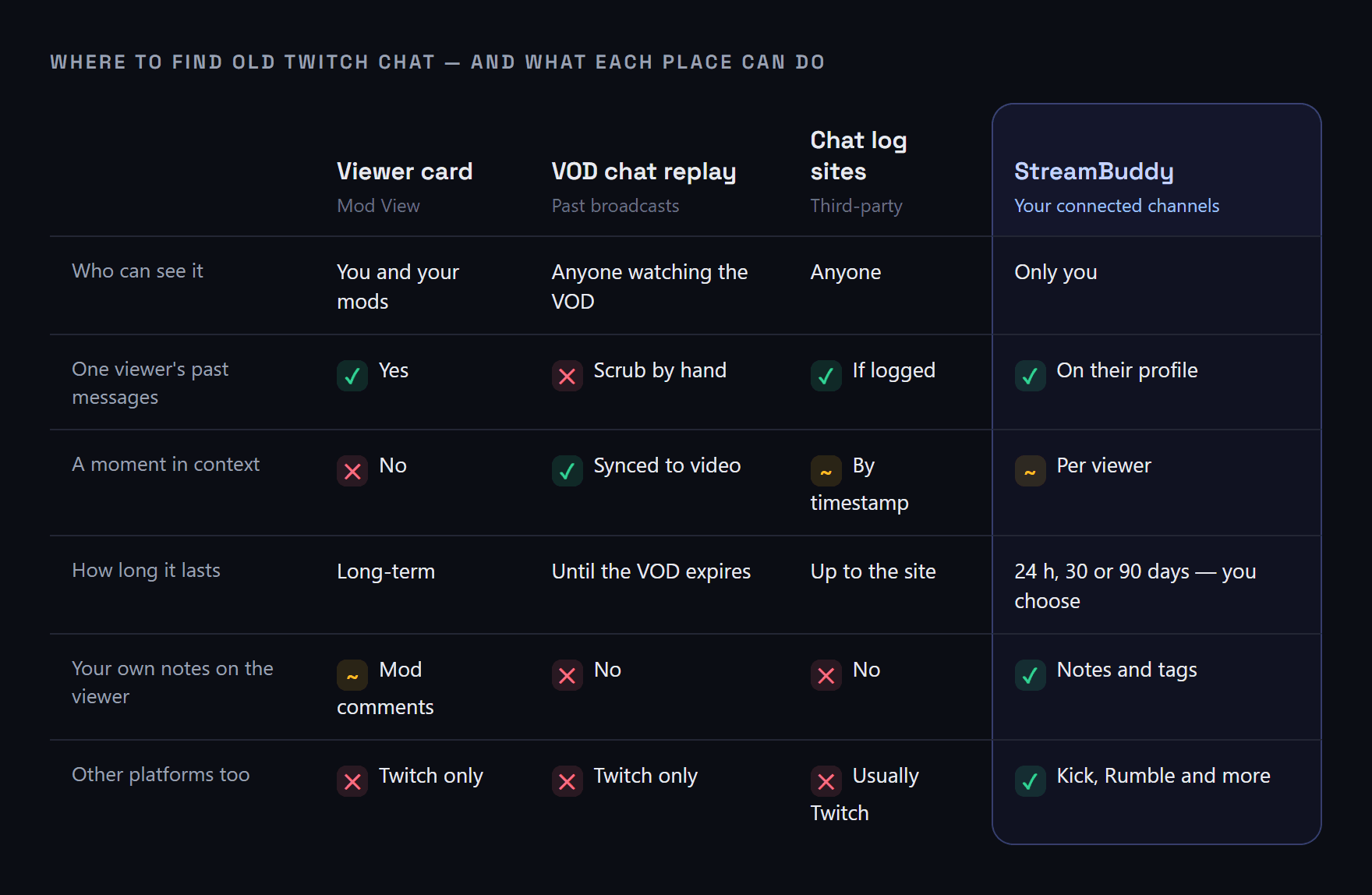
Each option answers a different question. Only one of them lets you write down what you learned about the viewer.
How to keep your own chat history with StreamBuddy
StreamBuddy keeps a private history of your connected channels' chat and organises it by viewer rather than by timestamp.
- Per-viewer chat logs. Click any name in StreamBuddy's chat to open the viewer's profile, which includes their past messages in your channel. Use Load more to go further back.
- Find viewers fast. The viewer list lets you search by name and filter to Active Now, Regulars, New Viewers or Active Regulars, then sort by message count or when they were last seen.
- History plus context. The profile shows how long someone has been around, their relationship tier from First-time to Core, their support history, and your private notes and tags in the same place.
- One workspace for every platform. If you also stream on Kick, Rumble, YouTube or TikTok, chat from every connected channel comes into the same workspace.
You choose how long chat is kept
In Settings → Privacy, you decide how long StreamBuddy keeps stored chat messages and event details before they are cleaned up automatically: the last 24 hours, 30 days or 90 days. You can set a different period per platform, and switch off Store raw chat logs if you would rather not keep message text at all.
Notes and tags you write are not part of chat retention. They stay on the viewer's profile after the messages that prompted them have been cleared.
What StreamBuddy is not
StreamBuddy is not a public chat log site. It only stores chat from channels you have connected yourself, and your history, notes and profiles are private to your account — they never appear on your stream overlay. It also cannot recover messages from before you connected a channel, so the sooner you connect, the more history you have.
Search finds viewers by name, not words inside messages. To find what someone said, open their profile and scroll back through their messages.
The stream chat history page covers the feature in more detail, and remembering your regulars across platforms explains how notes and tags build on it.
Frequently asked questions
How do I see someone's old messages on Twitch?
If you are the broadcaster or a moderator, click their username in your chat to open their viewer card, or type /user username. With moderation tools enabled, the card shows their past messages in your channel, plus any timeouts, bans and mod comments.
Can regular viewers see Twitch chat history?
Viewers can watch chat replay on past broadcasts while the VOD is available. They cannot open another viewer's message history in a channel they do not moderate.
Does Twitch delete chat when a VOD expires?
The chat replay attached to that VOD disappears with it. Mods and the broadcaster can still see a viewer's past messages through their viewer card, but you can no longer see the full chat for that stream in context.
Can I download my Twitch chat logs?
Twitch does not offer a built-in chat export. Third-party VOD chat downloaders can save a past broadcast's chat as a file, as long as you do it before the VOD expires. StreamBuddy keeps chat from your connected channels for up to 90 days, organised by viewer.
Is my StreamBuddy chat history public?
No. It only covers channels you connected, it is visible only in your StreamBuddy workspace, and it never appears on your overlay or anywhere public.
Keep the history that matters
StreamBuddy keeps a private, per-viewer chat history across your connected channels, with notes and tags that outlast the messages themselves.
Try StreamBuddy- twitch chat logs
- twitch chat history
- mod view
- vod chat replay
- viewer history