How to read chat while gaming without alt-tabbing
Read Twitch, YouTube, Kick, TikTok, and Rumble chat while gaming without alt-tabbing by using OBS docks, second screens, mobile, filters, and TTS.
5 min read
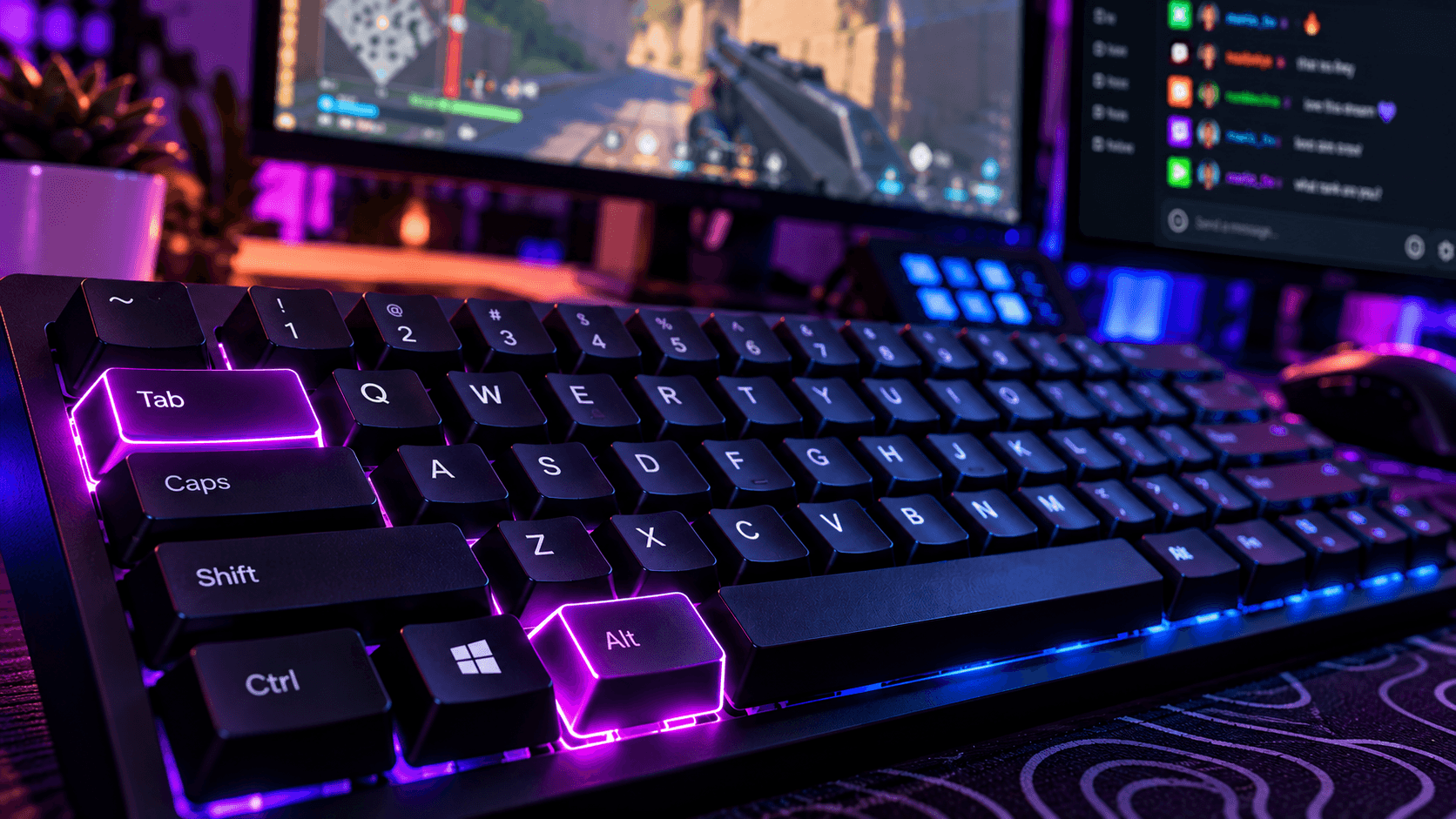
Alt-tabbing is one of the fastest ways to lose the rhythm of a gaming stream. You miss a fight, drop inputs, break immersion, or stare at the wrong window while chat keeps moving.
The fix is not to care less about chat. The fix is to put chat where your streaming workflow already is: inside OBS, on a second screen, on a phone, or in your ears when you cannot look away.
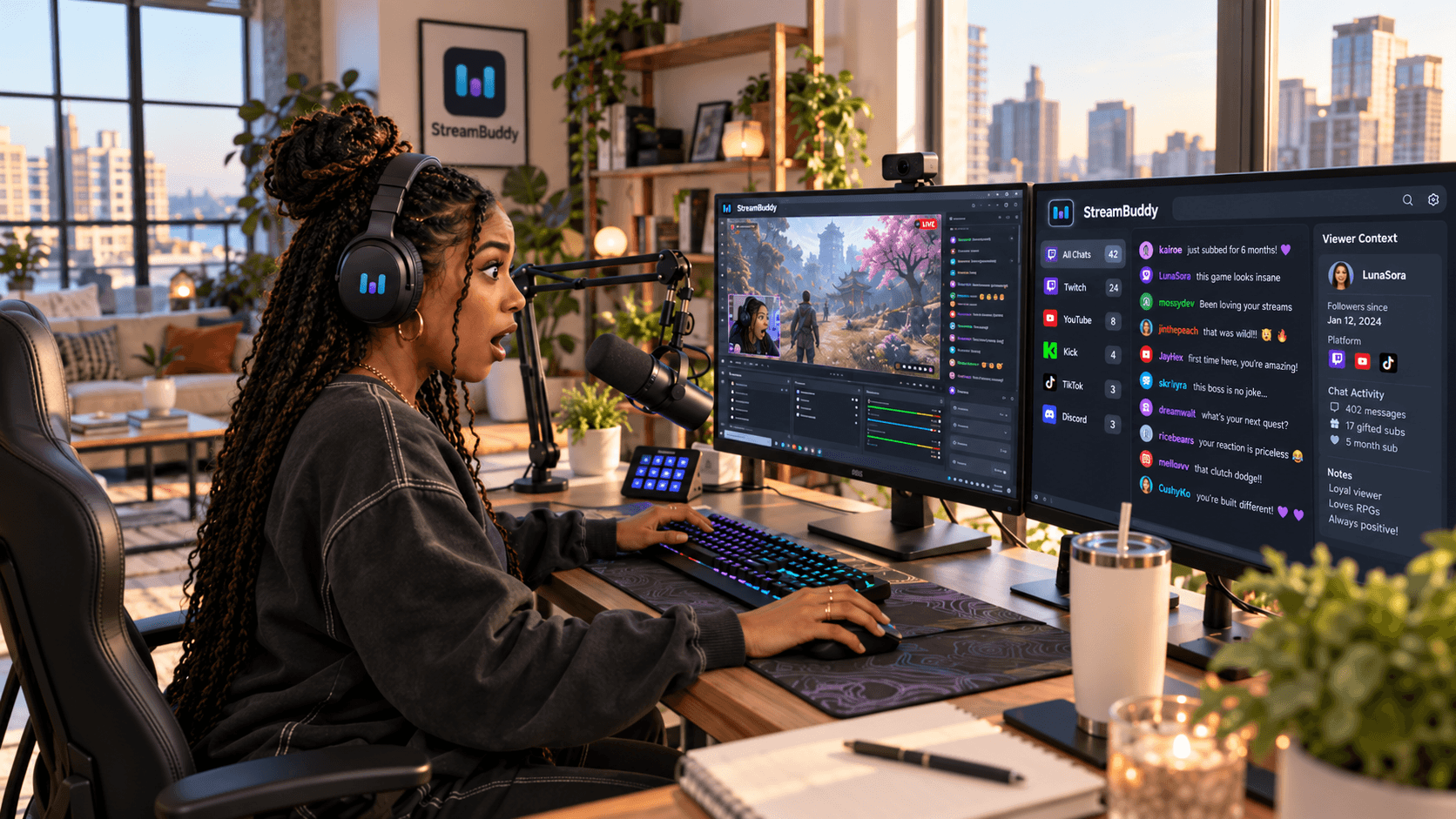
StreamBuddy helps by bringing supported Twitch, YouTube, Kick, TikTok, and Rumble chat into one private workspace, so you are not juggling separate platform windows mid-game.
Why alt-tabbing kills flow
Gaming streams need attention. A small interruption can matter:
- Full-screen games can minimize or stutter.
- Competitive matches punish even a short glance away.
- Chat windows get buried behind OBS, Discord, or the game.
- Platform tabs multiply when you multistream.
- You lose the thread of what chat was reacting to.
If your chat workflow depends on leaving the game, it will fail during the exact moments chat is most active.
Option 1: Put StreamBuddy in an OBS dock
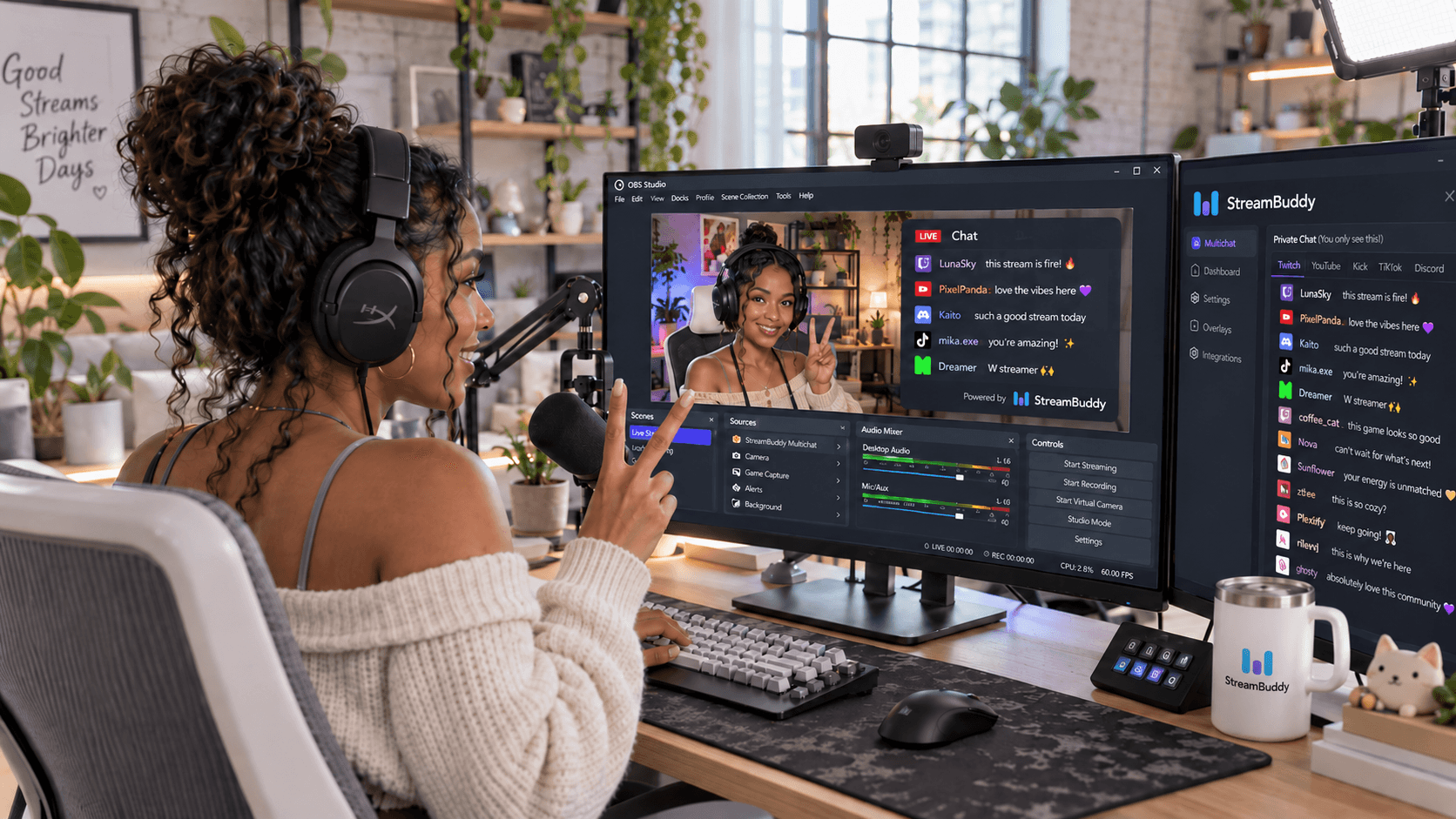
An OBS dock is the cleanest setup if OBS is already visible while you play.
- Open StreamBuddy and connect your streaming accounts.
- Confirm your supported chats appear in one multichat feed.
- Copy your private StreamBuddy dock URL.
- In OBS, go to Docks -> Custom Browser Docks.
- Add a dock named
StreamBuddy chat. - Paste the dock URL.
- Place the dock beside your scenes, mixer, or preview.
Now chat lives inside OBS instead of in a separate browser tab. You can glance at one place and see messages with platform labels, filters, and private viewer context.
For the full OBS setup, use the OBS multichat page.
Option 2: Use a second monitor
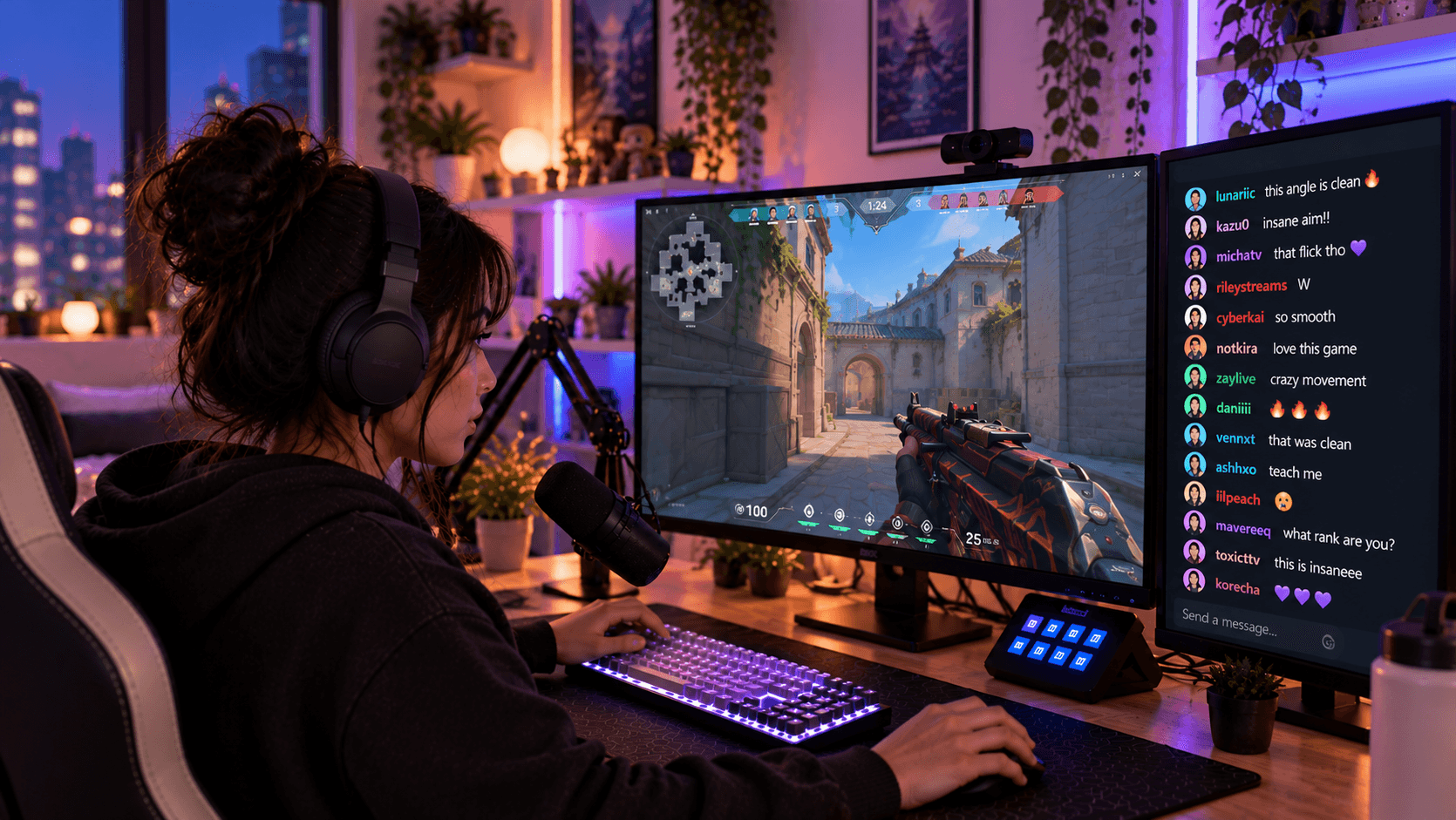
A second monitor is the classic gaming-stream setup because it keeps the game full-screen and chat visible.
Good layouts:
- Game on the main monitor, StreamBuddy on the second.
- OBS preview and StreamBuddy side by side.
- StreamBuddy in a narrow column beside Discord or stream controls.
- Platform-filtered view during a busy event, then combined view afterward.
The key is to avoid making the second monitor another pile of platform tabs. One combined chat feed is easier to scan than five windows.
Option 3: Use a phone or tablet
If you do not have a second monitor, a phone or tablet can become the second screen.
Open StreamBuddy in a mobile browser, connect your accounts, and place the device where your eyes naturally land between gameplay moments. This works especially well for console streamers, laptop streamers, and anyone with limited desk space.
The mobile multichat page covers StreamBuddy's second-screen workflow in more detail.
Option 4: Use text-to-speech carefully
Text-to-speech can help when you cannot look away from the game.
Use it for:
- Important messages.
- Slower chat moments.
- Accessibility workflows.
- Single-monitor streams.
- IRL or console setups.
Avoid turning every message into audio if your chat is fast. Spoken chat can become noise quickly, especially in games where audio cues matter.
StreamBuddy includes text-to-speech for supported chat workflows, and the multichat text-to-speech page covers how it fits beside the private multichat workspace.
Filter noisy platforms without ignoring people
When you multistream, one platform can spike and bury the others. That is normal. The trick is to focus without forgetting quieter chats.
Use filters when:
- TikTok gets event-heavy.
- Twitch starts moving too fast.
- YouTube has a longer question thread.
- Kick or Rumble needs a check-in.
- You are playing a ranked match and can only glance briefly.
Then return to the combined feed when the spike settles. Filters are a temporary focus tool, not a reason to ignore everyone else.
For a gaming-specific example, the League streamer customer story shows why chat visibility matters when the game itself already demands constant focus.
Public overlay: useful, but not enough
An on-stream chat overlay helps viewers follow the conversation, but it should not be your only way to read chat.
Public overlays are usually:
- Display-only.
- Styled for viewers.
- Limited to fewer messages.
- Missing private viewer context.
- Positioned around gameplay and camera scenes.
Your private workspace can show more: platform filters, viewer profiles, notes, tags, and history. Keep the overlay clean for viewers and the private workspace useful for you.
Recommended setup by stream style
| Stream style | Best chat setup |
|---|---|
| Competitive PC gaming | OBS dock or second monitor, filters for spikes |
| Full-screen single-monitor gaming | OBS dock plus TTS for selected messages |
| Console streaming | Phone or tablet second screen |
| Laptop streaming | Mobile multichat or compact popout |
| League-style high-focus games | Private multichat view, TTS used sparingly |
| Just Chatting between games | Public overlay can be more visible |
There is no single perfect layout. The best setup is the one that lets you keep playing while still making chat feel heard.
Frequently asked questions
How can I read Twitch chat without alt-tabbing?
Use an OBS dock, a second monitor, a mobile device, or text-to-speech. StreamBuddy can combine Twitch with other supported platforms so you do not need separate windows.
Can StreamBuddy work inside OBS?
Yes. StreamBuddy can be used as a private OBS dock, and it can provide a separate display-only overlay URL for chat shown on stream.
Can I read YouTube, Kick, TikTok, and Rumble chat too?
Yes. StreamBuddy supports multichat workflows for Twitch, YouTube, Kick, TikTok, and Rumble.
Should I show chat on stream while gaming?
Only when it helps viewers follow the conversation. Use a public display-only overlay for viewers and keep private notes, tags, profiles, and controls off stream.
Does StreamBuddy restream my video?
No. StreamBuddy works alongside your current streaming setup as the chat, multichat, viewer-memory, and TTS layer.
Keep chat in your streaming workflow
You should not have to leave the game to keep up with chat.
Connect your accounts, go live with your current setup, keep StreamBuddy in OBS, on a second screen, on mobile, or in TTS, and read every supported chat without turning alt-tab into part of the show.
Read chat without leaving the game
Use StreamBuddy as your private multichat workspace with OBS docks, mobile second-screen workflows, text-to-speech, and stream-safe overlays.
Set up StreamBuddy- gaming stream
- multichat
- obs dock
- text to speech
- second monitor