How to handle chat during IRL streams
Follow chat during IRL streams with mobile multichat, responsible text-to-speech, viewer notes, and post-stream review in StreamBuddy.
6 min read
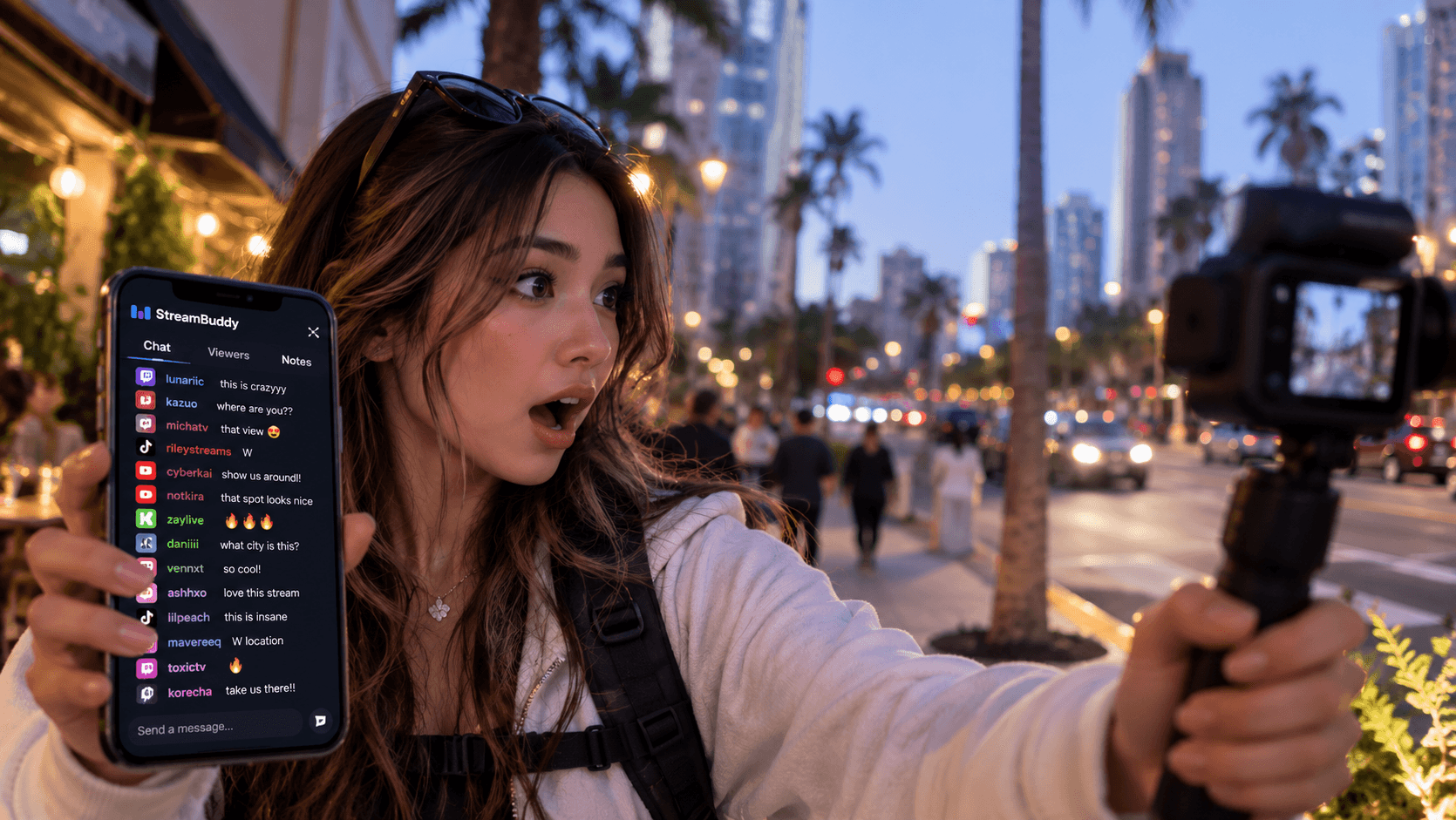
IRL streaming asks you to do two things at once: be present in the real world and stay connected to chat.
That is harder than it sounds. You might be walking, talking to people, setting up a shot, dealing with sunlight, checking signal, or moving between locations. Chat keeps going while your attention is elsewhere, and the best moments can be easy to miss.
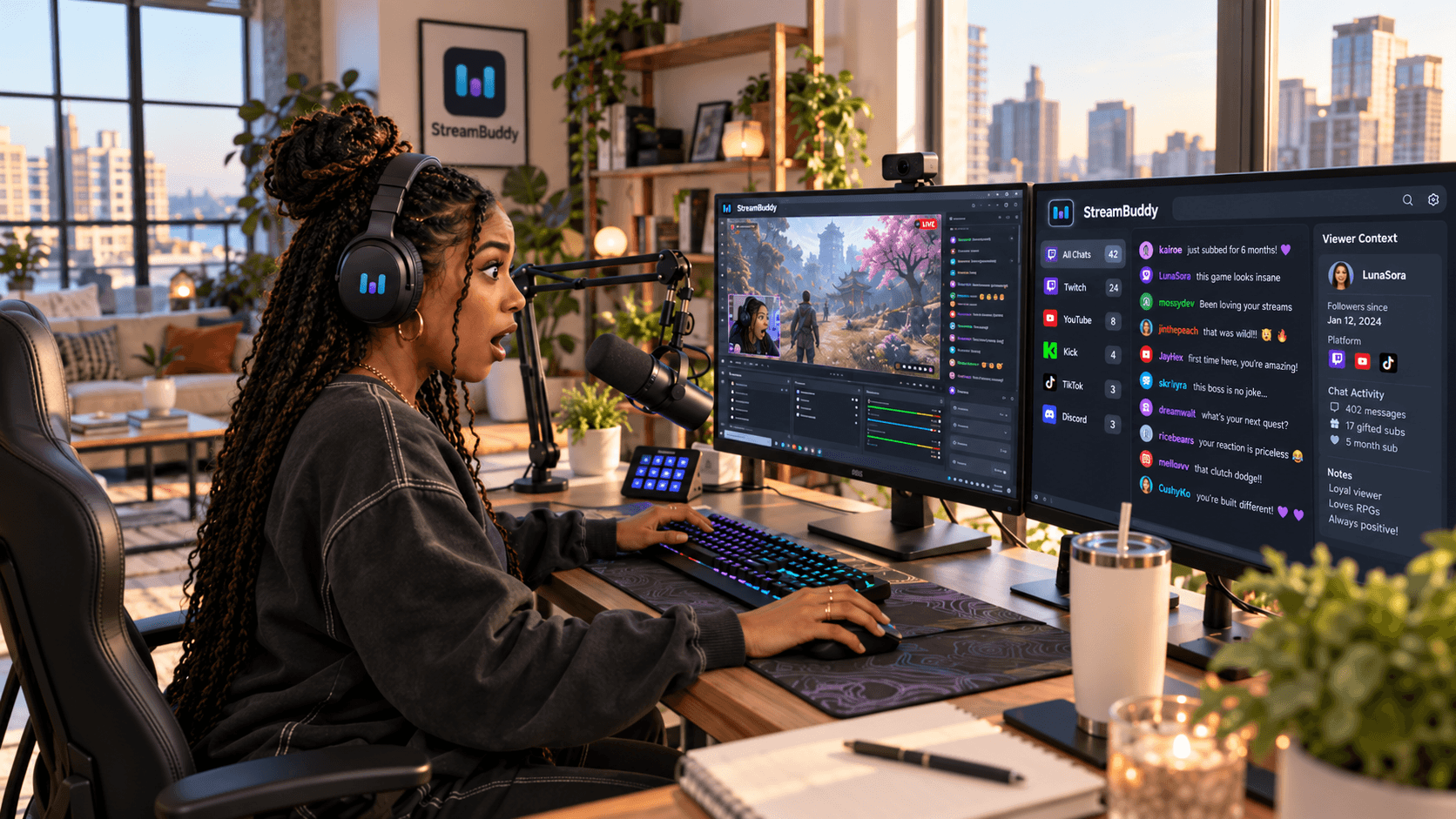
StreamBuddy helps by giving you a simple multichat and viewer-memory workflow that can travel with your setup. Connect your supported accounts, go live with the system you already use, and keep chat visible on a phone, tablet, laptop, OBS dock, or desktop app depending on the stream.
Why IRL chat is easy to miss
Desk streamers can glance at a monitor. IRL streamers often cannot.
Common IRL chat problems include:
- Looking down at a phone too often.
- Missing messages while talking to people on camera.
- Losing context when chat moves quickly.
- Forgetting who asked a question before you had time to answer.
- Letting one platform dominate while another goes unread.
- Finishing the stream with no easy way to review important moments.
The fix is not to force yourself to read every line in real time. The better workflow is to make chat easier to notice during the stream and easier to review afterward.
Build a mobile multichat setup
For IRL, your chat screen has to be fast and readable.
StreamBuddy can work as a browser-based mobile multichat or second-screen workflow. That means you can open it on a phone or tablet, connect supported platforms, and read one combined feed instead of switching between platform apps.
Before you go live, set up your mobile view:
- Log in before leaving your desk.
- Connect the platforms you plan to stream on.
- Increase font size if the screen will be far from your face.
- Keep platform labels visible.
- Test portrait and landscape orientation.
- Plug into power if the stream will be long.
- Keep the screen brightness high enough for outdoor viewing.
If you also use OBS for part of the stream, StreamBuddy can still fit into that workflow with private dock or browser views and display-only overlays where appropriate.
Use text-to-speech responsibly
Text-to-speech can be extremely useful for IRL streams because it lets you hear chat when you cannot look down.
It also needs boundaries. If every message gets read aloud at full volume, the stream can become chaotic, and real-world conversations can get interrupted.
Use multichat text-to-speech for moments where it helps:
- Walking between locations.
- Setting up equipment.
- Driving only when it is safe and legal to do so through a passenger or hands-free workflow.
- Cooking, building, or working with both hands.
- Listening for first-time chatters or returning regulars.
Then tune it:
- Keep volume below your own voice.
- Filter messages if the stream is busy.
- Pause TTS during sensitive real-world conversations.
- Test the voice and browser behavior before going live.
- Avoid letting TTS read private notes or dashboard context.
TTS should help you stay connected to chat. It should not take over the stream.
Save notes after real-world conversations
IRL streams create viewer context that is easy to forget.
Someone might recommend a place to visit, ask about a car, explain local context, or remind you of a previous stream. You may answer on camera but forget the detail later.
That is where StreamBuddy's private viewer memory matters. After an important moment, save a short note when you have a break:
- What the viewer asked about.
- Whether they are a regular.
- What you promised to follow up on.
- Any preference, project, or recurring topic they mention.
- Whether they joined from Twitch, YouTube, Kick, TikTok, or Rumble.
Keep those notes private. They help you remember people without putting their context on the public overlay.
The IRL streamer chat memory story shows the same idea in a real creator workflow: staying present in the real world while still tracking chat mood and viewer context.
Review missed context after the stream
You will miss things during an IRL stream. That is normal.
The important part is having a post-stream routine so missed context does not disappear.
After the stream, review:
- First-time chatters who showed up.
- Returning viewers you did not greet live.
- Questions you missed.
- Moments where chat got especially active.
- Viewers worth tagging or noting.
- Topics to bring back next stream.
StreamBuddy's post-stream analytics and review workflow help connect chat activity back to viewer memory, notes, tags, and follow-up instead of leaving everything inside scattered platform dashboards.
Decide what is public and what is private
If your IRL stream includes an overlay, keep the split clear.
Public surfaces can show stream-safe chat output: messages, usernames, platform badges, emotes where available, and display styling.
Private surfaces are for your work: viewer notes, tags, profiles, history, moderation context, and account settings.
That distinction matters even more outside the desk setup because IRL streams often involve quick scene changes, mobile screens, and improvised layouts. Do not screen-capture your private dashboard. Use display-safe overlay URLs when you want chat visible to viewers.
IRL chat checklist
Before going live:
- Connect your supported accounts in StreamBuddy.
- Open the mobile or second-screen multichat view.
- Increase font size and check brightness.
- Turn on platform labels.
- Test text-to-speech if you plan to use it.
- Confirm private notes and dashboard context are not on stream.
- Send a test message from each active platform.
- Plan a short post-stream review window.
The setup should be simple enough that you can focus on the actual stream, not the chat tooling.
FAQ
Can StreamBuddy help with IRL streams?
Yes. StreamBuddy can be used as a browser-based mobile or second-screen multichat workflow with viewer memory, notes, tags, and text-to-speech options.
Does StreamBuddy have a native mobile app?
StreamBuddy is web-based today, so the best mobile workflow is opening it in a phone or tablet browser. It is designed to fit into the setup you already use.
Can StreamBuddy read IRL chat aloud?
Yes. StreamBuddy includes text-to-speech for supported browsers, which can help when you cannot keep looking at a screen.
Does StreamBuddy restream IRL video?
No. StreamBuddy is focused on multichat, viewer context, overlays, and post-stream review. Keep using your current mobile streaming, OBS, or multistreaming setup for video.
Use StreamBuddy outside desk streams
IRL chat does not need to be perfect in real time. It needs to be visible enough during the stream and reviewable enough afterward.
Connect your accounts in StreamBuddy, go live with your current IRL setup, use mobile multichat and TTS where they help, and review viewer context after the stream so regulars, first-time chatters, and missed questions do not disappear.
Take multichat with you
Use StreamBuddy beside your IRL setup to read chat, hear key messages, save private viewer notes, and review what happened after stream.
Try StreamBuddy- irl streaming
- mobile multichat
- text-to-speech
- viewer memory
- stream setup