How to add Rumble live chat to OBS
Add Rumble live chat to OBS as a private dock or stream-safe browser-source overlay, and combine it with your other chats in StreamBuddy.
7 min read
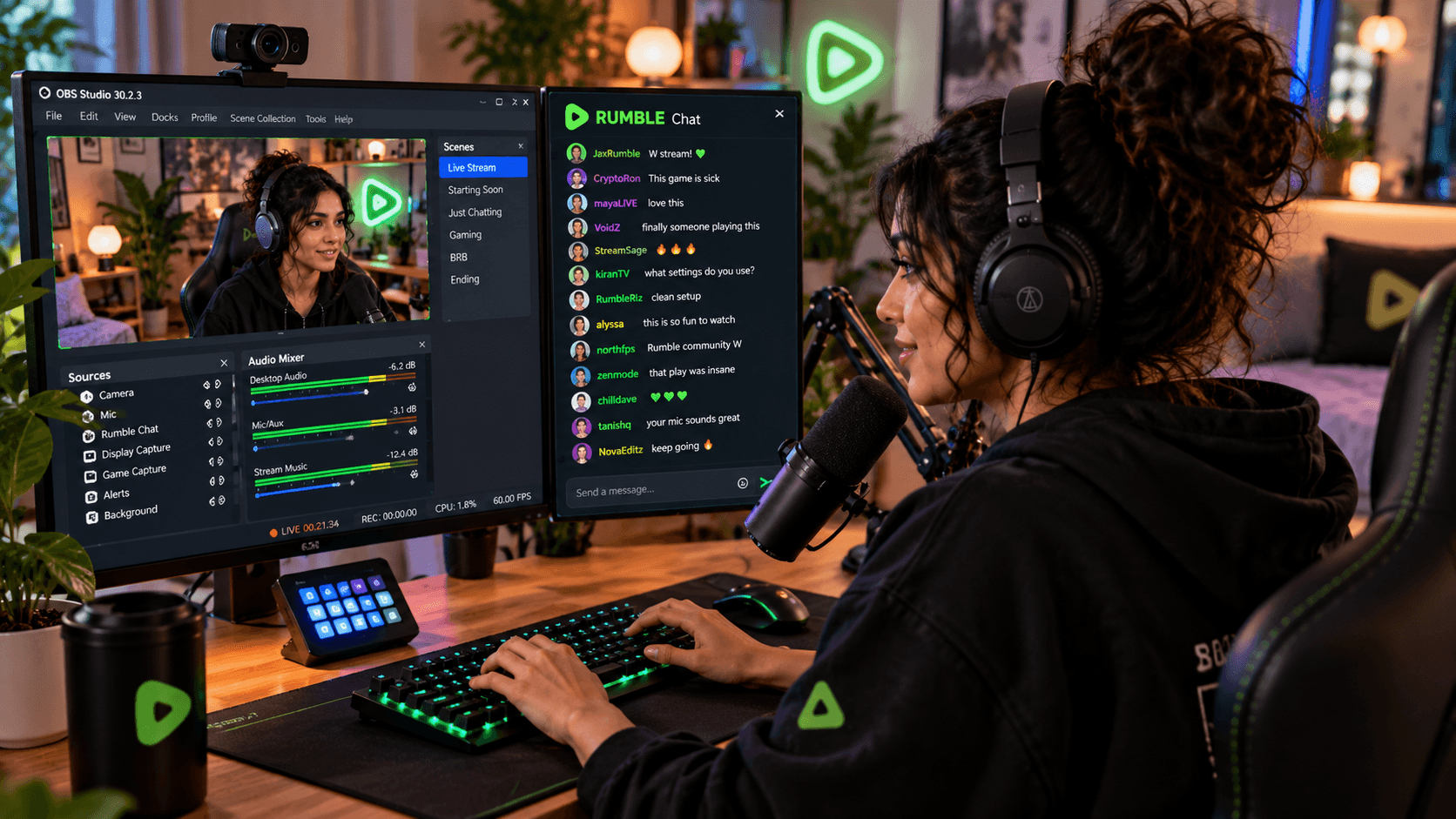
Rumble is showing up in more multistreaming setups, but Rumble chat often ends up as the extra window. You keep OBS in front, Twitch or YouTube chat on another monitor, maybe Kick or TikTok nearby, and Rumble sits behind everything until someone has already been waiting.
The fix is not to make your stream setup more complicated. The fix is to bring Rumble chat into the place you already work: your live chat workspace and, when needed, OBS.
This guide explains how to add Rumble live chat to OBS, how to choose between a private dock and a public overlay, and how StreamBuddy keeps Rumble beside your other platforms without exposing private viewer context.
Why Rumble chat gets missed
Rumble is usually not the only thing a streamer is watching. OBS needs attention. Alerts need space. Game capture, audio, moderation, Discord, and platform dashboards all compete for the same screen.
When each platform has its own chat window, the smallest or newest audience is easiest to miss. A Rumble viewer may ask a good question, but if that tab is behind OBS or on a secondary monitor you rarely scan, it feels quieter than it really is.
StreamBuddy is built around the opposite workflow: connect the platforms you stream to, go live, and read supported chat in one multichat feed with platform labels kept visible.
Decide what OBS should show
Before adding anything to OBS, decide who the chat surface is for.
| Surface | Who sees it | Best for |
|---|---|---|
| Private OBS dock | You and your team | Reading Rumble chat, opening viewer context, replying or moderating where supported |
| Public Browser Source overlay | Everyone watching the broadcast | Showing selected messages on stream without exposing private StreamBuddy controls |
This split matters because the streamer view and the viewer view should not be the same. Your private workspace can include viewer notes, tags, history, controls, and filters. Your overlay should only show the chat output you want viewers to see.
Add Rumble chat as a private OBS dock
Use this when you want Rumble chat inside OBS for yourself.
- Sign in to StreamBuddy.
- Open Settings and connect Rumble.
- Connect the other platforms you stream to, such as Twitch, YouTube, Kick, or TikTok.
- Go live using your normal video workflow.
- Open the StreamBuddy chat workspace and confirm Rumble messages are appearing.
- Copy your StreamBuddy dock URL.
- In OBS, open Docks -> Custom Browser Docks.
- Add a dock named
StreamBuddy chatand paste the dock URL. - Move the dock next to your scenes, sources, or mixer.
Now Rumble chat is part of the OBS workspace you already use. You do not need to alt-tab to a Rumble page just to check whether someone is talking.
For the broader setup, the Rumble live chat for OBS page covers how StreamBuddy fits into Rumble-friendly OBS workflows.
Show Rumble chat on stream with a Browser Source
Use this when you want viewers to see Rumble chat on the broadcast.
- In StreamBuddy, open the overlay settings.
- Create or copy the stream-safe overlay URL.
- Choose which connected platforms should appear in the overlay.
- If the scene is Rumble-specific, show Rumble only. If the scene is for multistreaming, include the platforms you want viewers to follow.
- Adjust the font size, spacing, background opacity, badges, and message count.
- In OBS, choose the scene where chat should appear.
- In Sources, select + and choose Browser.
- Paste the StreamBuddy overlay URL.
- Enter the recommended width and height from StreamBuddy.
- Position the overlay and send a test message before going live.
The overlay is display-only. It is meant to show chat, not your controls. Private viewer notes, tags, summaries, and profile history stay in StreamBuddy's authenticated workspace.
For the full OBS setup flow, use the OBS multichat guide. If you are focused on styling and stream-safe display, the OBS chat overlay page is the better next stop.
Combine Rumble with the rest of your chat
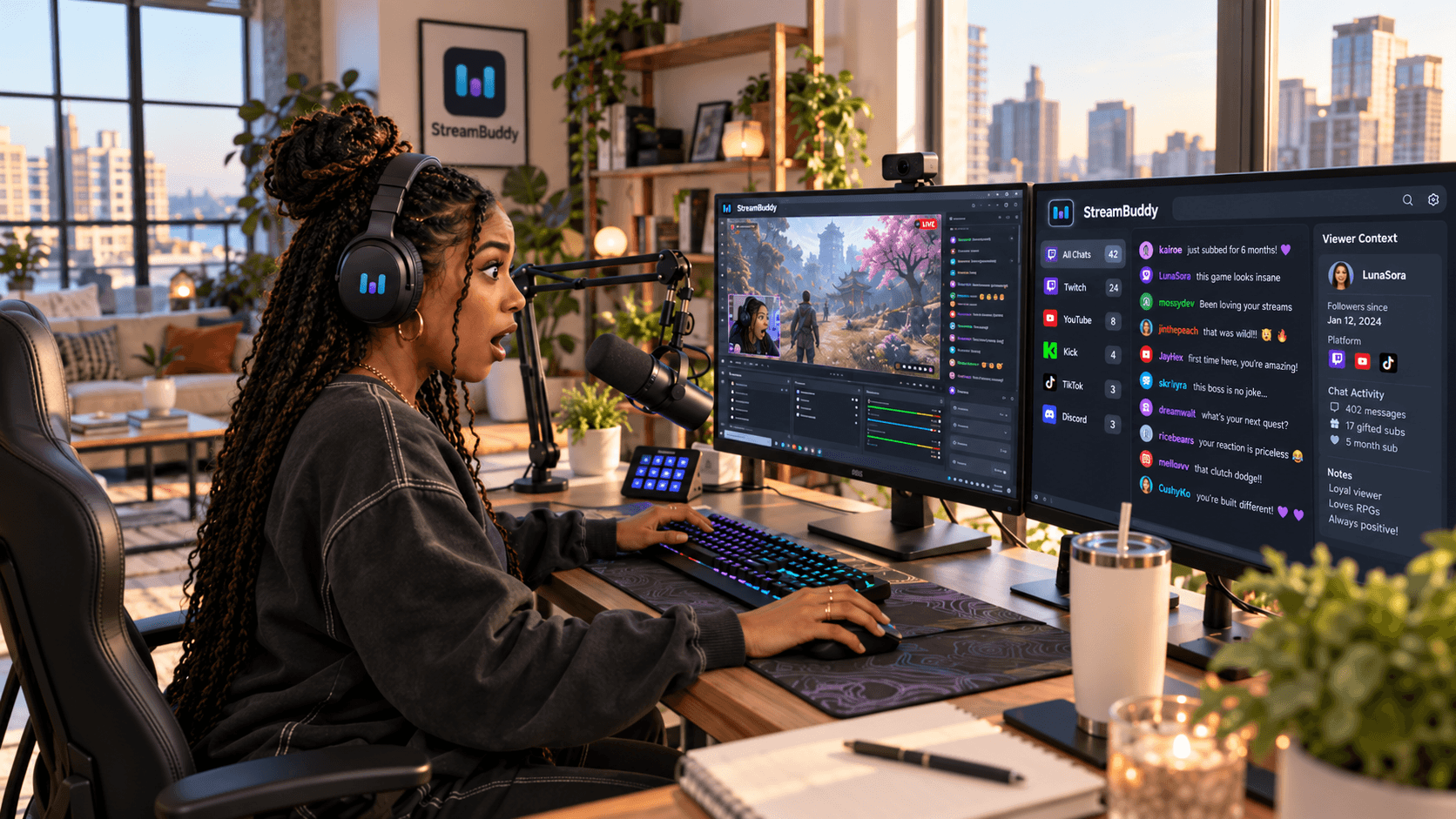
Rumble becomes easier to manage when it is not isolated. In StreamBuddy, supported Rumble chat can sit beside Twitch, YouTube, Kick, and TikTok in the same feed. Each message keeps its platform badge, so you can answer a Rumble viewer without guessing where the question came from.
That matters during multistreams. A viewer on YouTube might react to something a Rumble viewer said. A Twitch regular might try your Rumble stream for the first time. A smaller chat can become part of the live conversation instead of a separate tab you remember to check every few minutes.
If you want the full product overview, start with StreamBuddy multichat. It explains how supported platforms are merged into one dashboard and how viewer recognition sits behind the live feed.
What StreamBuddy does not do
StreamBuddy does not send your video to Rumble. It is not a restreaming service, encoder, or video distribution tool.
Keep using OBS, Streamlabs, Rumble's own tools, or your current multistreaming setup for the broadcast itself. StreamBuddy sits alongside that system as the chat layer: read supported Rumble messages, combine them with other platforms, display a safe overlay when you want one, and keep private context out of the viewer-facing scene.
That separation is useful. Your video workflow can stay exactly how you like it, while your chat workflow becomes easier to read.
Troubleshooting Rumble chat in OBS
Rumble messages are not appearing
Confirm that the Rumble account or channel connected to StreamBuddy matches the one you are streaming from. Then send a fresh test message after the stream is live.
If the private StreamBuddy workspace is blank, refresh the connection and confirm the stream is active. If the workspace works but OBS does not, refresh the OBS dock or Browser Source.
The OBS overlay is blank
Check that you copied the overlay URL, not the dock URL or a normal dashboard URL. Then confirm the overlay is enabled and Rumble is selected as one of the visible platforms.
The overlay is showing private information
Remove the source from OBS and replace it with the display-only overlay URL from StreamBuddy. Private dashboard and dock URLs are for your workspace, not your scene.
Rumble gets buried by busier platforms
Use platform filters in the private StreamBuddy workspace when you need to focus on Rumble. For the public overlay, consider showing fewer platforms or fewer messages so the broadcast stays readable.
The chat is too small on stream
Record a short local test and watch it back at the size viewers will see. Increase font size, reduce message count, or widen the Browser Source until usernames and platform badges are clear.
Frequently asked questions
Can StreamBuddy include Rumble chat?
Yes. StreamBuddy supports Rumble as part of its supported chat platform set, with platform-specific limitations.
Can I show Rumble chat in OBS?
Yes. Use StreamBuddy's display-only overlay URL as an OBS Browser Source. Use the dock URL only for your private OBS workspace.
Can I combine Rumble chat with Twitch and YouTube?
Yes. StreamBuddy is built for supported multichat workflows across Twitch, YouTube, Kick, TikTok, and Rumble, so you can read one feed instead of checking separate windows.
Does StreamBuddy restream my video to Rumble?
No. StreamBuddy is focused on chat, multichat, viewer memory, and OBS-friendly display surfaces. Keep using your current streaming system for video.
Will viewer notes appear on my Rumble chat overlay?
No. StreamBuddy's public overlay is display-only. Viewer notes, tags, history, summaries, and controls stay in the private workspace.
Set up Rumble before chat starts moving
The easiest Rumble OBS setup is the one you test before going live. Connect your accounts, create your dock and overlay URLs, send a test message, and confirm the overlay is readable in OBS.
Then keep your current video setup and use StreamBuddy as the multichat layer beside it: Rumble in the same workspace as the rest of your chat, private viewer context where only you can see it, and an optional stream-safe overlay when chat belongs on screen.
Add Rumble to your multichat
Connect your streaming accounts, go live the way you already do, and use StreamBuddy to read Rumble beside Twitch, YouTube, Kick, and TikTok.
Set up StreamBuddy- rumble chat
- obs
- chat overlay
- multichat
- streaming setup