Small streamer multichat setup guide
Build a simple multichat setup for small streamers with connected accounts, one private chat workspace, OBS basics, viewer memory, and StreamBuddy.
5 min read
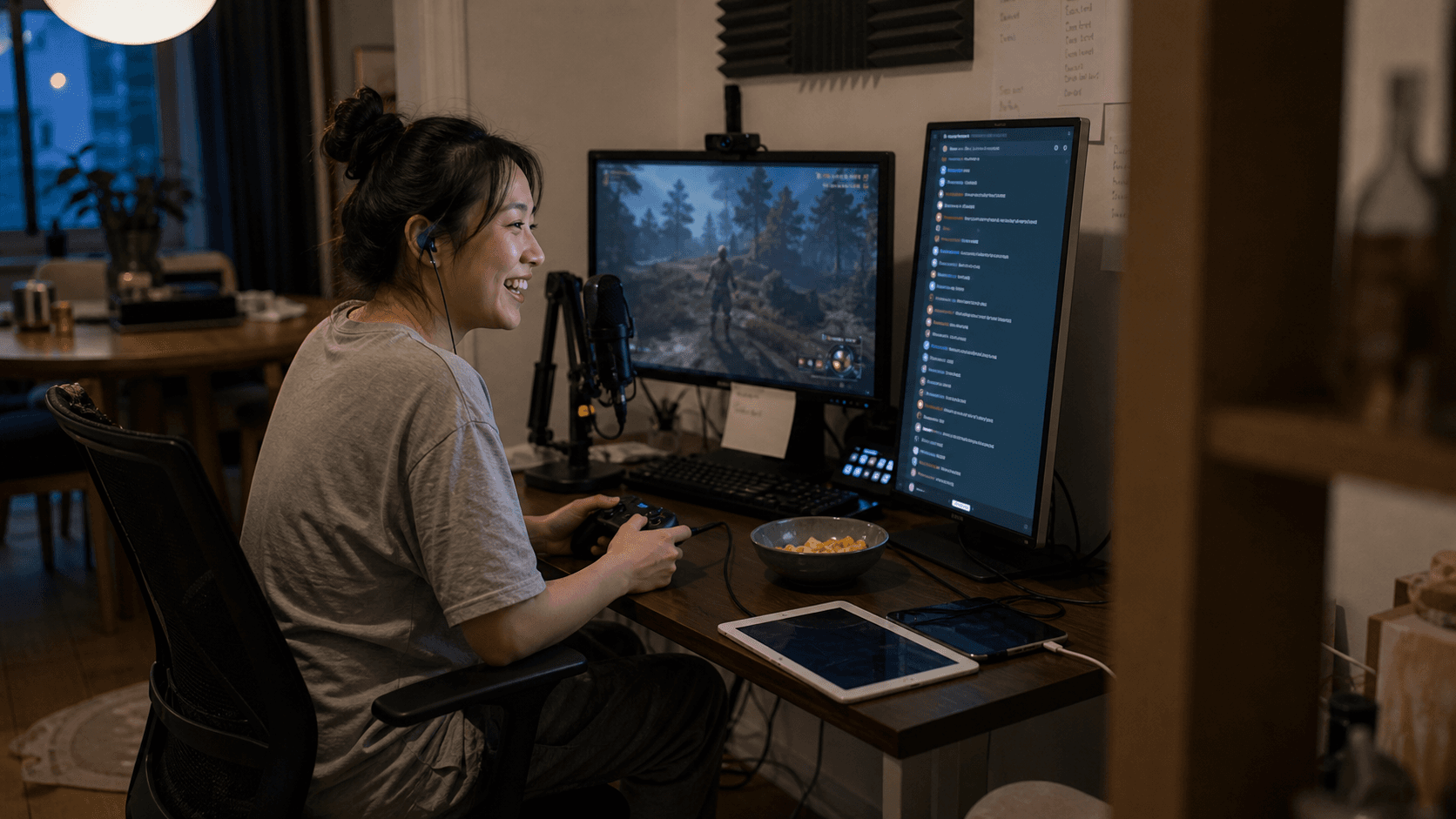
Small streamers do not need a complicated chat stack.
When you are still building a community, the most important thing is not a perfect overlay system or a dozen bots. It is seeing messages, replying quickly, and remembering the people who come back.
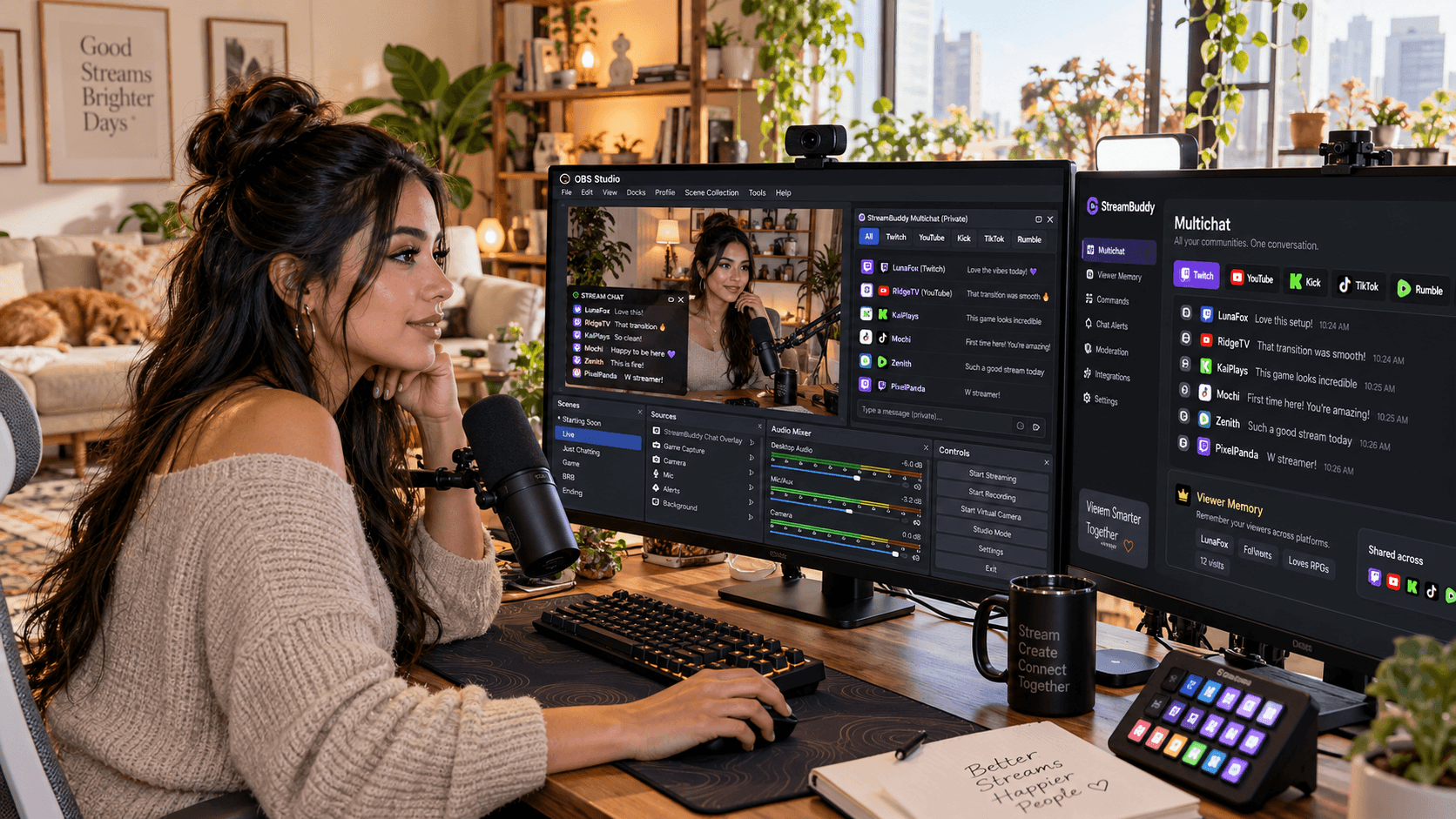
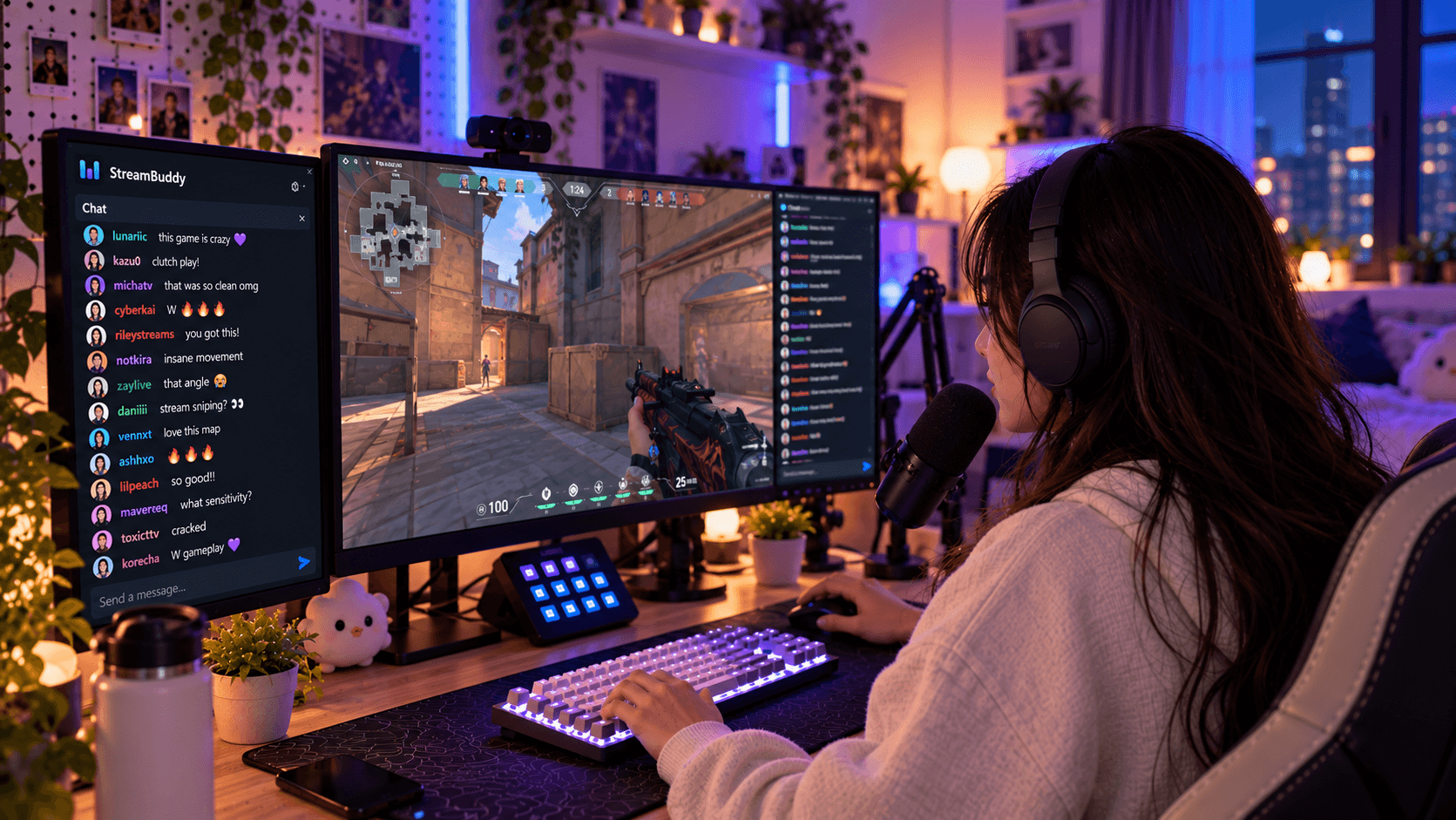
StreamBuddy keeps that setup simple: connect supported accounts, go live with the streaming setup you already use, read chat in one private multichat workspace, and save viewer context when someone is worth remembering.
Why small streamers should not overcomplicate chat
Early on, every new tool can feel like progress.
But too many tools can create problems:
- More windows to manage.
- More settings to break.
- More overlays to position.
- More bots to configure.
- More distractions while live.
- Less attention on the actual chat.
The best small-streamer setup is the one you can run every stream without thinking about it.
Start with the basics:
- Read every chat in one place.
- Know which platform each message came from.
- Keep private notes off stream.
- Remember early regulars.
- Add extra features only when they solve a real problem.
The simplest multichat setup
Use this as the starting point:
- Connect the platforms you actually stream on.
- Open StreamBuddy before going live.
- Read Twitch, YouTube, Kick, TikTok, and Rumble messages in one private workspace where supported.
- Keep platform badges visible.
- Reply from your normal stream flow.
- Save private notes only for useful context.
That is enough for many small streamers.
If you are comparing options, the free multichat tools page can help you understand the tradeoffs. If you want the StreamBuddy product overview, start with multichat.
OBS dock and overlay basics
You may need two different chat surfaces:
| Surface | Who sees it | What it is for |
|---|---|---|
| Private dock or dashboard | You | Reading chat, seeing viewer context, using notes and tags |
| Public overlay | Viewers | Showing display-safe chat on stream |
Do not screen-capture your private dashboard. If you want chat visible on stream, use the display-only overlay URL in a browser source, filtered to the platforms you choose.
Simulcasting to Twitch? Twitch's Terms (section 11) bar showing other platforms' chat on your Twitch stream. Use a Twitch-only overlay there, and keep the combined feed in your private dashboard or dock.
Twitch's Terms of Service · Can you multistream on Twitch? · As of
The OBS multichat page covers the dock and overlay setup in more detail. For small streamers, start with one clean scene and one readable chat placement. You can customize later.
Remember early regulars
Small-stream growth often comes from a few people returning consistently.
Remember:
- Who showed up twice.
- What they asked about.
- Which game or topic brought them in.
- Whether they came from a raid.
- What you promised to follow up on.
StreamBuddy helps by keeping viewer profiles, private notes, tags, chat history, and returning-viewer context near the chat workflow. You do not need a spreadsheet for every viewer. Save notes when the detail will help the next conversation.
For more on this, see remember regular viewers.
When to add TTS, customization, and analytics
Add features when the stream actually needs them.
Add text-to-speech when:
- You cannot look at chat often.
- You stream from one monitor.
- You do IRL, console, or hands-busy content.
Add overlay customization when:
- You regularly show chat on stream.
- Your scene has strong branding.
- Viewers need platform badges or emotes visible.
Add analytics when:
- You want to know who came back.
- You want to review first-time chatters.
- You want to improve retention.
- You want to understand which streams made chat active.
The small-streamer trap is adding every feature at once. Build the habit first, then add features one at a time.
Keep public and private surfaces separate
Even small streams need privacy boundaries.
Public overlay:
- Chat messages.
- Usernames.
- Platform badges.
- Emotes where available.
- Stream-safe styling.
Private StreamBuddy workspace:
- Viewer notes.
- Tags.
- Profiles.
- Chat history.
- Moderation context.
- Dashboard settings.
This split lets you use viewer memory without showing private context to the audience.
Small streamer setup checklist
Before going live:
- Connect your supported accounts.
- Open StreamBuddy.
- Confirm messages appear from each active platform.
- Keep platform badges visible.
- Use the private workspace for notes and tags.
- Add an OBS overlay only if you want chat on stream.
- Review new and returning viewers after stream.
That is the whole first version. No elaborate routing project required.
FAQ
Do small streamers need multichat?
If you stream on more than one platform, yes. A simple multichat setup helps you avoid missing messages and makes each platform feel included.
Should I start with a free multichat tool?
Free tools can be a good starting point. StreamBuddy is a paid tool, with a free trial that needs no card and starts when you finish the tutorial. It is a better fit when you want multichat plus viewer memory, private notes, tags, returning-viewer context, and post-stream review.
Do I need an OBS overlay?
Not always. Start with the private chat workspace. Add a public overlay only when showing chat on stream improves the viewer experience.
Does StreamBuddy replace my streaming setup?
No. StreamBuddy works alongside OBS, Streamlabs, your encoder, your bot, and your current stream workflow as the multichat and viewer-memory layer.
Start simple with StreamBuddy
The best small-streamer setup is easy to repeat.
Connect your supported accounts in StreamBuddy, go live with your current setup, read every chat in one private workspace, remember early regulars, and add OBS overlays, TTS, customization, and analytics only when they help.
Start with simple multichat
Use StreamBuddy beside your current stream setup to connect accounts, read one chat feed, save private notes, and remember the viewers who come back.
Try StreamBuddy- small streamer
- multichat
- obs
- viewer memory
- stream setup