How to manage chat during a co-stream
Plan chat for a co-stream, podcast, tournament or charity event. What each host reads in StreamBuddy, how Twitch Shared Chat fits, and what goes on stream.
6 min read
Co-streams are fun because they bring audiences together.
They are also messy because every host can bring their own platform, chat habits, moderators, inside jokes, alerts, and viewers. A charity stream might have Twitch and YouTube open. A tournament desk might have several hosts reading different chats. A podcast may have one chat in OBS and another on a browser tab nobody is watching.
If the team does not plan chat before going live, the audience feels split even when the stream itself is shared.
Why co-stream chat fragments
Single-host streams usually have one primary place to look. Co-streams often have several:
- The main host's Twitch chat.
- A guest's YouTube or Kick chat.
- A TikTok Live chat on a separate device.
- Moderator windows.
- OBS overlays.
- Platform activity and support events.
That creates a simple but painful problem. Viewers ask questions in different rooms, hosts answer different conversations, and moderators may not know which chat needs attention.
The fix is not to make every host stare at every platform. The fix is to agree who reads what before the stream starts.
Give each host one private multichat workspace
For most co-streams, each host needs one private place that combines their own platforms and keeps source labels visible.
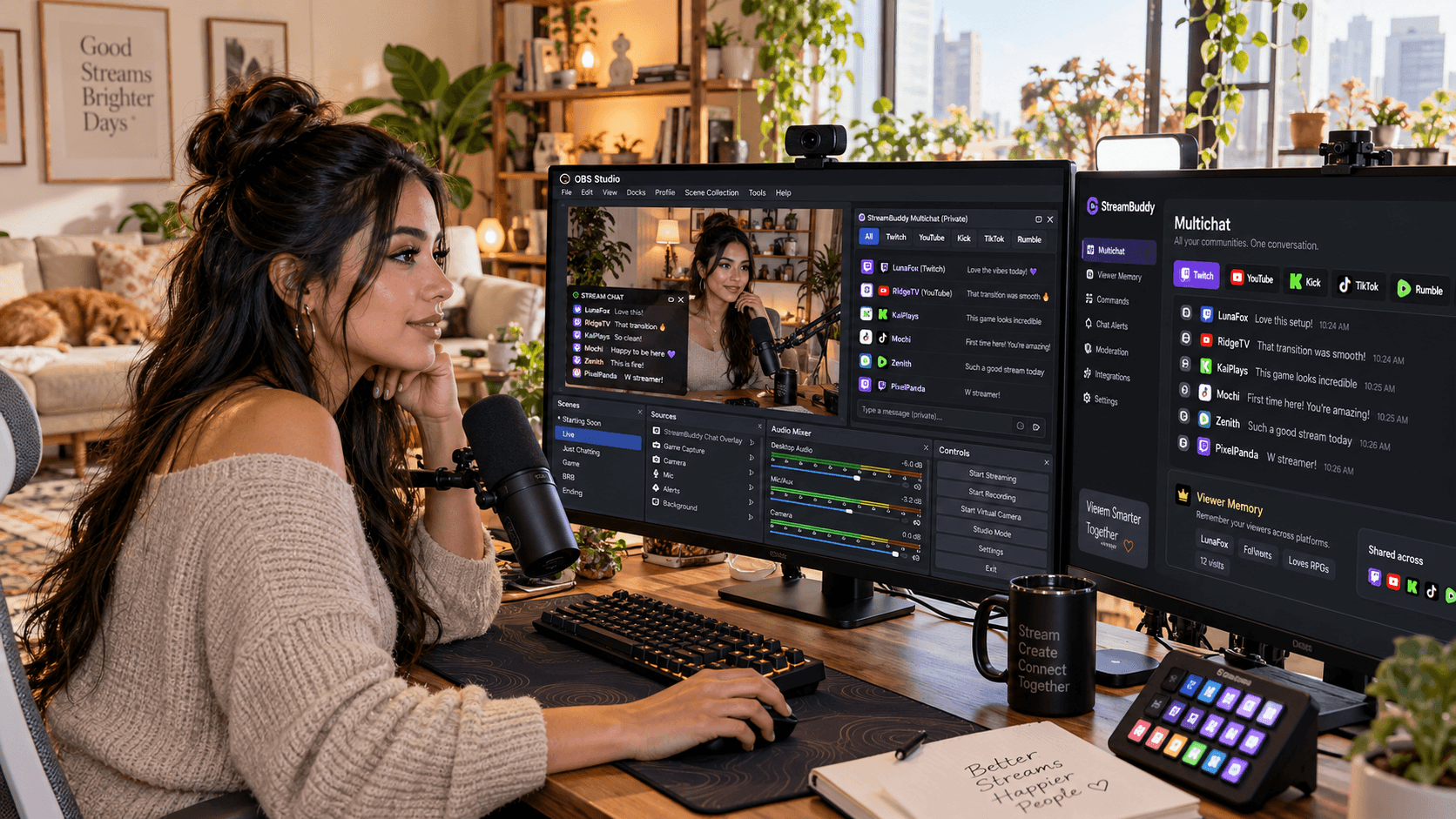
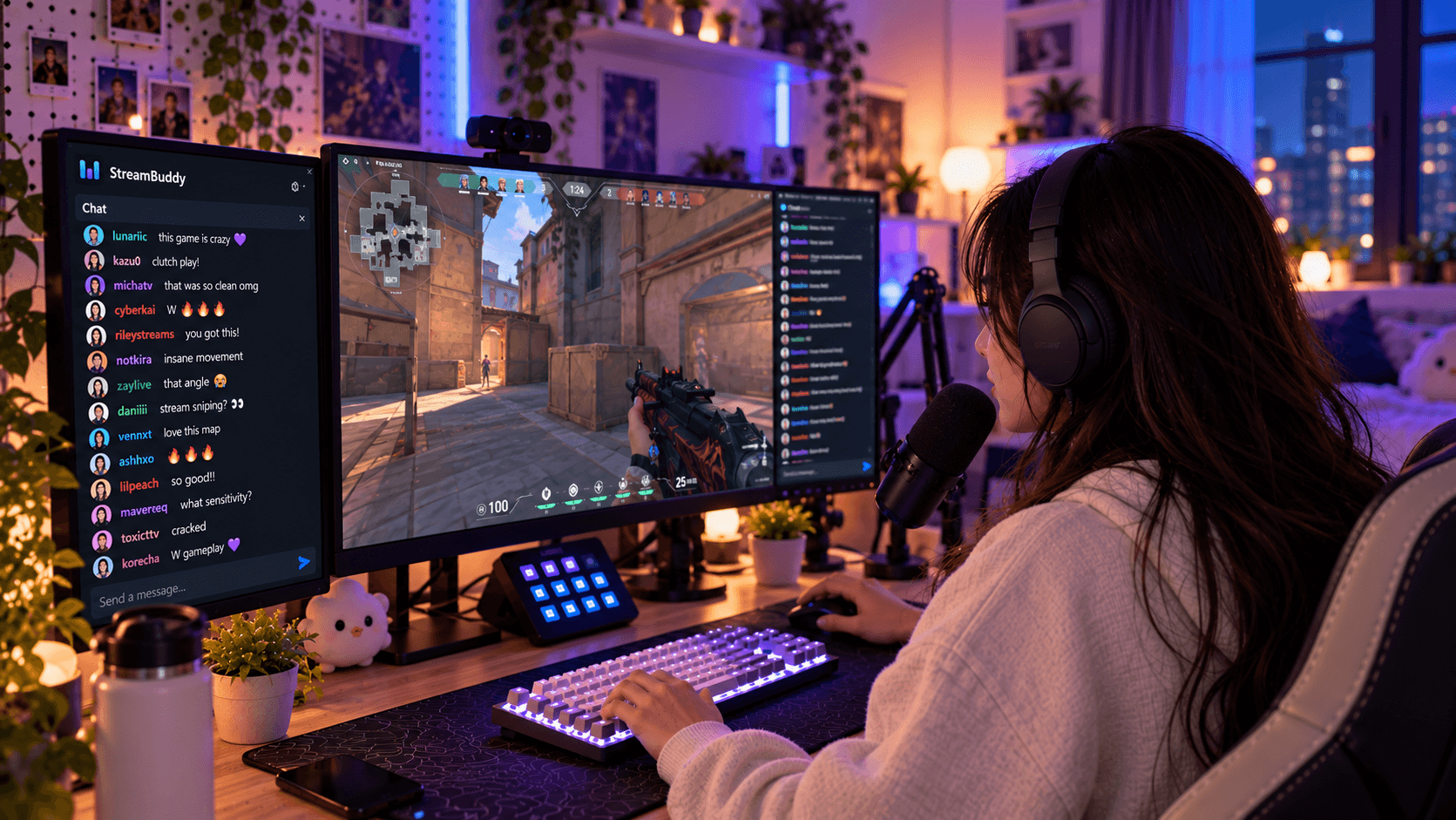
StreamBuddy is built for that side of the setup. Each host connects their own channels, one per platform, to their own StreamBuddy account, goes live, and reads their chats from one multichat-focused workspace. Messages keep platform labels, so a host can tell where each viewer is watching without juggling several windows.
Know the limit before you plan around it. A StreamBuddy account cannot connect a co-host's channel, so one host's workspace does not show another host's chat. Sharing chat between StreamBuddy accounts is planned.
The exception is Twitch Shared Chat. When your Twitch collab uses it, your partners' viewers' messages arrive in your own Twitch chat, so they already show in your StreamBuddy feed. StreamBuddy shows them like the rest of your Twitch chat, without a label for the channel they came from.
That private workspace is also where viewer context belongs:
- Returning-viewer recognition.
- Viewer profiles.
- Private notes.
- Tags.
- Chat history.
- Stream activity context where available.
If you are planning a collab, start with the co-stream chat page and the main multichat page to understand the multichat workflow.
Decide what appears on stream
Your private workspace and your public overlay should not be the same surface.
The private StreamBuddy workspace is for the host who owns the account. It can include chat, viewer memory, notes, tags, moderation context, and activity details.
The public OBS overlay is for viewers. It should show only stream-safe chat output: messages, usernames, platform badges, emotes where available, and display-safe styling. An overlay shows chat from the channels of the account that made it, filtered to the platforms that host chooses.
For a co-stream, decide these overlay rules before the show:
- Whose overlay goes on the main broadcast?
- Which platforms should appear in the public chat overlay?
- Should platform badges be visible?
- Should the overlay be on screen all stream or only during segments?
- Should sensitive moderator or viewer-memory context remain completely off stream?
Simulcasting to Twitch? Twitch's Terms (section 11) bar showing other platforms' chat on your Twitch stream. Use a Twitch-only overlay there, and keep the combined feed in your private dashboard or dock.
Twitch's Terms of Service · Can you multistream on Twitch? · As of
For the OBS side, the OBS multichat guide is the best place to connect the private chat workflow with a viewer-facing overlay.
Assign chat roles before going live
Co-stream chat works better when every person knows what they are watching.
For a small collab, each host can read their own StreamBuddy feed and call out questions from it. With Twitch Shared Chat, one host can read for the group. For a bigger event, assign roles:
- Each host watches their own multichat feed, or one host reads for the group.
- One moderator handles timeouts, bans, and obvious spam in the platform's own tools.
- One host watches donation, support, or activity events.
- One person saves follow-up notes after important viewer interactions.
Use platform labels to avoid confusion. If a YouTube viewer asks a question and the Twitch audience cannot see it natively, repeat enough context aloud so everyone follows the answer.
Remember viewers after the collab
The post-stream follow-up is where many co-streams waste momentum.
A viewer might discover you through a guest, ask a great question, join from another platform, or show up because of a raid during the event. If that moment disappears when the stream ends, you have no easy way to welcome them back next time.
StreamBuddy helps because the multichat feed connects to viewer memory. After the collab, review:
- First-time chatters who came from the event.
- Returning viewers who showed up for it.
- Support events or activity spikes.
- Viewers you want to thank, tag, or remember.
- Questions you promised to answer later.
The stream activity feed page is a good fit when you want activity context beside chat instead of scattered across alerts and platform dashboards.
Moderator considerations
Moderators need the same clarity as hosts.
Before the stream, decide:
- Which channels each host has connected.
- Which chats are being actively moderated.
- Who has permission to ban or time out users where supported.
- How platform-specific issues should be escalated.
- Which platform tools the mods will work in. StreamBuddy has no separate moderator login; a workspace belongs to its host's account.
If the co-stream is a tournament, charity event, or sponsored show, write a quick moderation note before going live. Include platform links, escalation contacts, banned topics if any, and what should be saved for post-stream review.
Quick setup checklist
Use this before a co-stream:
- Each host connects their own channels in their own StreamBuddy account.
- Each host confirms their active platforms appear in their private multichat feed.
- Turn on platform labels or badges.
- Decide which chat output belongs on stream.
- Add the display-only overlay URL to OBS if you want public chat visible.
- Keep notes, tags, viewer profiles, and moderation context private.
- Assign who watches chat, activity, and moderation.
- Send test messages before the stream starts.
The goal is not to build a technical routing project. It is to give each host one reliable place to read chat and one safe place to show chat.
FAQ
Can StreamBuddy help during a co-stream?
Yes. StreamBuddy is useful for co-streams, podcasts, charity events, tournaments, watch parties, and collabs because each host gets one private multichat workspace for their own channels.
Can StreamBuddy combine chat from multiple hosts?
Not across accounts. Each host connects their own channels; on Twitch, Shared Chat messages from partners appear in your feed. Sharing chat between StreamBuddy accounts is planned.
Can I show co-stream chat in OBS?
Yes. StreamBuddy can be used with OBS-friendly dock and browser-source workflows. Use the public overlay URL, filtered to the platforms you choose, for viewers and keep the private workspace off stream.
Can hosts still use their current streaming setup?
Yes. StreamBuddy is a multichat and viewer-memory tool. It works alongside your encoder, guest call, alerts, and existing broadcast workflow.
What should we review after the co-stream?
Look for first-time chatters, returning viewers, raid visitors, support events, unanswered questions, and anyone worth tagging or remembering before the next stream.
Prepare chat before the collab starts
The best co-stream chat setup is ready before the first segment begins.
Connect your own channels in StreamBuddy, have each co-host do the same in their account, choose what appears in OBS, and use viewer memory after the show so the audience you met during the collab is easier to welcome back.
Keep your side of the co-stream in one workspace
Use StreamBuddy beside your current stream setup to read multichat, show a safe OBS overlay, and remember the viewers who joined through the collab.
Try StreamBuddy- co-stream
- multichat
- obs
- collab streams
- viewer memory