Desktop multichat apps vs web multichat
Compare desktop multichat apps with hosted web multichat dashboards for OBS setup, updates, resource use, account sync, and viewer memory.
5 min read
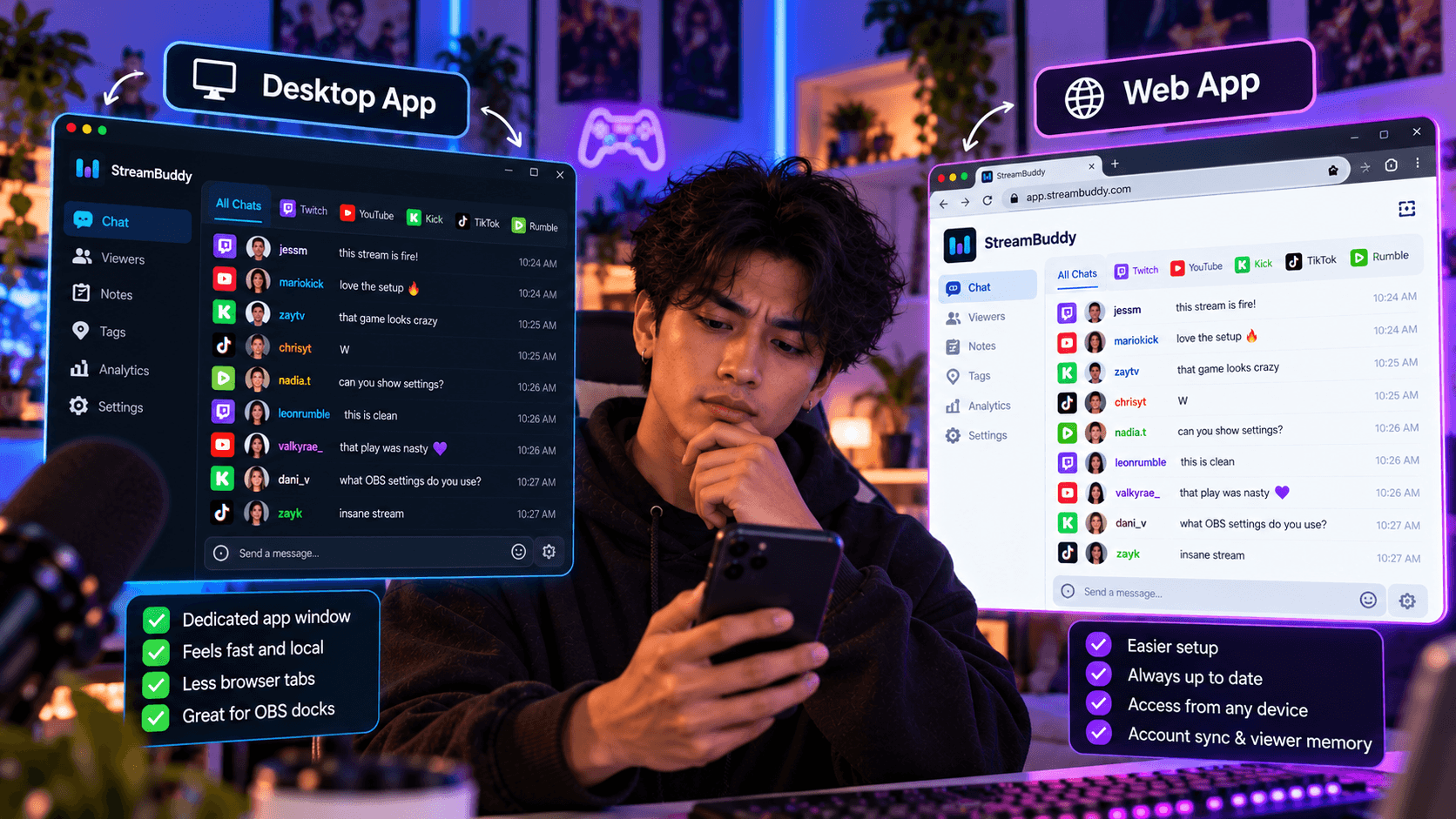
Streamers often ask whether multichat should be a desktop app or a web dashboard. The honest answer is that both can be right.
Desktop apps can feel local, fast, and familiar. Web multichat can be easier to set up, easier to update, and better at keeping account-based viewer memory in sync.
StreamBuddy splits the difference: you can use it from the web, and there is also a downloadable desktop version for streamers who prefer a local app window. Either way, the workflow is meant to stay simple: sign in, connect accounts, go live, and read supported chat in one place.
Why desktop apps appeal
Desktop multichat apps are attractive for good reasons.
They can offer:
- A dedicated app window.
- Local control over where the chat sits.
- A familiar desktop workflow for OBS users.
- Lower dependence on browser tabs.
- Deep local automation in some tools.
- Comfort for streamers who prefer installed software.
If you want everything to live on your machine and you enjoy configuring local tools, a desktop app can feel right.
Why hosted web multichat is easier for many streamers
Hosted web multichat usually wins on setup and maintenance.
Instead of configuring local files, plugins, ports, widgets, or source routes, you sign in, connect supported accounts, and open your workspace. Updates happen on the product side. Your account settings and viewer context can follow you between machines.
That matters if you stream from more than one computer, use a laptop sometimes, have moderators helping, or do not want chat setup to become a technical side project.
StreamBuddy on web or desktop
StreamBuddy is designed around the workflow rather than forcing one surface.
You can:
- Use the web app when you want the fastest sign-in-and-go workflow.
- Use the downloadable desktop version when you prefer a local app window.
- Keep connected accounts and viewer context tied to your StreamBuddy account.
- Use OBS-friendly docks, popouts, and display-only browser-source overlays.
The desktop multichat apps page covers this product positioning directly.
Resource use and reliability
Desktop and web tools fail in different ways.
Desktop apps can be affected by:
- Local CPU and memory usage.
- OS updates.
- App update issues.
- Local firewall or browser-source quirks.
- Machine-specific setup drift.
Web tools can be affected by:
- Browser sessions.
- Network reliability.
- Hosted service availability.
- Account permission refreshes.
No approach is magic. The question is which failure mode is easier for you to manage while live.
StreamBuddy's goal is to reduce how much of that work falls on the streamer: connect accounts, use the workspace, and let the product handle the multichat workflow.
Updates and platform maintenance
Streaming platforms change. Chat behavior, authentication, event data, and browser policies can all move under a tool.
With a local or free tool, you may need to wait for an update, apply it yourself, or troubleshoot the change. With a hosted product, the maintenance burden should sit more with the product team.
That is one reason paid hosted tools can be worth it. You are paying for the workflow to stay alive as platforms change, not just for a chat column.
The pricing page explains how StreamBuddy frames that paid value.
OBS setup differences
Desktop and web multichat both need to meet OBS eventually.
There are two common OBS surfaces:
| Surface | Use it for | Keep in mind |
|---|---|---|
| Private dock or app window | Reading chat, opening viewer context, using filters | Do not capture private controls on stream |
| Browser Source overlay | Showing selected chat to viewers | Use a display-only overlay URL |
StreamBuddy supports OBS-friendly workflows while keeping private streamer context separate from public chat display. Your notes, tags, viewer profiles, and controls belong in the private workspace. The overlay should show only what viewers should see.
For the broader OBS setup, read the OBS multichat page.
Viewer memory and account sync
This is where web-hosted and account-based tools have a real advantage.
Viewer memory is not just a window position. It is a history:
- Notes you saved.
- Tags you created.
- Viewers who came back.
- Platform context around messages.
- Post-stream review.
- Regulars worth remembering.
If that data lives only in a local setup, you have to think about backup, sync, machine changes, and who else can access it. If it lives in an account-based workflow, the context can follow you more naturally.
The StreamBuddy multichat page explains how chat and viewer context fit together.
When a desktop-first tool is the right fit
Choose a desktop-first multichat app when:
- You prefer installed tools.
- You want maximum local control.
- You stream from one machine.
- You like configuring local integrations.
- You need machine-level automation.
- You do not need account-based viewer memory.
That setup can be strong for technical streamers who know exactly how they want chat to behave.
When web multichat is the right fit
Choose web or hosted multichat when:
- You want the easiest setup.
- You stream from more than one device.
- You want account-based persistence.
- You want viewer notes, tags, and profiles.
- You want private workspace and public overlay separation.
- You want platform maintenance handled by the product.
This is where StreamBuddy is designed to fit, with the desktop option available when you prefer a local app window.
Frequently asked questions
Is desktop multichat better than web multichat?
Not always. Desktop apps can be better for local control. Web multichat can be better for setup, updates, account sync, and viewer memory.
Does StreamBuddy have a desktop app?
Yes. StreamBuddy has a downloadable desktop version, and you can also use it from the web.
Can a web multichat tool work in OBS?
Yes. Web tools can provide OBS docks, popouts, or Browser Source overlay URLs. The key is keeping private streamer views separate from public overlays.
Does StreamBuddy store viewer notes and tags?
Yes. StreamBuddy is built around viewer profiles, private notes, tags, returning-viewer context, and post-stream review.
Does StreamBuddy restream my video?
No. StreamBuddy works alongside your current streaming system. It handles chat, multichat, viewer context, and OBS-friendly chat surfaces.
Choose the workflow that matches your stream
The best multichat setup is the one you can trust while live.
If local control matters most, a desktop-first app may fit. If simple setup, account sync, platform maintenance, and viewer memory matter more, use StreamBuddy in the web app or downloadable desktop version.
Use StreamBuddy on web or desktop
Connect your accounts, read supported chats in one workspace, and keep viewer notes, tags, and OBS-friendly chat surfaces in the same workflow.
Set up StreamBuddy- desktop multichat
- web multichat
- obs
- chat overlay
- comparison